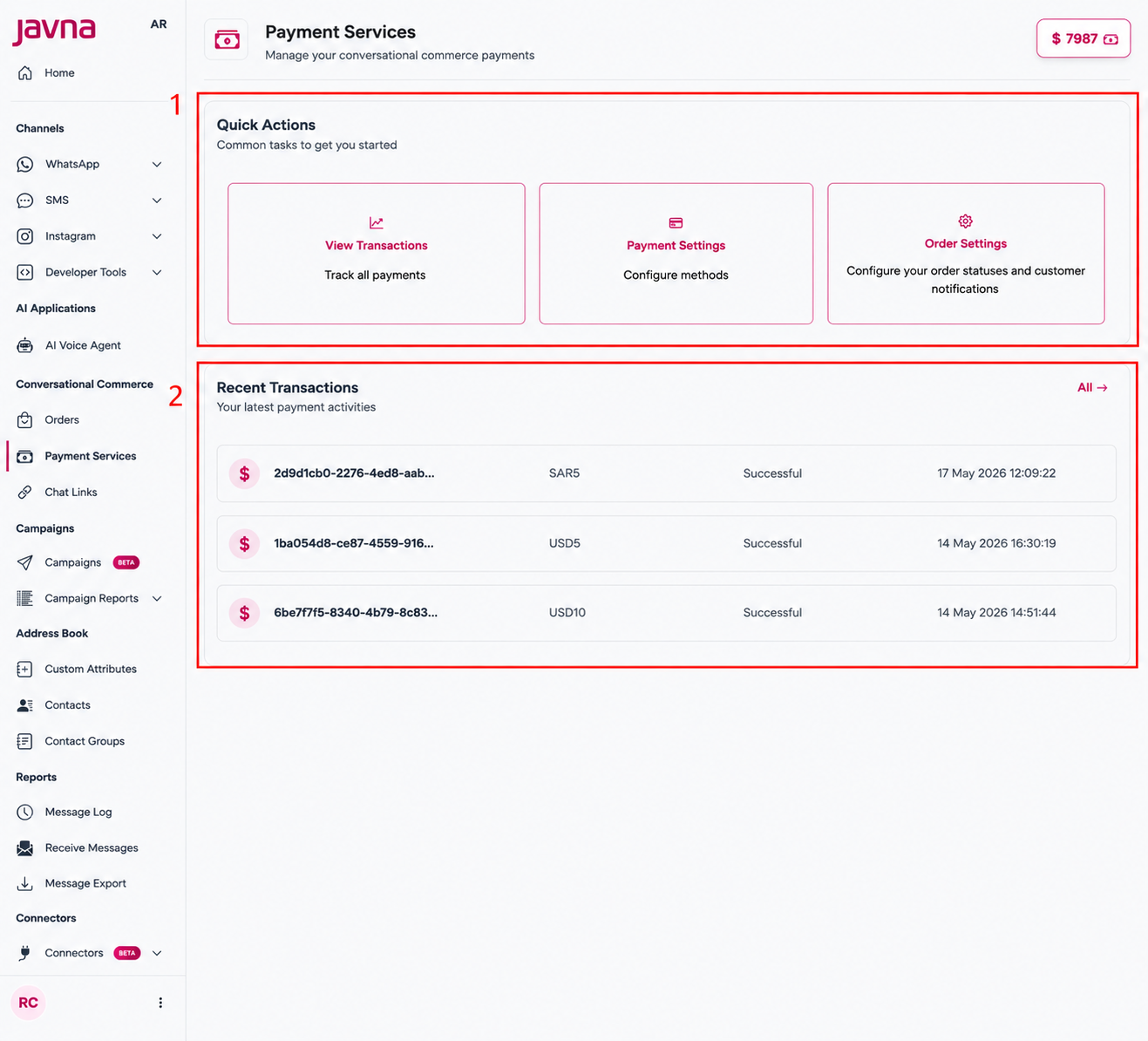
Upon redirecting to the Payment Services page, you will find several essential components:
The "payment service" page.
1. Quick Actions Card
The Quick Actions section provides easy access to payment and order management tasks.
a. View Transactions
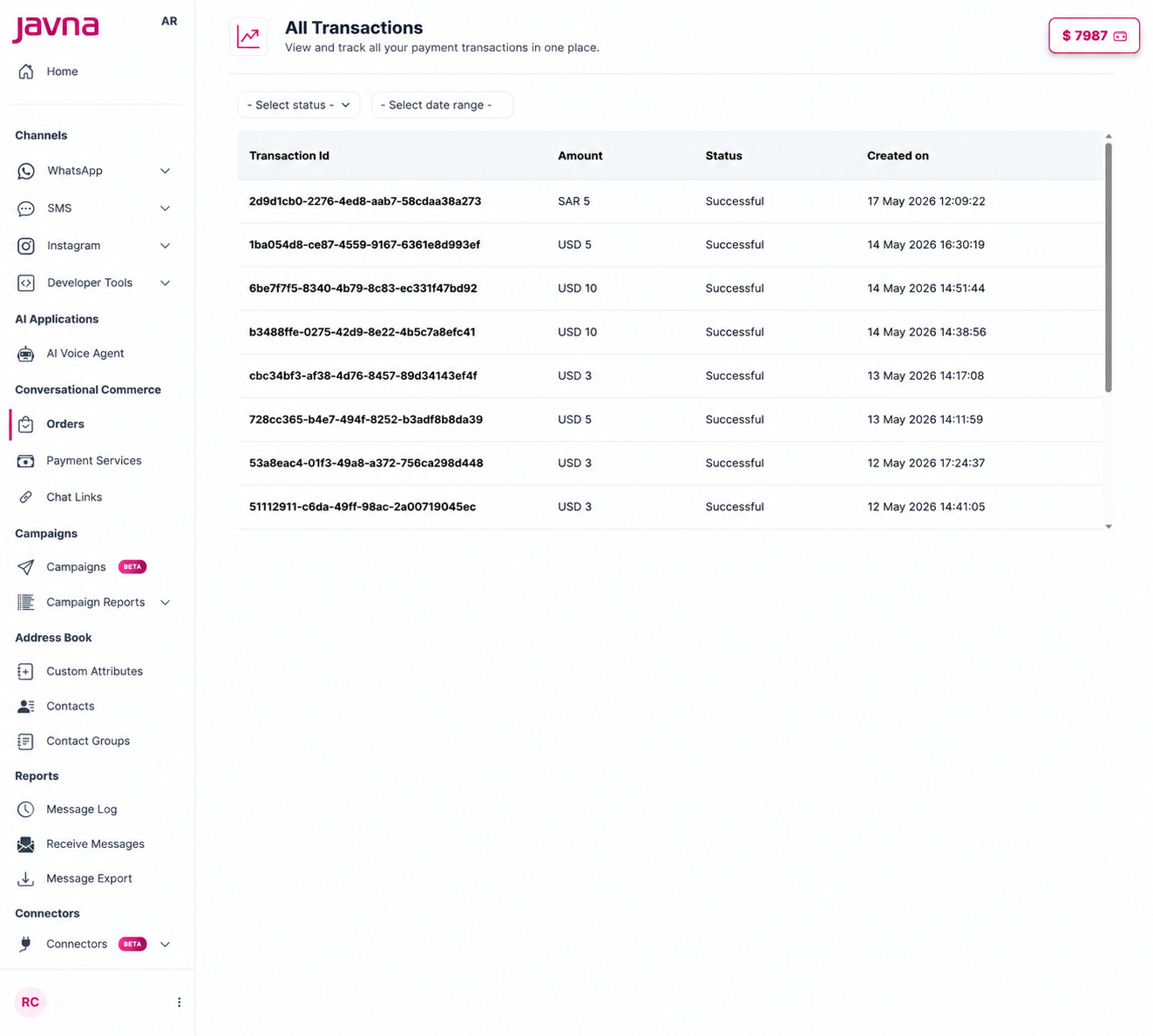
The View Transactions section allows you to access the All Transactions page, where you can view and track all your payment transactions in one place.
The page includes:
Transaction details such as Transaction ID, Amount, Status, and Created On
Filtering options including Status Filter and Date Range Filter
For more details, refer to this section in this guide.
b. Payment Settings
The Payment Settings section allows you to configure your payment methods and manage payment providers.
When you click on this section, you will be redirected to the Payment Settings page, where you can:
Configure payment providers
Manage payment methods
Add a new payment provider using the Add New Connection button
For more details, refer to this section in this guide.
c. Order Settings Card
Clicking this card opens the Order Management Settings page, where you can manage order statuses, customer notifications, and invoice template settings.
For more details, refer to this section in this guide.
2. Recent Transactions
The Recent Transactions card displays your latest payment activities, ordered from most recent to oldest.
For each transaction, you can view:
Field
Description
Transaction ID
A unique identifier assigned to each transaction for tracking and reference
Amount
The total payment value associated with the transaction
Status
The current state of the transaction. Refer to section 7.1.4 for status details
Transaction Date and Time
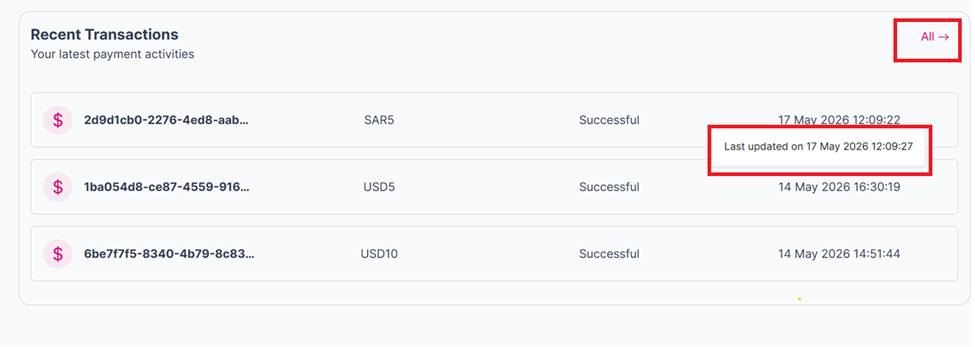
The date and time of the transaction. Hover to see the latest update time
The Tooltip
Clicking the All button on the right redirects you to the All Transactions page.