

Adding a group into the contact groups list
To add a group to the contact group list. follow these steps:
- Click on the "Add group" button, you will be redirected to the "Add Group" page.
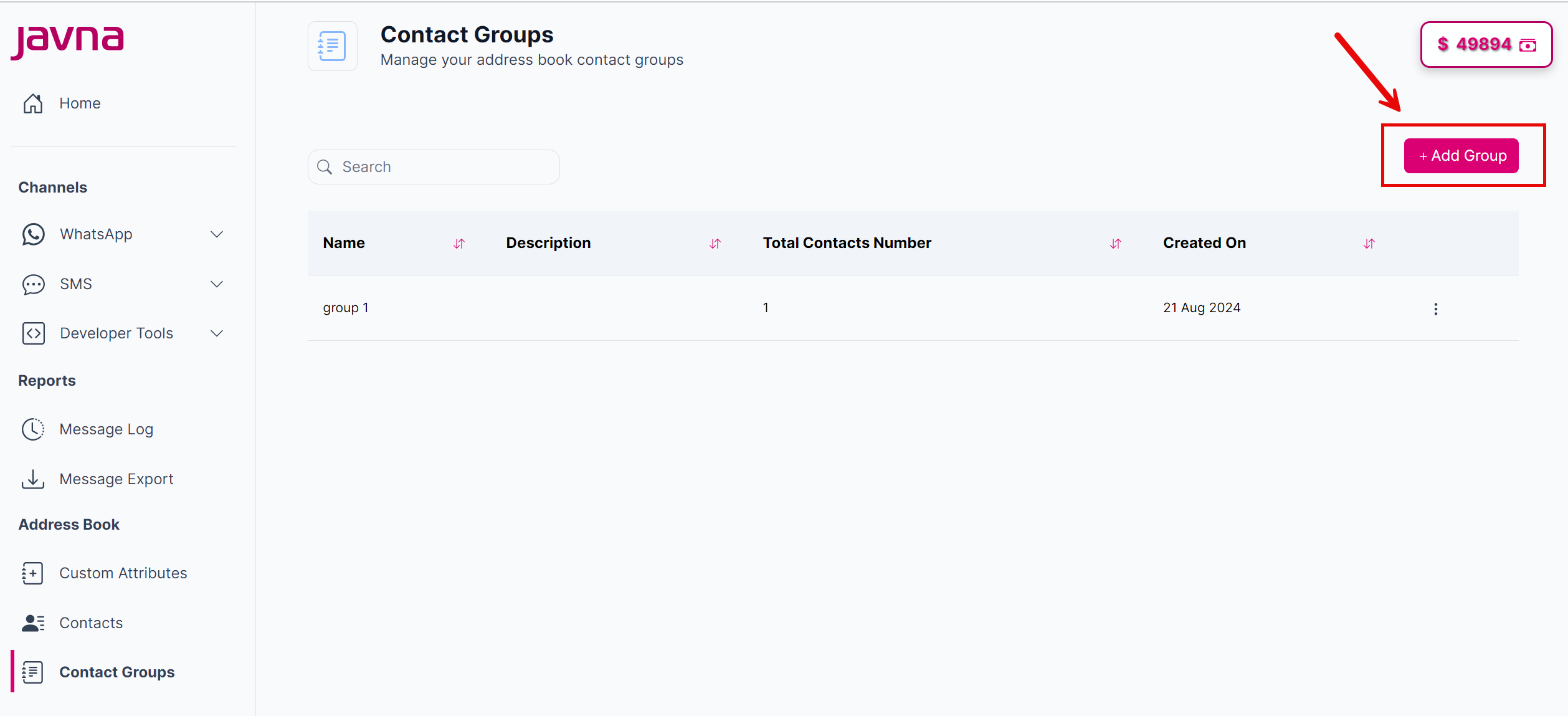
The "Add group" button.
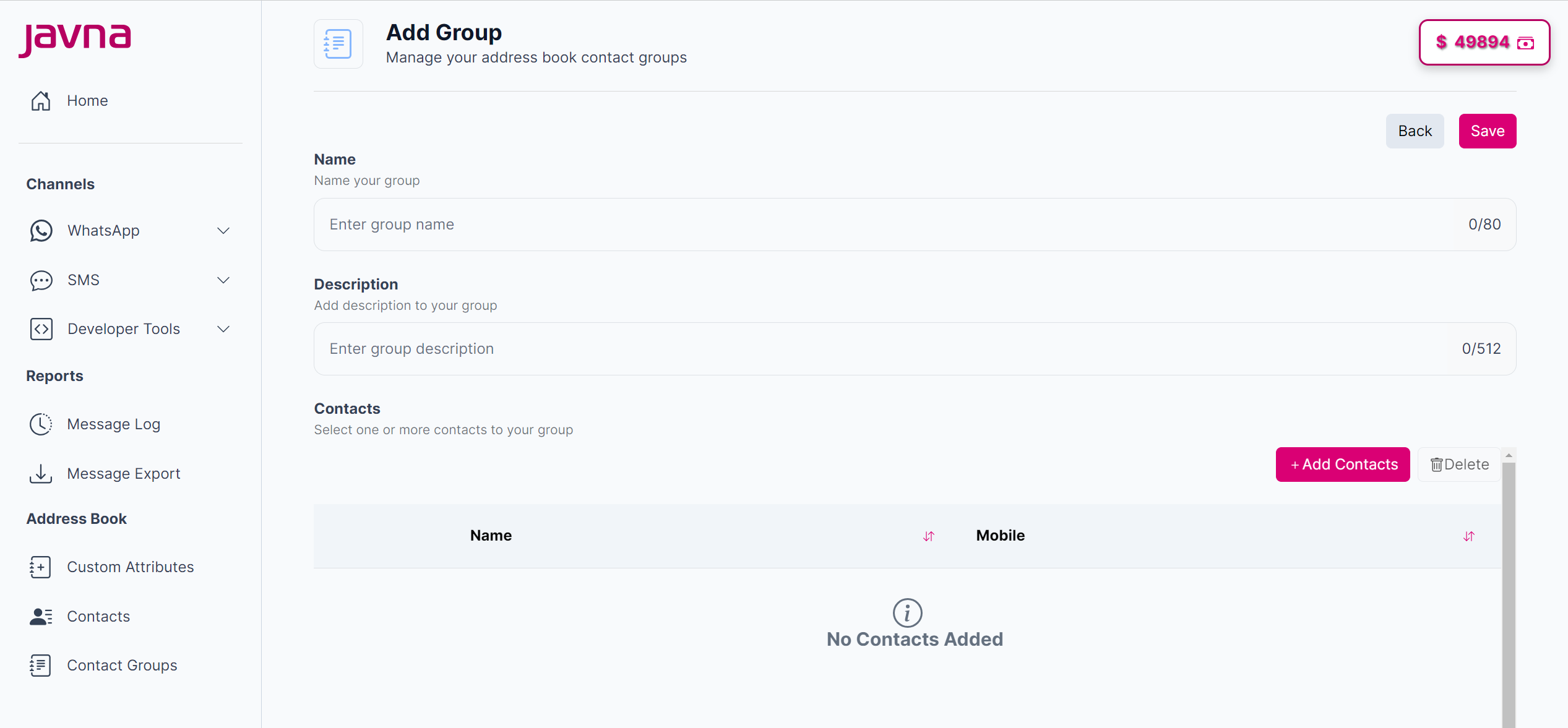
The "Add Group" page.
- Enter your group name, then optionally enter a description of the group
- Select one or more contacts to your group by following these steps:
- Click on the "Add Contacts" button.
- A pop up called "Add Contacts" will appear.
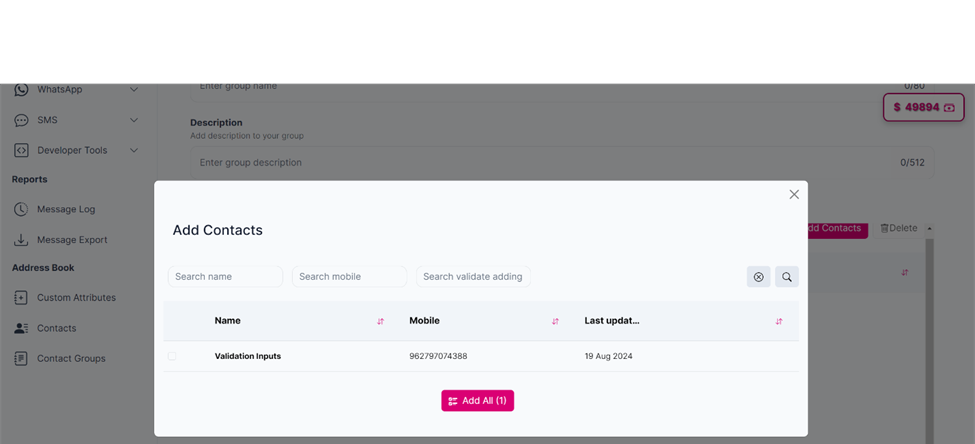
The "Add Contacts" pop up
- Choose the contacts you want to include in the group or select all contacts by clicking the "Add All" button
- After making your selections or changes, click on the " Add Selected" button to confirm and save your updates.
Note: You can search for any contact using three filters: by name, by mobile number, or by any custom attribute
- To remove any selected contacts, click on the "Delete" button.
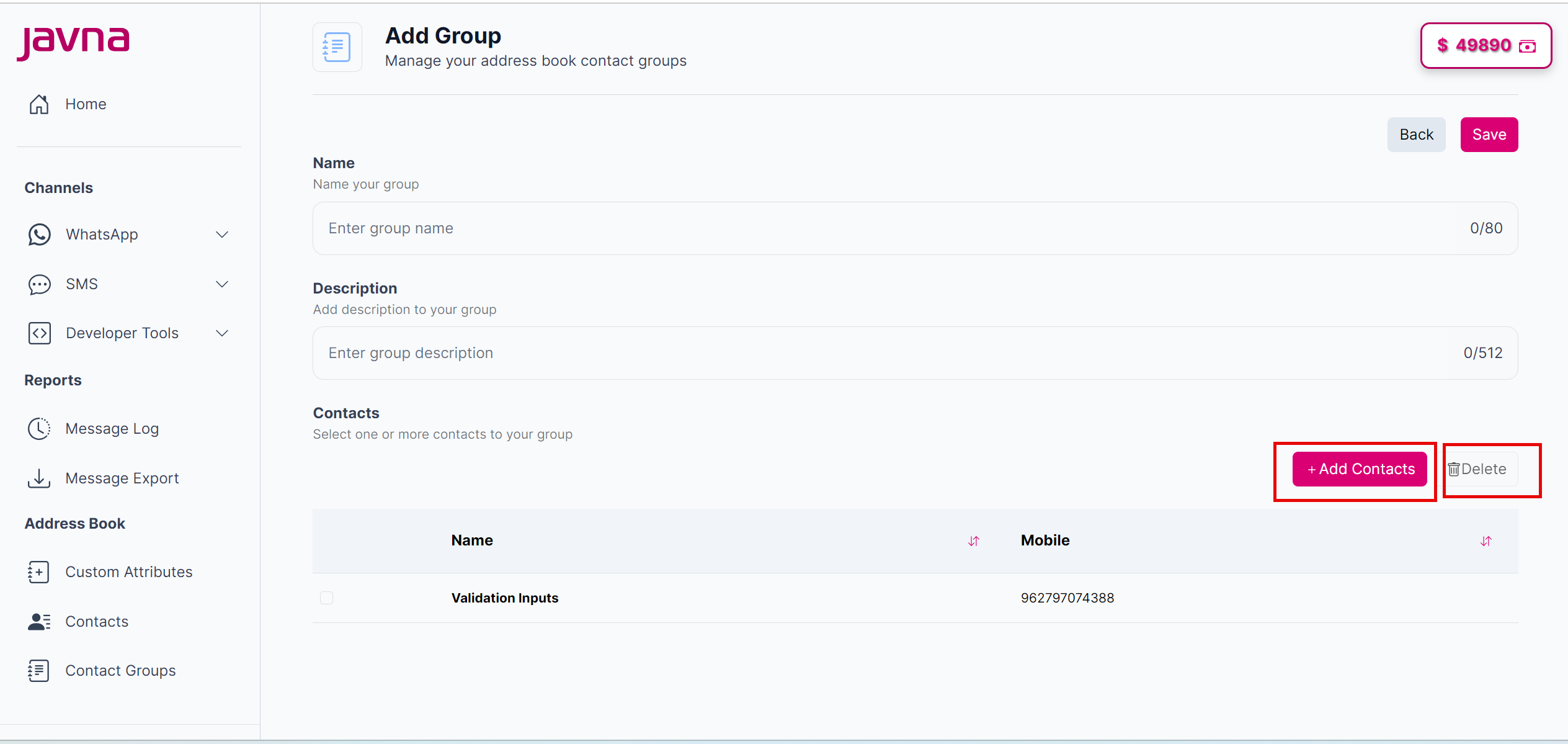
The "Add Contacts" and the "Delete" buttons.
You can search for any contact using three filters: by name, by mobile number, or by validated promo code.
- Click the "Save" button.
The group you added will now appear in the group list.
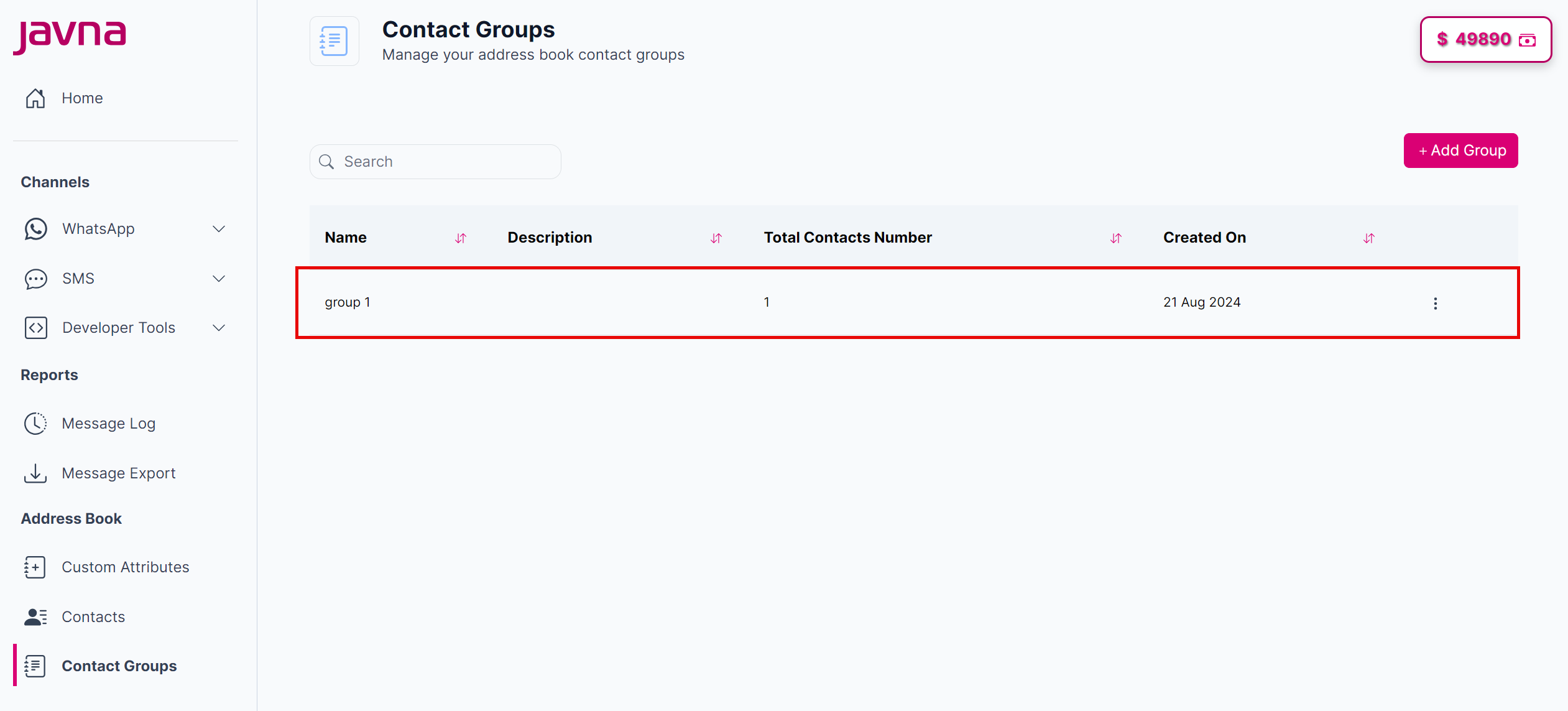
The group that you have added is now appearing in the list.
Note: Each group name must be unique. You cannot create two groups with the same name
Updated 7 months ago
Did this page help you?