
Adding a Chat Link
To add a chat link, follow these steps:
-
Navigate to the Chat Links page. Refer to navigating to the chat links page section.
-
Click the Add Chat Link button.
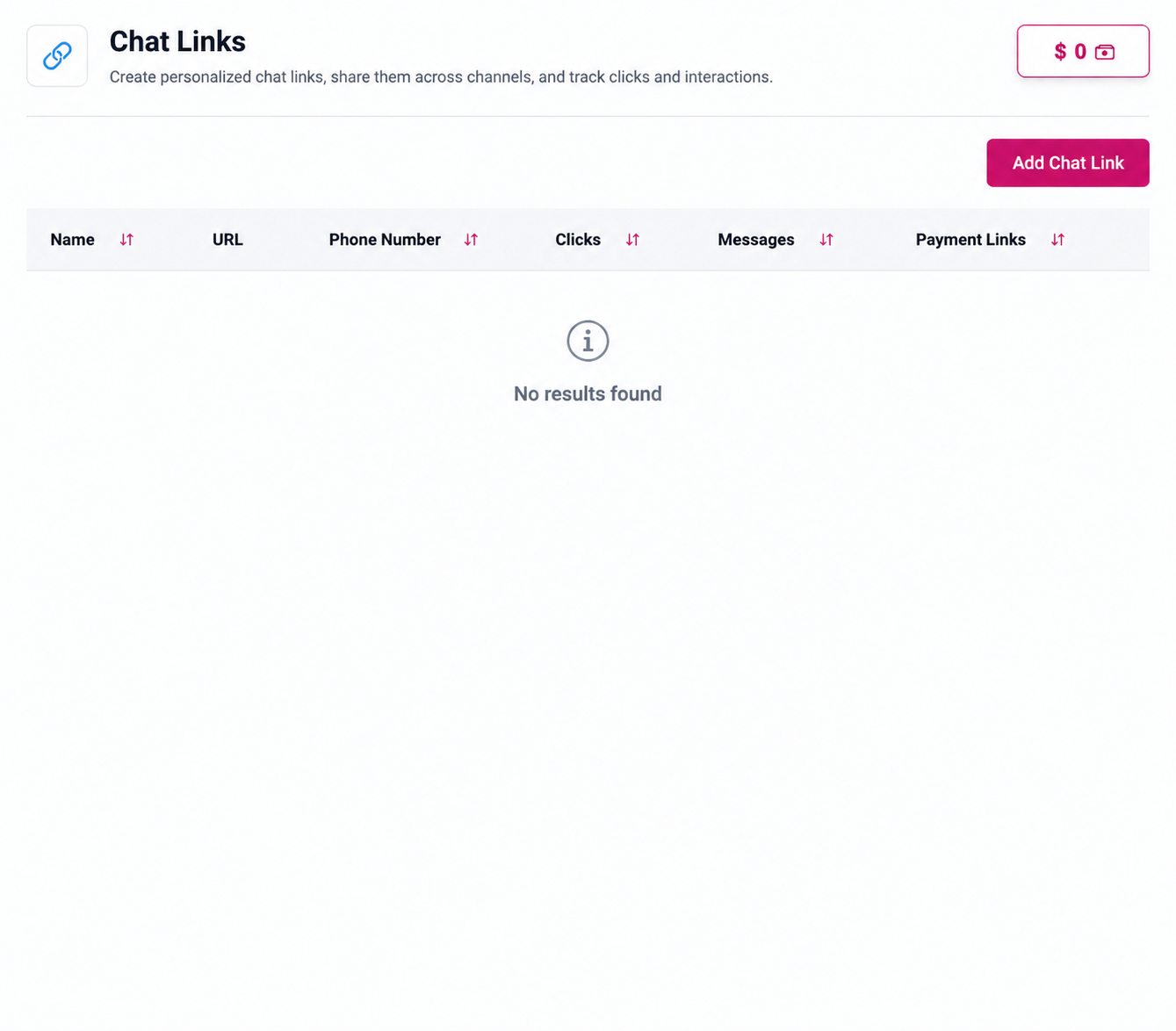
The "Add chat link" button
- The Add a Chat Link dialog box will appear.
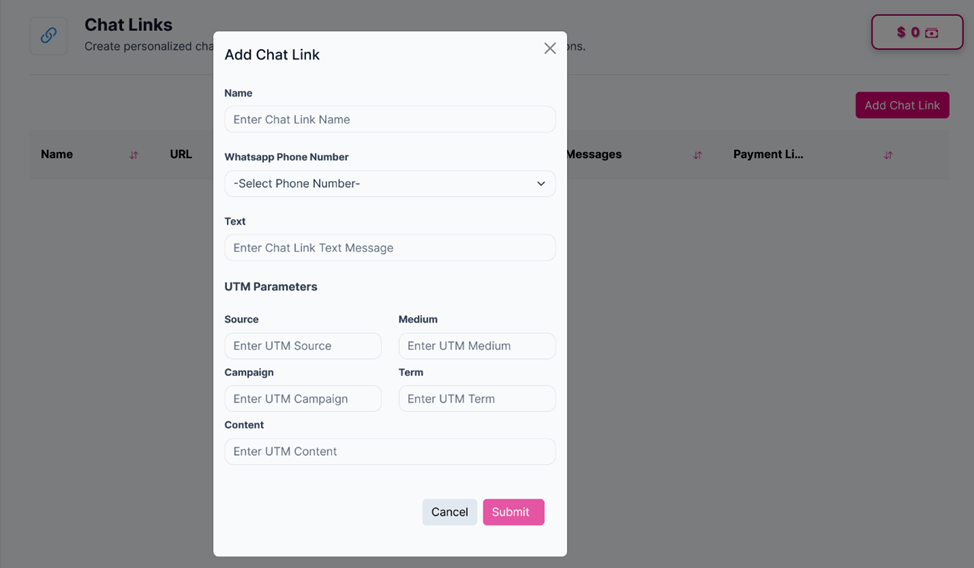
The "add chat link" dialog
-
Fill in the following required information:
a. Name (Mandatory) Enter the chat link name in the Name field.
b. WhatsApp Number (Mandatory) Select the WhatsApp number that customers will use to contact you through the chat link.
c. Text (Mandatory) Enter the predefined message that will automatically appear when customers open the chat link in WhatsApp.
d. UTM Parameters Enter the following tracking details:
Parameter Description Source Identifies where the traffic comes from, such as Instagram, TikTok, or Facebook Medium Specifies the marketing channel or method used, such as social, story, or bio Campaign Indicates the name of the marketing campaign associated with the link, such as ramadan_sale or new_launch Term Used to track specific keywords or ads related to the campaign, primarily for paid advertising Content Helps distinguish between different links or content variations within the same campaign, such as blue_banner or red_banner Note: UTM parameters help you track where customer conversations and interactions originate from, allowing you to measure the performance of your marketing efforts.
-
Click Submit. A confirmation message will appear indicating the chat link was successfully added, and the new chat link will be displayed in the table.
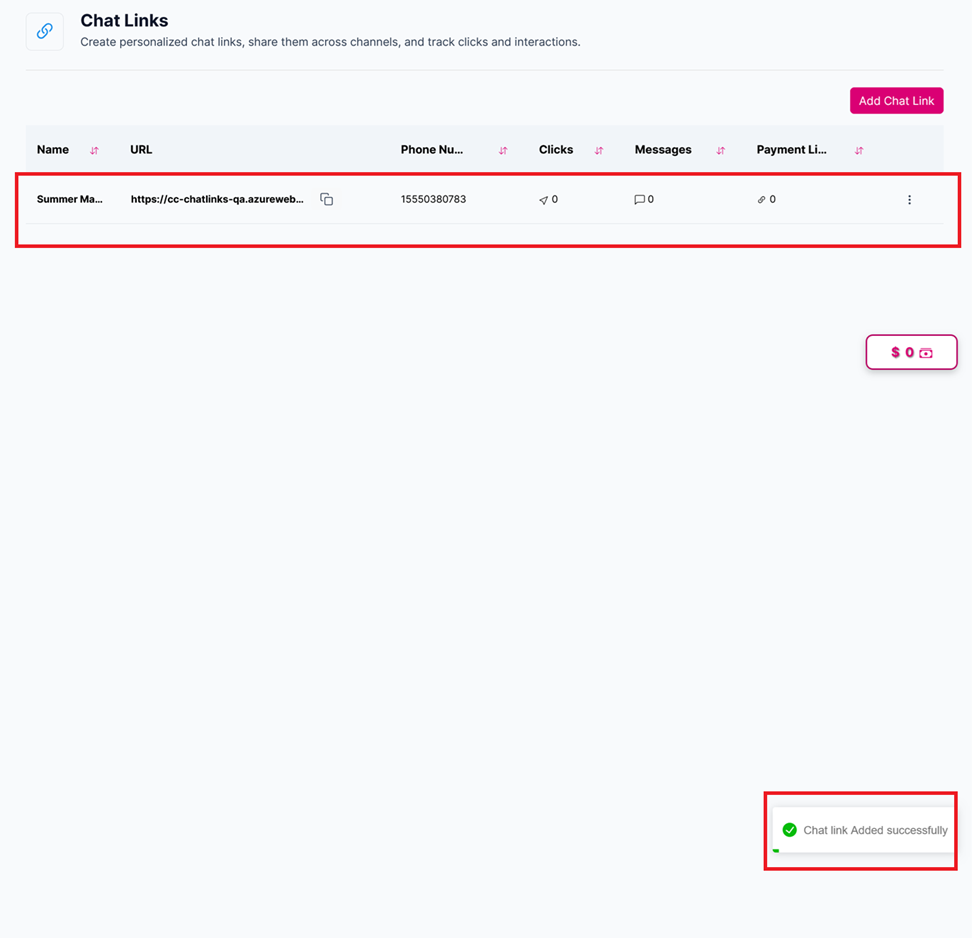
The confirmation message and the chat link table
Updated 12 days ago