

Uploading Contacts
To upload Contacts, follow these steps:
- Navigate to the "Contacts" page. Refer to this section "navigating to the contacts page".
- Click on the "Upload Contacts" button, you will be redirected to the "Upload Address Book Contacts" page.
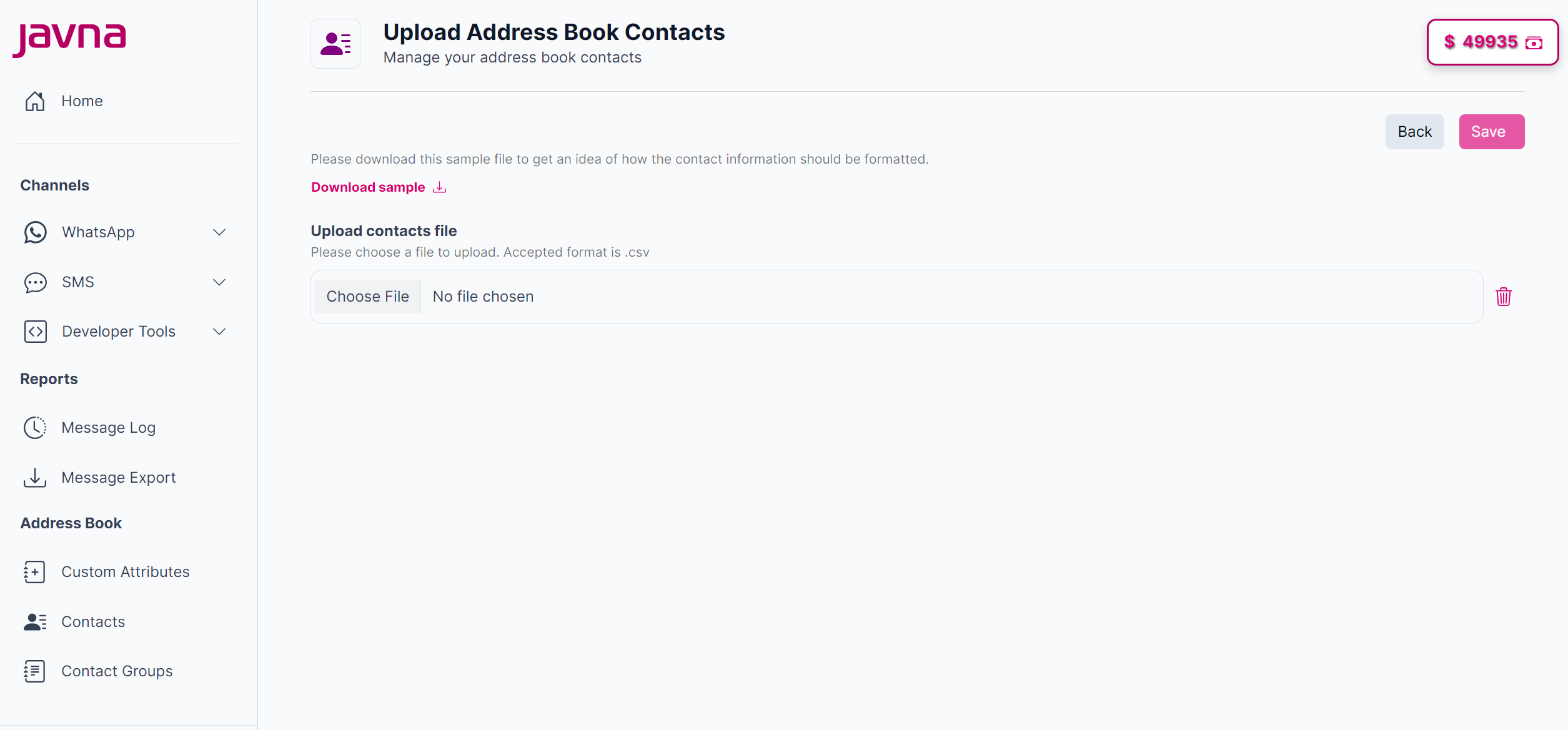
Fig 156: The "Upload Address Book Contacts" page.](https://files.readme.io/567685c-image.png)
The "Upload contacts" button.

The "Upload Address Book Contacts" page.
- Click on the "Download Sample" button to download a sample file. This file will give you an idea of how the contact information should be formatted.
Use the sample file as a reference to format your contact information correctly, then save your file in the .csv format.
- Click on the "Choose file" button then Select your .csv file containing the contact information.
- After selecting and uploading your .csv file, the system will prompt you to map the headers.
- You will see a list of headers from your contact file e.g., 'First Name,' 'Last Name,' 'Mobile Number'). Next to each file header, you’ll need to match it with the corresponding attribute in the system to ensure accurate mapping.
- If you want to add the imported contacts to a specific group, switch the "Add to Group" button on. Here you have two options:
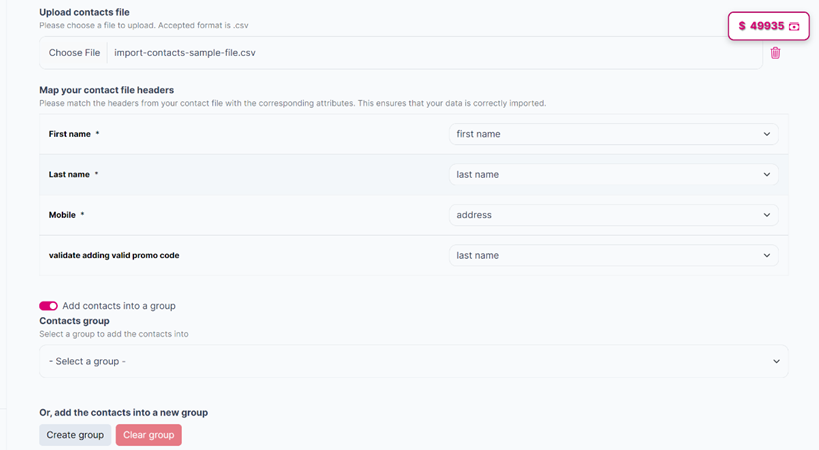
Adding Contacts into a group
- Select an Existing Group: Choose an existing group from the list.
- Create a New Group: Click on the "Create group" button. A pop-up will appear where you can enter a group name and description. Once you’ve filled in the details, save the new group by clicking on the “ok” button, and the contacts will be added to it.
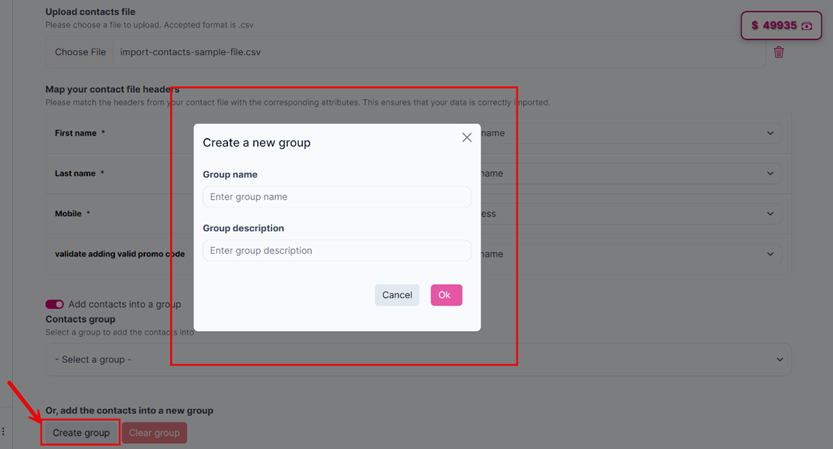
The "Create new group" pop up when clicking on the "Create group" button
- Click on the "Save" button, A “Contact Upload Summary” pop-up will appear showing the number of accepted and rejected contacts uploaded. After that, the accepted contacts will be added to the list.
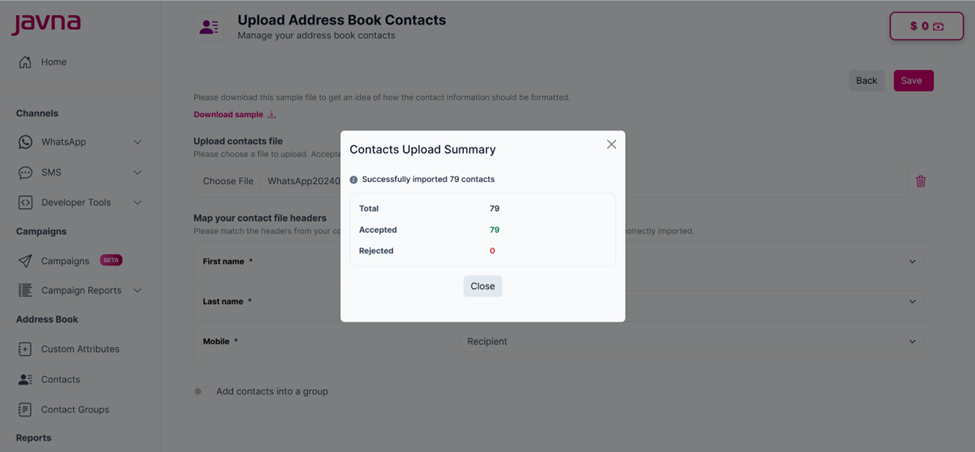
The "Contacts Upload Summary" pop up.
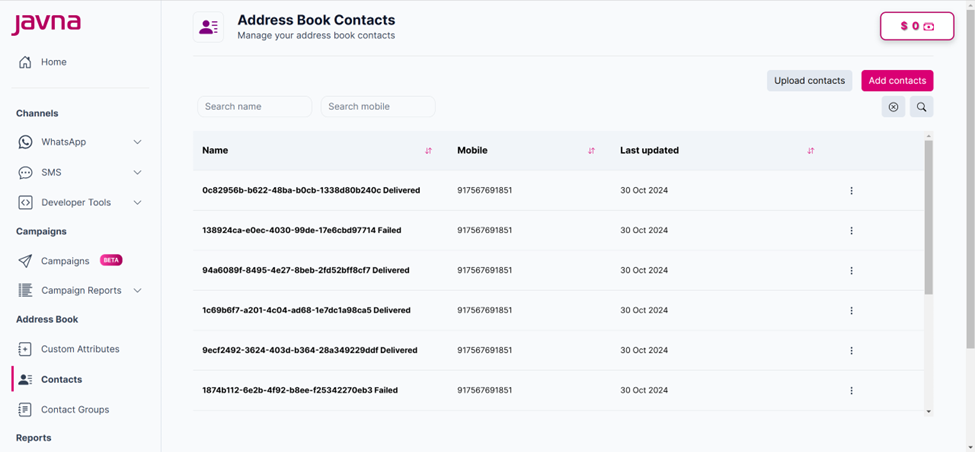
The contacts are added to the list.
Note: If invalid contacts are uploaded, a file will be generated containing these entries. You can download this file to review the rejection reasons for each contact.
Note: Each CSV file can contain up to 10,000 contacts. Files with more than 10,000 entries (excluding the header row) will cause an error.
Updated 7 months ago
Did this page help you?