
The component of the “Orders” page
The Orders page allows you to view, manage, and track customer orders from one place. The main components of the page are described below:
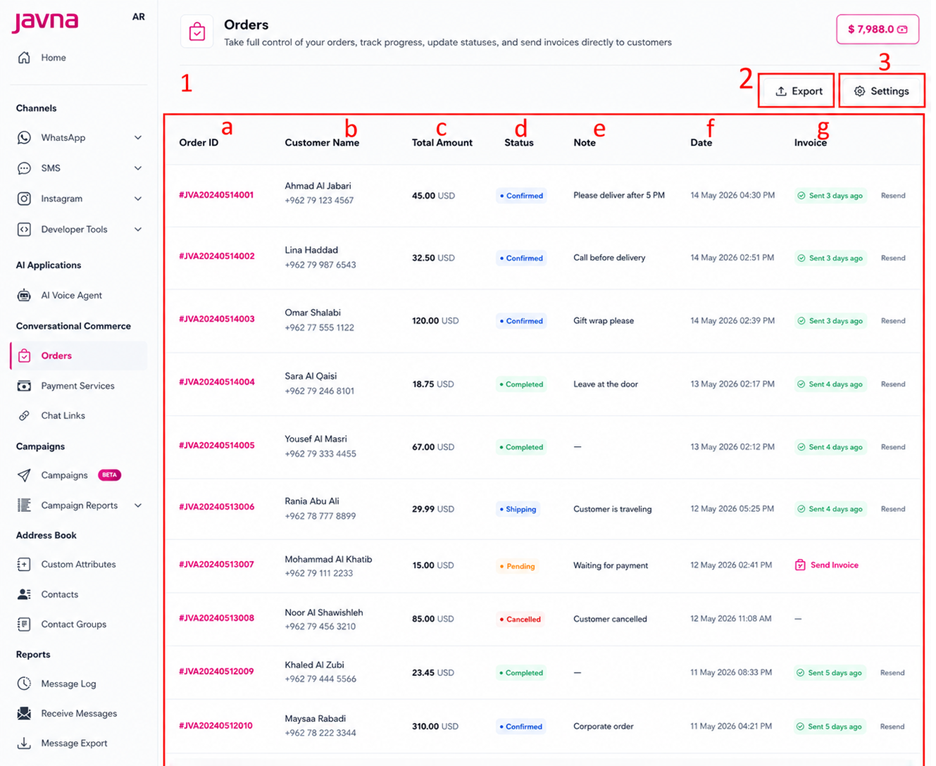
The component of the "Orders" page.
1.Orders Table
The Orders Table displays a list of all created orders, where each row represents a single order. By default, the newest orders appear first. This table includes the following details:
a. Order ID: Displays the unique alphanumeric order number automatically generated when a new order is created. This number is used to identify and track the order across the platform and is unique to your account.
b. Customer Name : Shows the customer’s name and contact number.
c. Total Amount: Displays the total order amount and currency.
d. Status: Indicates the current order status such as:
-
Confirmed: The order has been successfully created and confirmed.
-
Completed: The order has been fulfilled successfully.
-
Cancelled: The order has been cancelled and will not be processed further.
If any custom statuses are defined, they will appear in the list.
e. Note: Shows any notes added to the order.
f. Date: Displays the order creation date and time.
g. Invoice: Allows you to send or resend invoices directly from the order list. If an invoice has already been sent, the invoice status and the last sent time (e.g., Sent 2 hours ago) are displayed for quick reference. Invoices are delivered to customers through WhatsApp using the configured invoice template and notification sender
2. Export Button:
Allows you to download a CSV summary of all available orders, including key order details such as customer information, order status, totals, and notes.
3. Settings Button:
Opens the Order Management Settings page, where you can configure order statuses, customer notification settings, and invoice template settings
Updated 12 days ago