

Registration
Registering for an account is a straightforward process that takes just a few moments of your time. Below, we've outlined the initial steps you need to follow to start your registration:
- Open your web browser and go to the Javna CPaaS website. On the main page, you will see two sections: "Log in with your account" on the left and "Create a new account" on the right.
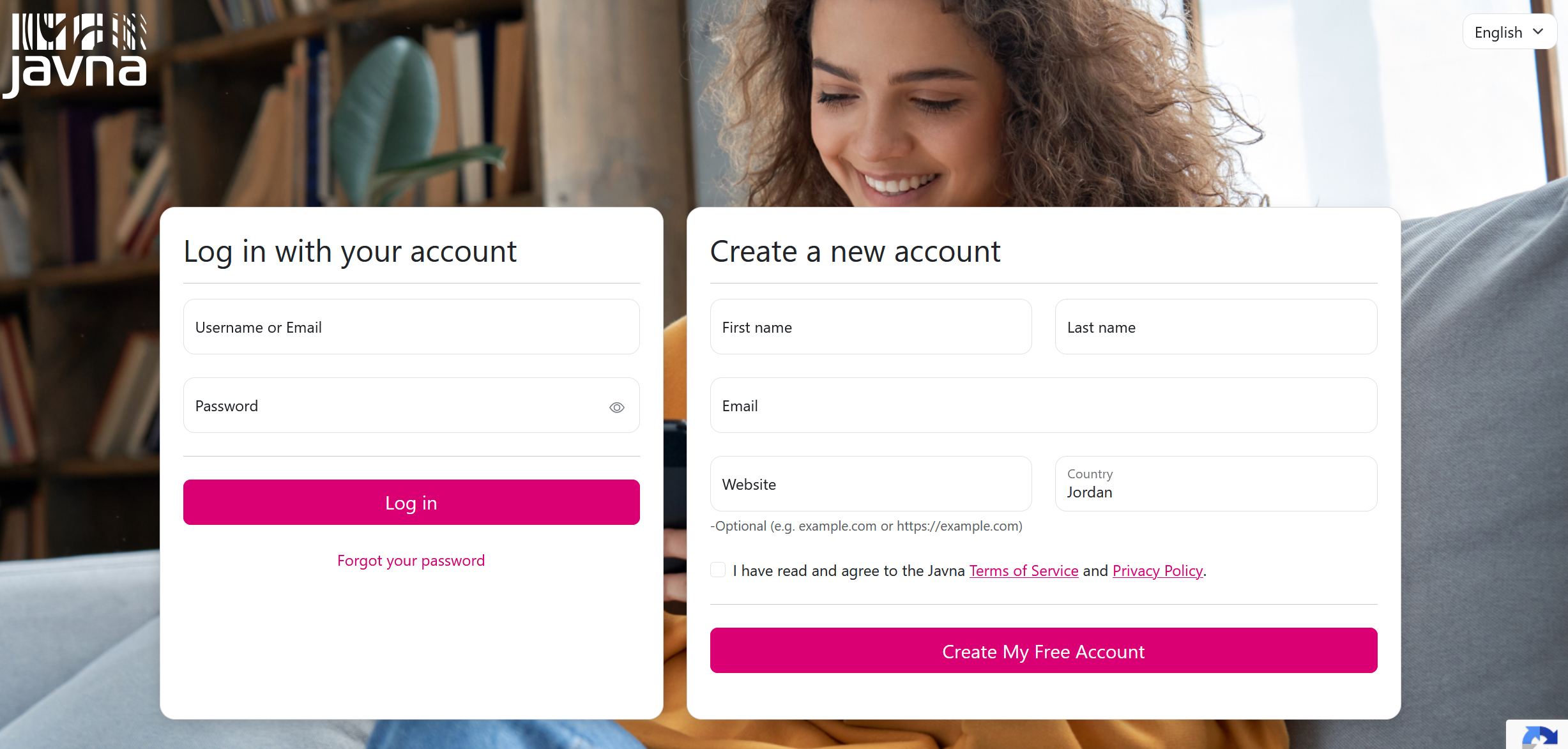
The "Login and Account Registration" Page
- Fill in the following fields under the "Create a new account" section:
a. First Name: Enter your first name, This Field is Mandatory.
b. Last Name: Enter your last name, This Field is Mandatory.
c. Email:_ Enter the email address in the specified format, e.g., [email protected]. This field is Mandatory.
Please note that certain email domains are not allowed. If you enter a restricted domain, an error message will appear prompting you to use a different email address.
d. Website: Enter your website URL in the specified format, e.g., https://www.example.com, www.example.com, or example.com. This Field is Optional. URL can be entered with or without the http:// or https:// prefix.
e. Country: Select your country from the dropdown menu. This field is mandatory. By default, it may be auto-filled based on your IP address, but you can change it if needed.
f. The confirmation checkbox: Check the confirmation checkbox to indicate your agreement to Javna's privacy policies and terms of service.
- Click on the "create my free account" button to receive a verification email from Javna CPaaS on the email address you’ve registered in the above step.
Note: If you do not receive the verification email, click on the “Resend Activation Email” button. You are allowed to click this button up to three times.
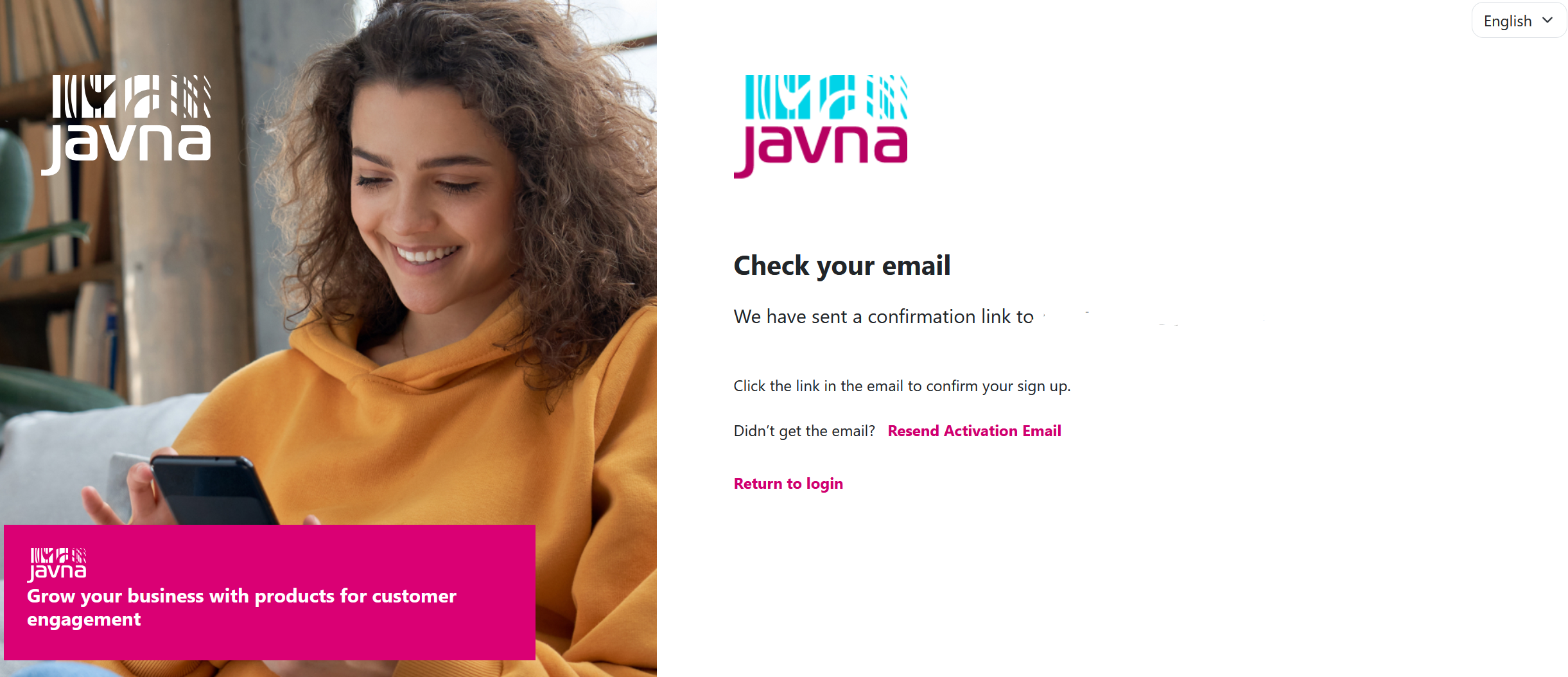
The "Check your email" page.
- Verify your email, then you will be redirected to a page to set up your username and password.
a. Enter a unique username that is 6 to 30 characters long and contains only letters and numbers. If the username you enter is invalid, an error message will display: "Username not valid. Only letters and numbers can be used."
b. Create a complex password between 8 to 100 characters.
c. Confirm your password by re-entering it in the "Confirm password" field.
d. Click on the "Register" button, so you’ll be redirected to the "Register your phone number" page.
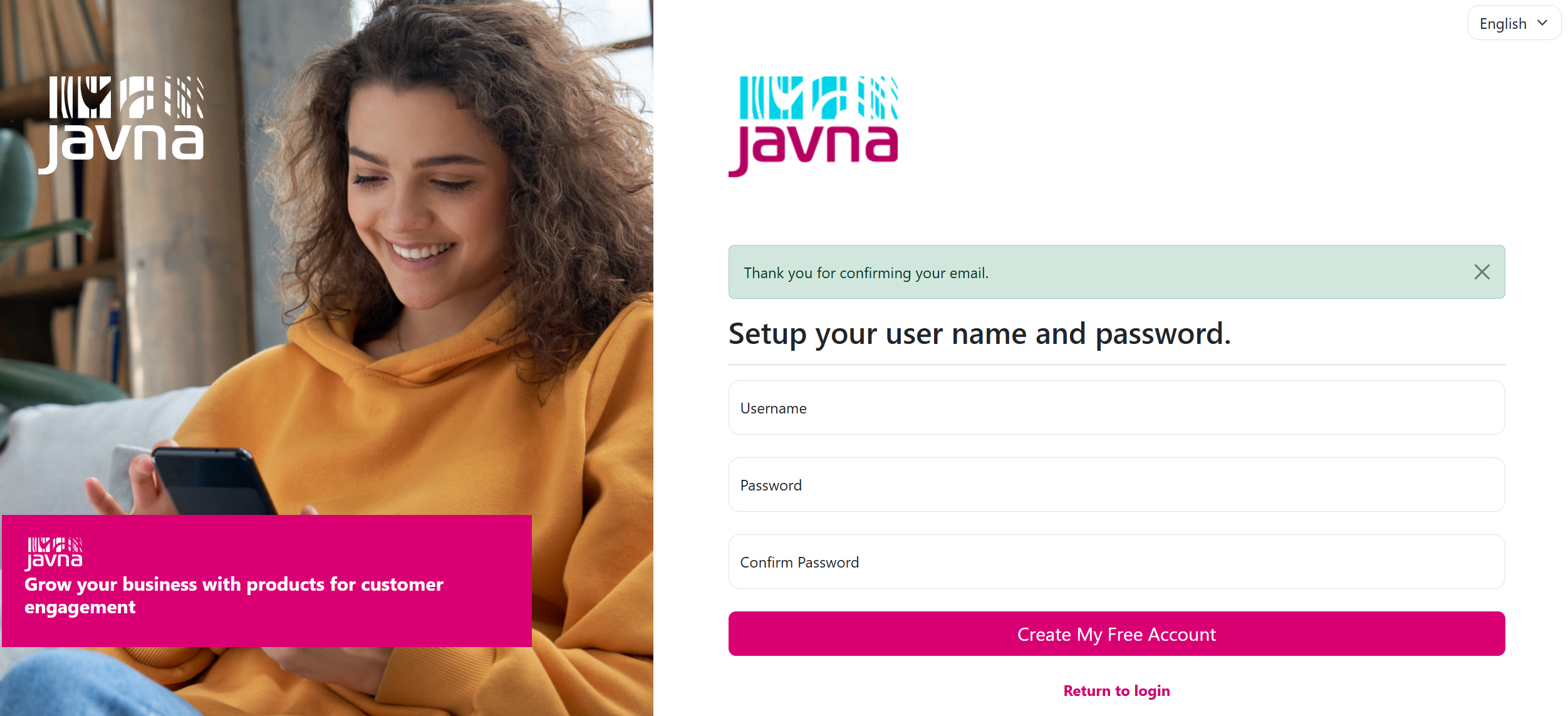
Setting up your username and _password
- After setting up your username and password, you will be redirected to the “Register your phone number” page:
a. Select your country code from the dropdown menu.
b. Enter your phone number into the designated field.
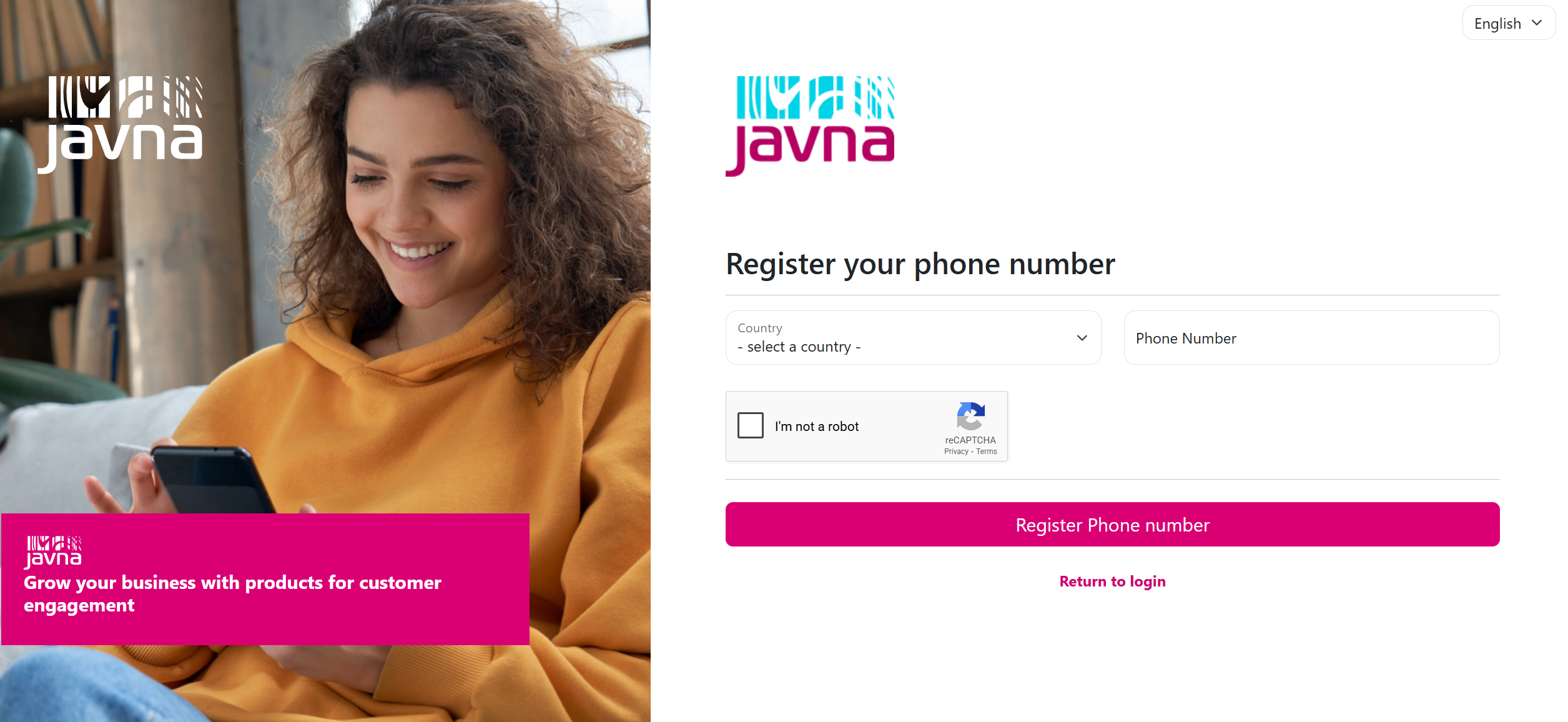
Registering your phone number
- After entering your phone number, click on the "Register Phone Number" button. A verification code will be sent to the phone number you have provided.
- Once you've received the verification code, enter it into the designated field to complete the registration process.
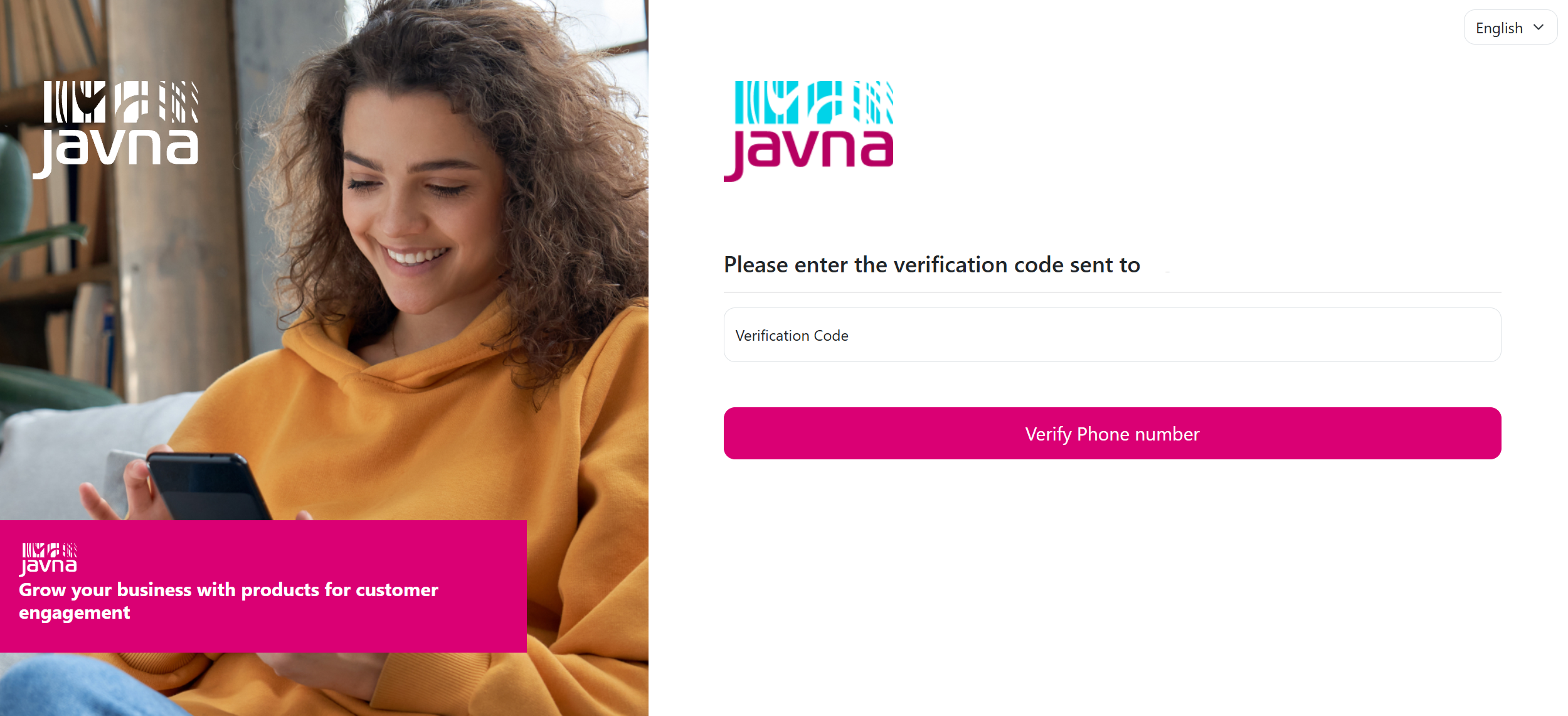
Entering the verification code
If you haven't received the verification code within the allotted time or need to request another code for any reason, click on the "Resend Code" button.This action will prompt the system to send another code as an OTP message to the phone number you've provided. Additionally, clicking the "Resend Code" button will reset the timer.
If you need to update the phone number you've registered, simply click on the "Change Phone Number" button. This will allow you to input a new phone number and update it in the system.
- Click on the “Verify Phone number button”, you will be automatically redirected to the homepage of your Javna CPaaS profile.
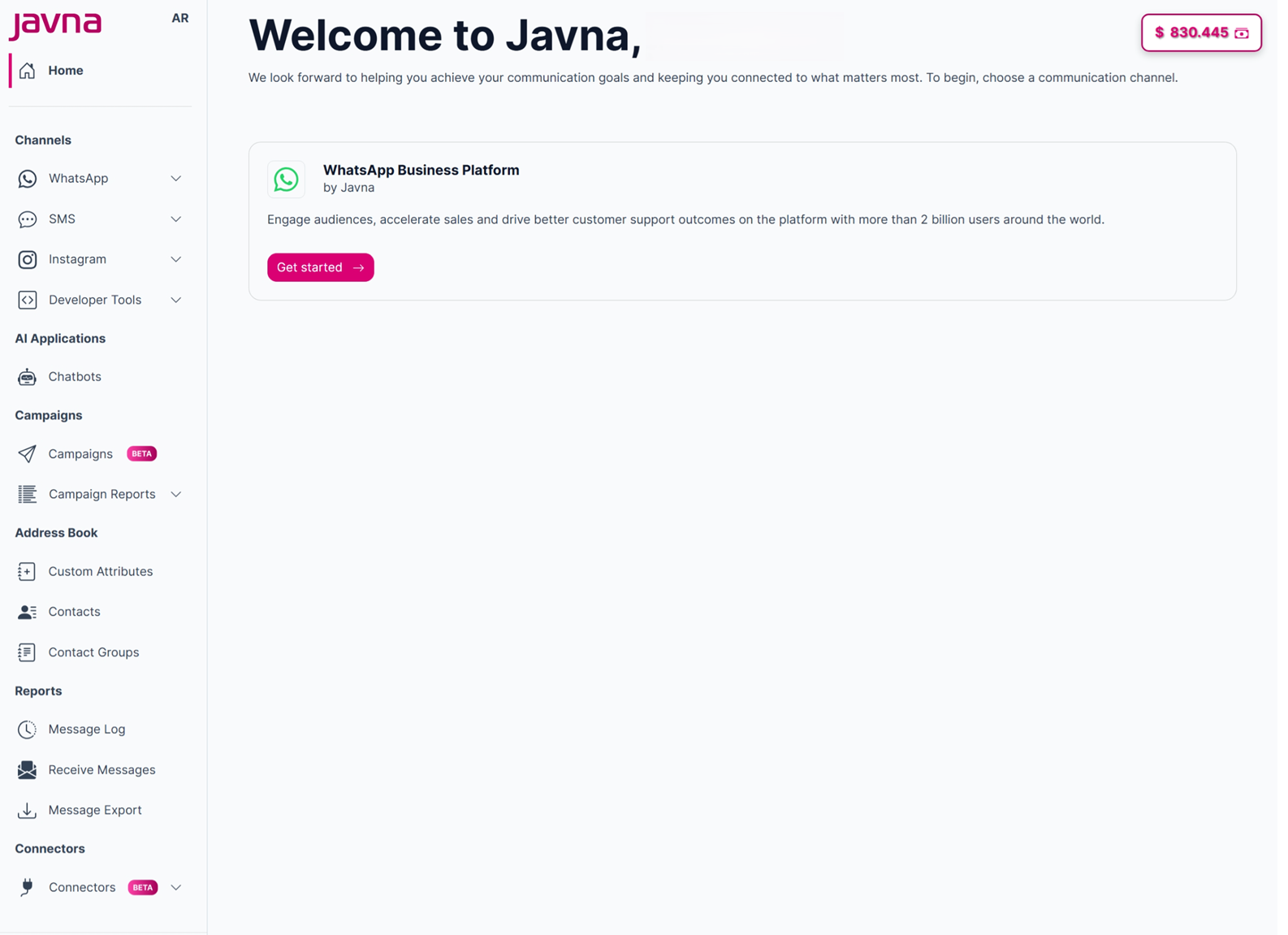
Javna CPaaS Homepage
Updated 3 months ago