

The Components of the “Message Templates” page.
After clicking on the "Message Templates" button, you'll be redirected to the "Message Templates" page. Below is a screenshot of the page layout.
Here, we will clarify each component of this page in detail:
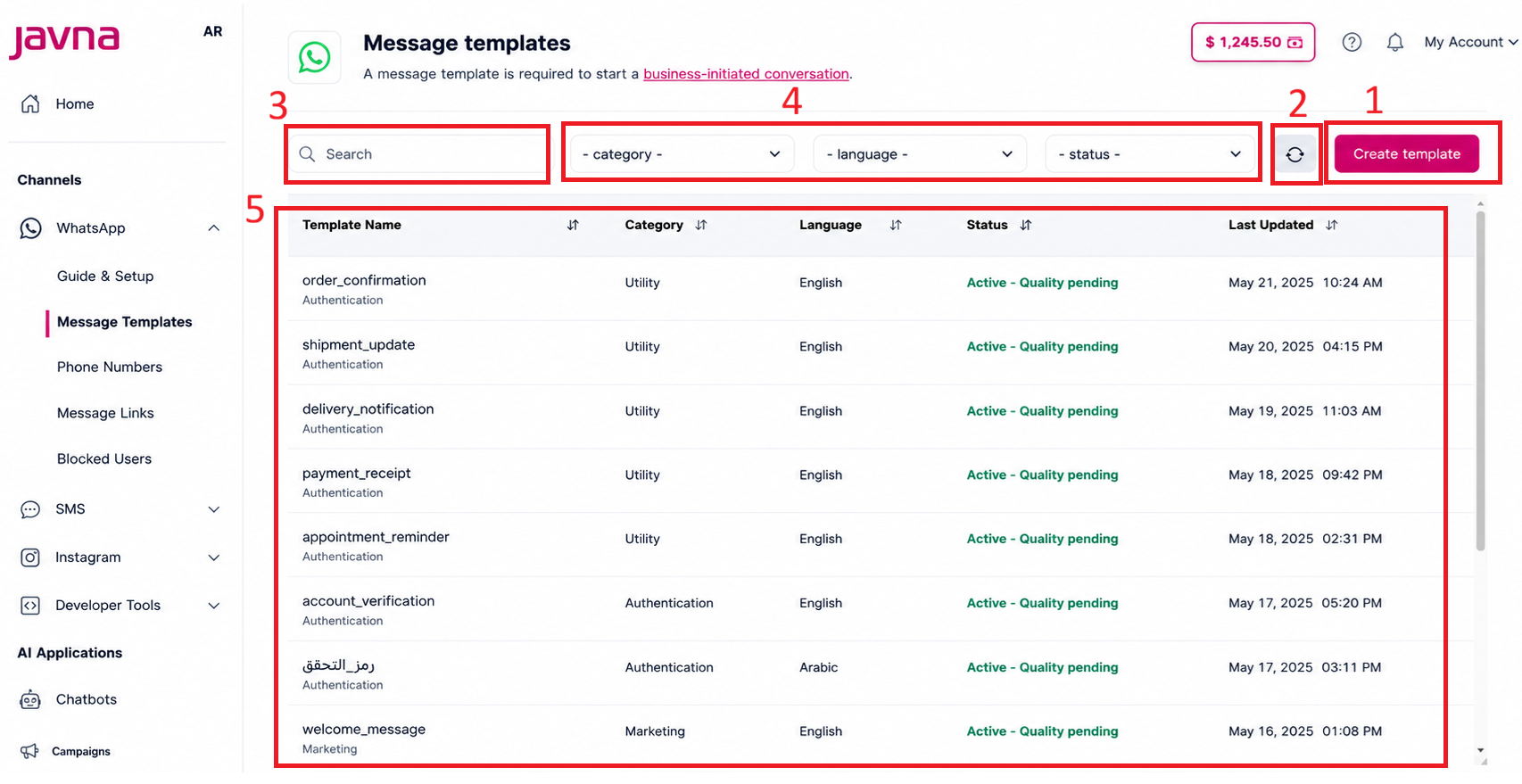
The components of the "Message templates" page
1-The “Create template” button.
When you click on this button, you can create a new template message. To learn more about creating a new template message, refer to the "creating Message Template" section.
2- Sync Button:
It synchronizes the templates displayed in Javna CPaaS with the templates available in your WhatsApp Business Account.
3- Search Field:
It allows you to search for specific templates from your created message template list.
4- Search Filters
On the message templates list page, you have the option to utilize search filters to narrow down your search and find the templates you need more efficiently. Let’s explore these filters:
- Category: Allows you to filter templates by category, such as Marketing, Utility, or Authentication.
- Status: Enables filtering by the status of the template.
- Language: Filters templates by language.
5- Templates List
The templates list provides an overview of your available message templates. Each template includes the following details:
a. Template Name: The template name refers to the title or identifier of a specific message template. It is used to distinguish one template from another within the templates list. Under each template name, you'll find the category of that message template.
b. Language: Displays the language of the template.
c. Status: Shows the current status of the template:
i. Active: it means that the template is active, it could be
- Active - Quality Pending: Awaiting customer feedback.
- Active - High Quality: Received little to no negative feedback.
- Active - Medium Quality: Received negative feedback from multiple customers.
- Active - Low Quality: Received significant negative feedback.
As long as a message template has an Active status, regardless of the quality rating, it can be sent to customers.
ii. Appeal Requested: An appeal has been requested.
iii. In-Review: Indicates that the template is still under review. Review can take up to 24 hours.
iv. Rejected: Violates WhatsApp policies.
v. Pending Deletion: This status indicates that the template has been flagged for deletion but hasn't been removed yet.
vi. Deleted: indicates that the template has been permanently removed from the account and can no longer be used for messaging.
vii. Disabled: Permanently disabled due to recurring negative feedback.
viii. Paused: Temporarily paused due to recurring negative feedback.
ix. Limit exceeds: This status indicates that the template has exceeded certain limits imposed.
x. Flagged: This status indicates that the template has received a low quality rating and may be subject to further restrictions.
xi. Reinstated: The template is under reinstated.
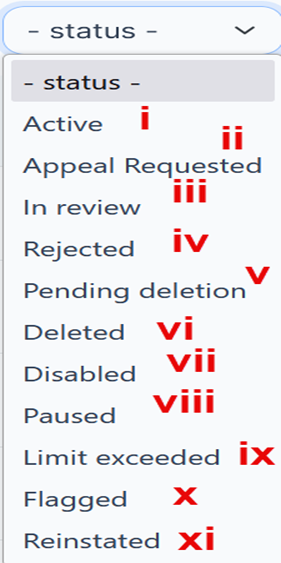
Template Status Examples
d. Last Updated: Displays the last time the template was updated.
e. The Sorting arrows: Clicking on the sorting arrows will arrange the list in ascending or descending order.
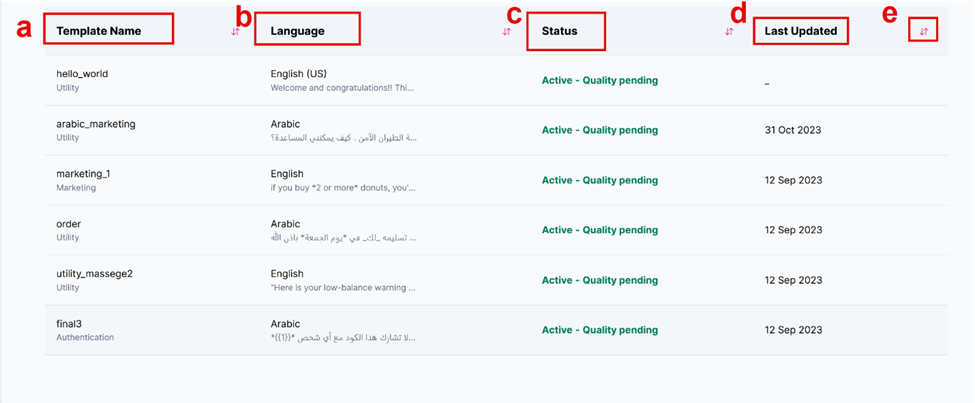
The components of the "Template List.”
Updated 3 months ago