

Adding contacts manually
To add Contacts manually, follow these steps:
- Navigate to the "Contacts" page.
- Click on the "Add Contacts" button, you will be redirected to the " Create Address Book Contact" page.
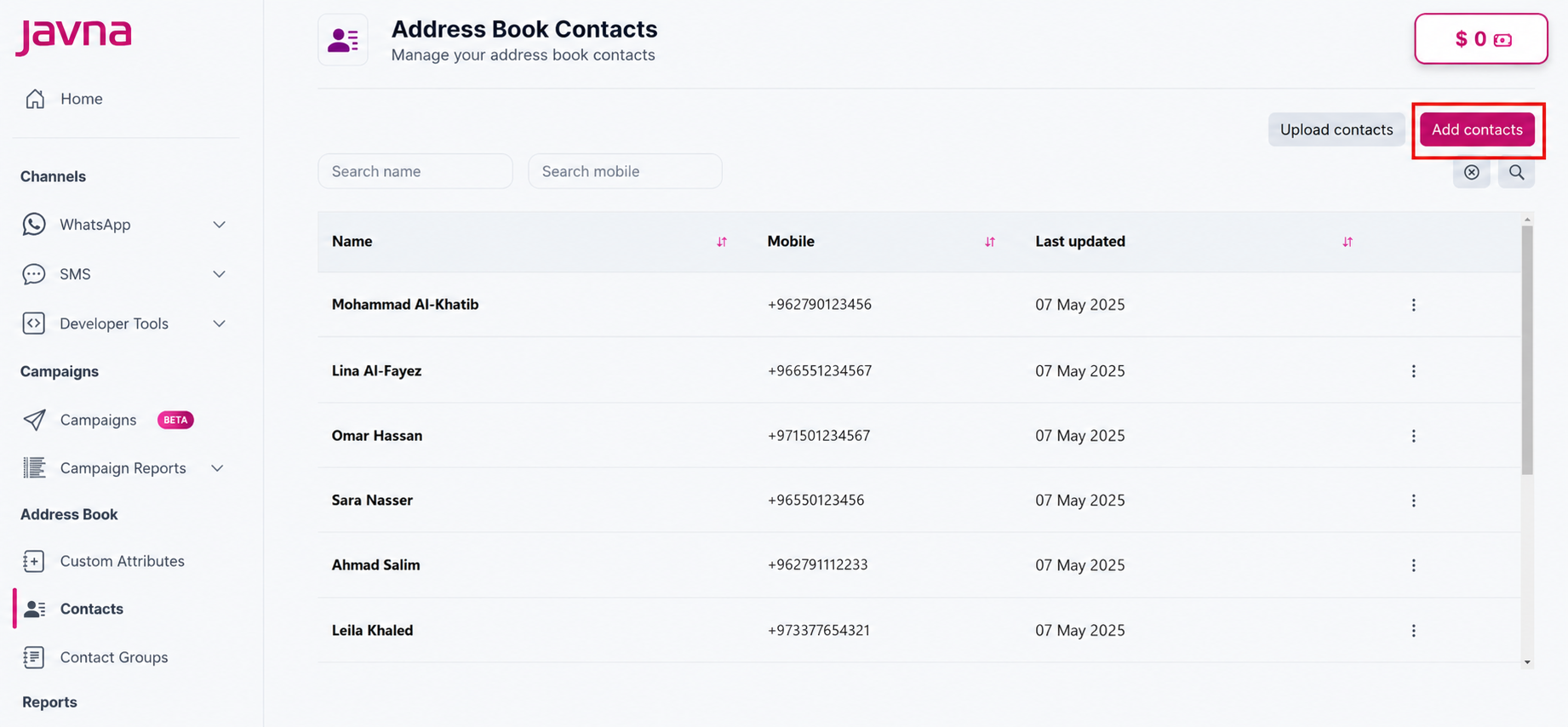
The "Add Contacts" button
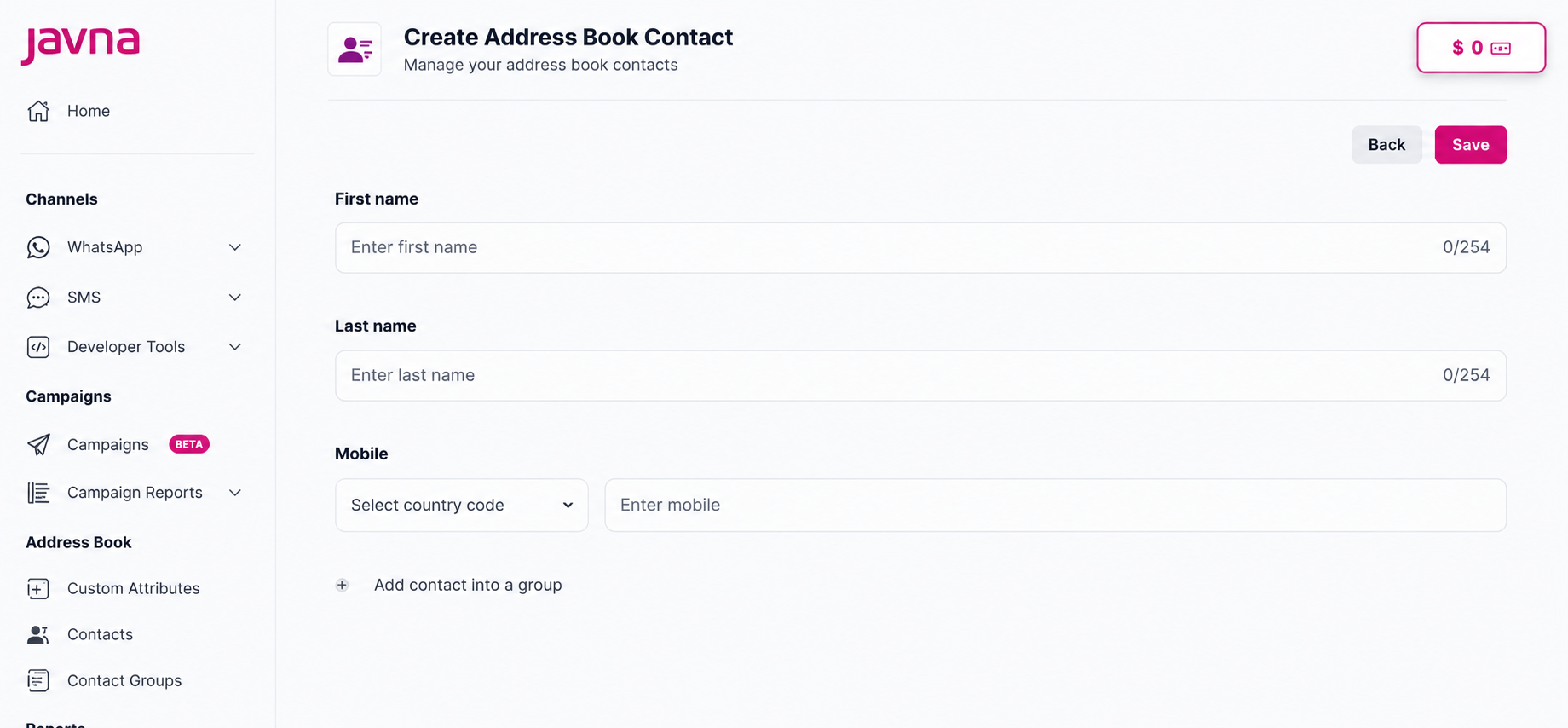
The " Create Address Book Contact" page.
- Enter the contact's first name with a maximum of 256 characters (This step is mandatory). Similarly, enter the last name.
- Select the country code from the dropdown menu and enter the mobile phone number (This step is mandatory).
- If you have already added custom attributes, they will appear, and you may optionally enter information in these fields.
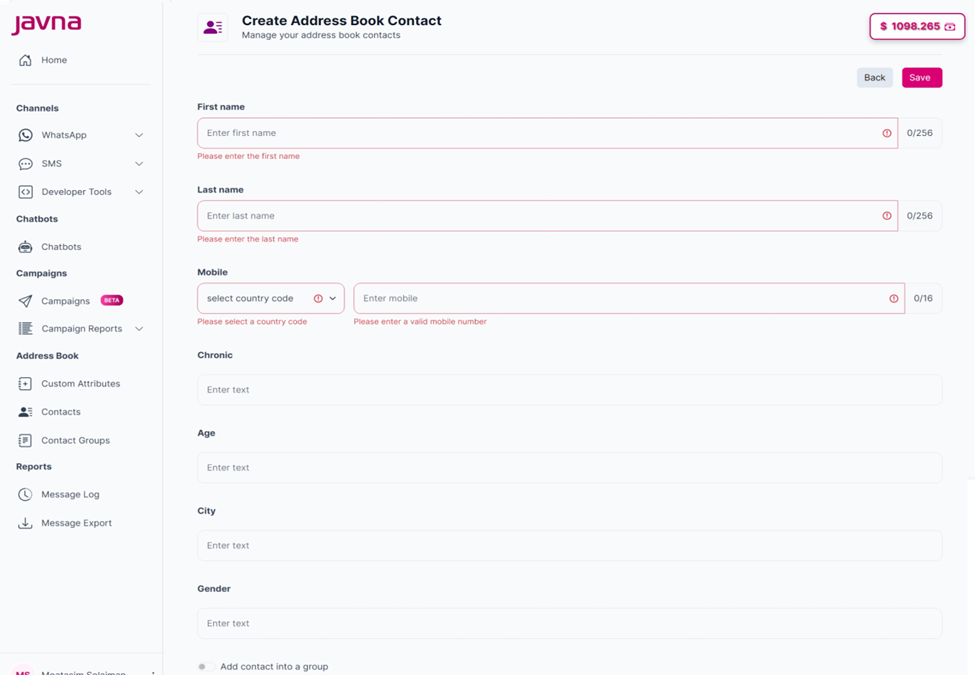
Filling the mandatory and the optional fields.
- You can add the contact to a group by switching the toggle button. You can then select one of these options:
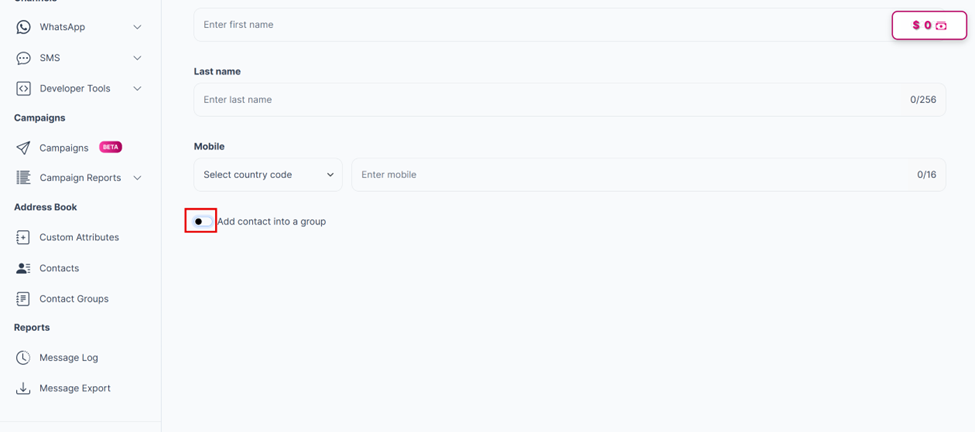
Switching the toggle button.
a. An existing group from the “Select a group” dropdown menu
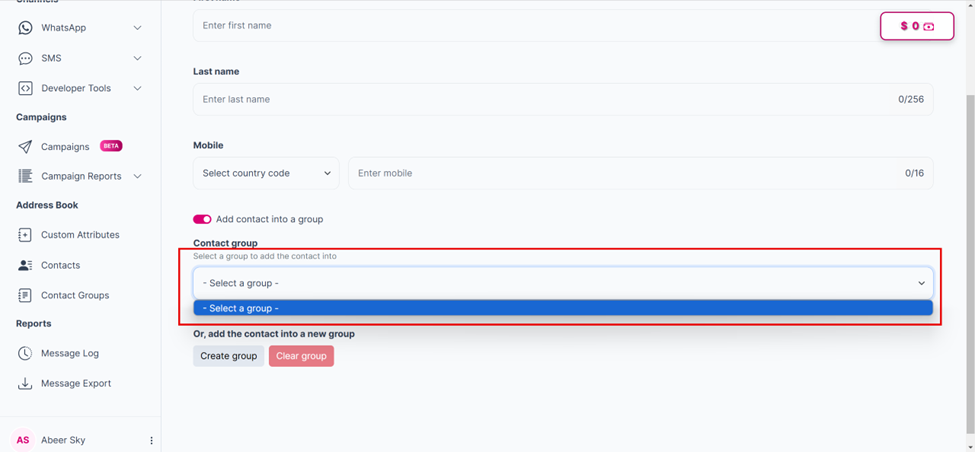
Selecting group drop down menu
b. Click on the “Create Group” button to open the “Create New Group” popup, where you can enter the group name and description
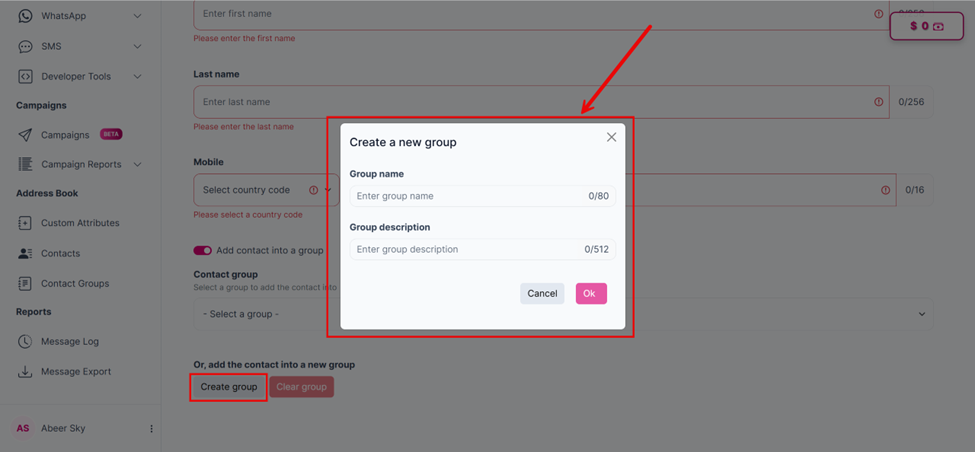
Clicking on the "Create Group" button to open the "create new group" popup.
- Click on the “Save” button, The contact will be added to list and a confirmation message will appear indicating that “Contacts was created successfully”.
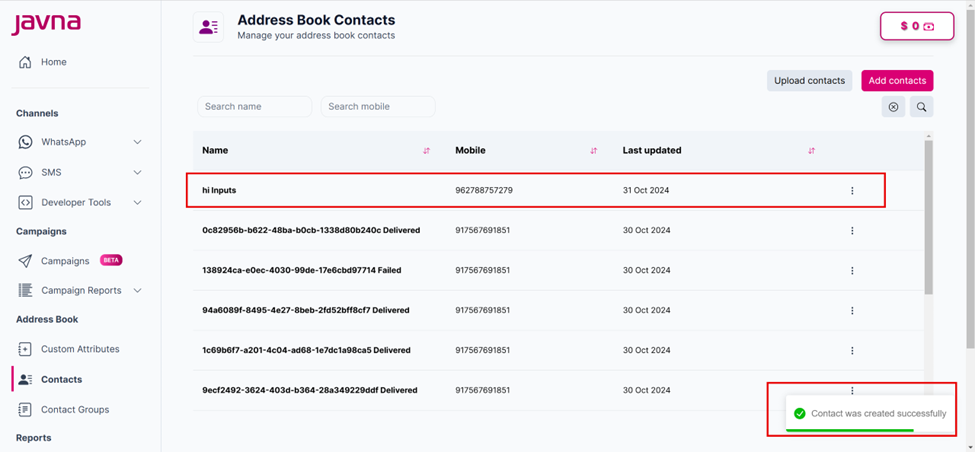
The confirmation message and the contact that has been added to the list.
Updated 3 months ago
Did this page help you?