
Updating Orders
To update an order, follow the steps below:
- Navigate to the Orders page and select the order you want to update from the orders list.
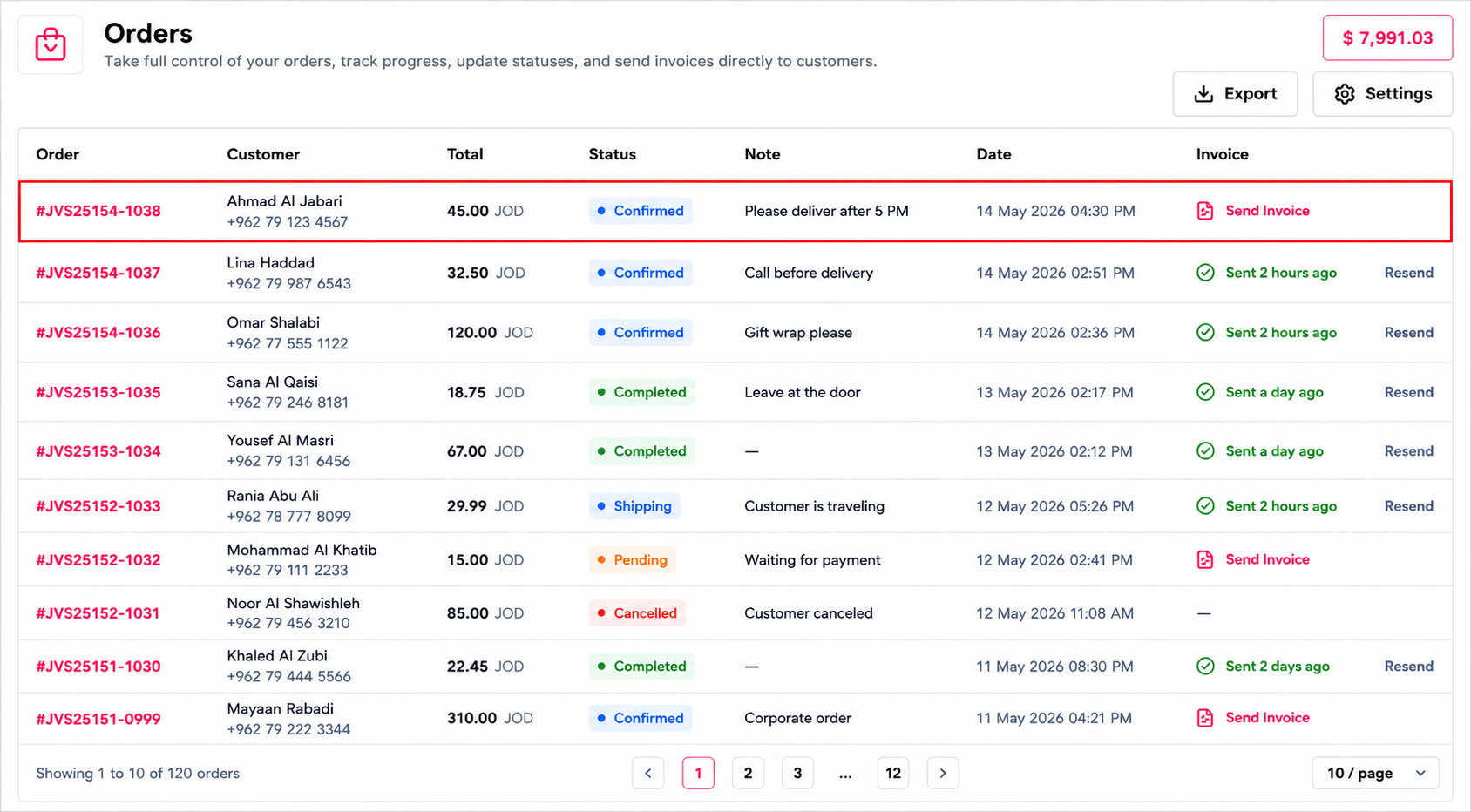
selecting the "Order" you want to edit from the list.
- The Update Order popup will appear, where you can review the order details, including:
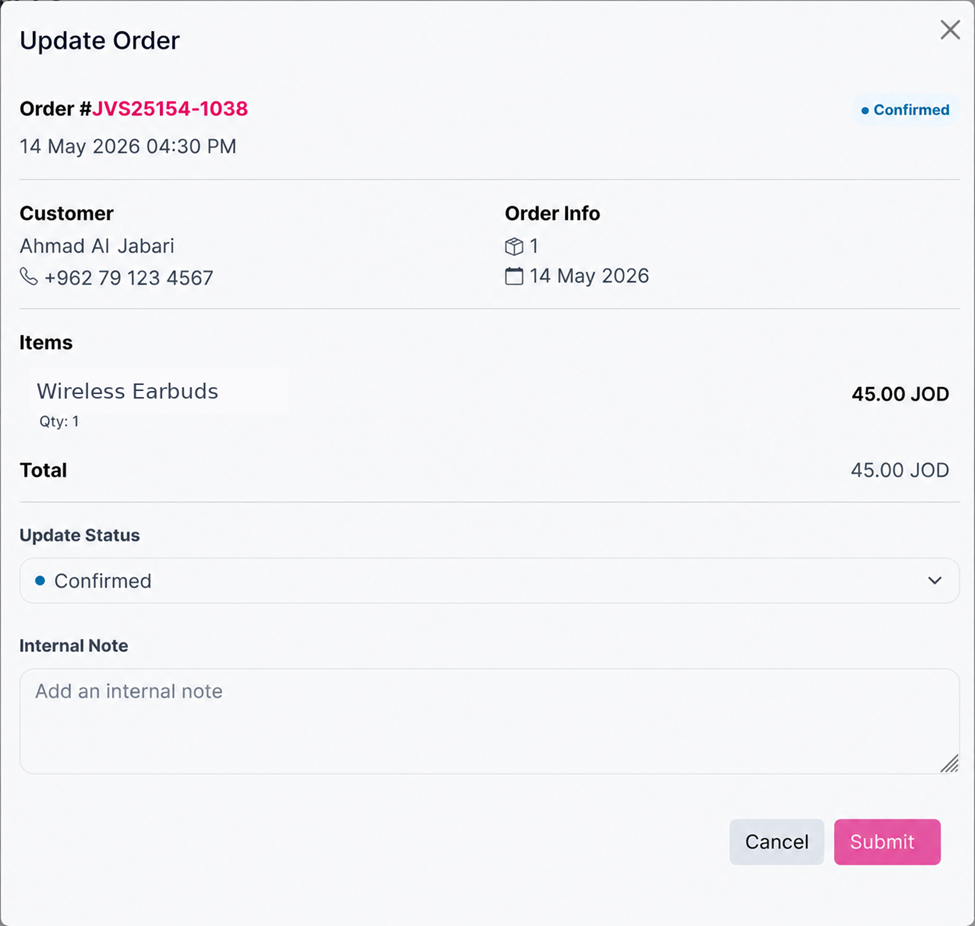
The "Update order" pop up.
- Order number
- Current order status
- Order date and time
- Customer information
- Order details
- Ordered items and quantity
- Total amount
- Update the required information:
- Change the order status.
Note: Status can only be updated from an initial status to a final status. Once the order reaches a final status, it cannot be changed to any other final status.
- Add or update an internal note, if needed.
- Click Submit to save your changes. A confirmation message appears: "Order has been updated successfully".
- The updated order details will appear in the Orders table immediately after saving.
Updated 12 days ago