

The components of the “Sender ID Requests”
The Sender ID Requests page is a crucial section within your Javna CPaaS account. It includes the following components:
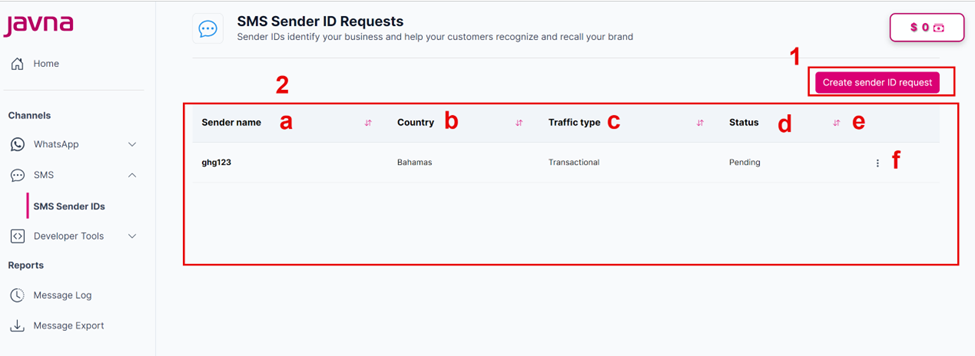
The components of the "Sender ID Requests".
1. The “Create Sender ID request” button:
It is a button that allows you to submit a new sender ID request. Refer to section creating your sender ID Requests
2. A list that contains the following:
a. Sender Name: Or Sender ID, is the identifier that appears as the sender when customers receive an SMS from your business.
b. Country: it is the specific country where the sender ID will be used.
c. Traffic Type: It is the nature of the messages (e.g., transactional or promotional).
- Transactional: Essential information like OTPs or order confirmations.
- Promotional: Marketing messages like discounts or product announcements.
d. Status: It indicates the current state of the sender ID request.
- Pending: This status occurs when a sender ID request has been submitted and is awaiting review by the platform administrator.
- Approved: This status indicates that the sender ID request has been reviewed and approved, and the sender ID is now available for use.
- Rejected: This status signifies that the sender ID request has been reviewed and rejected, an icon (!) will be displayed with the reason for rejection. here are some common reasons:
- Non-Compliance with Regulations: The sender ID does not meet local regulations or guidelines for messaging.
- Inappropriate Content: The sender ID may be associated with content that is deemed inappropriate or offensive.
- Trademark Issues: The requested sender ID may violate trademark rights or be too similar to an existing brand.
- Lack of Documentation: Insufficient documentation or information provided to support the sender ID request.
- Previous Violations: The sender has a history of violations related to messaging policies.
- Spam Concerns: The sender ID is flagged due to concerns about potential spam or fraudulent activity.
- Unclear Purpose: The intended use of the sender ID is not clearly defined or does not align with acceptable messaging practices.
e. Sorting Button: This tool allows you to organize the list of sender ID requests by sorting them in both ascending and descending order.
f. The "Options Menu" button: Located to the right of the sender’s name, this button is represented by three vertically aligned dots. When clicked, it provides access to additional options for the sender ID. The following options will be displayed:
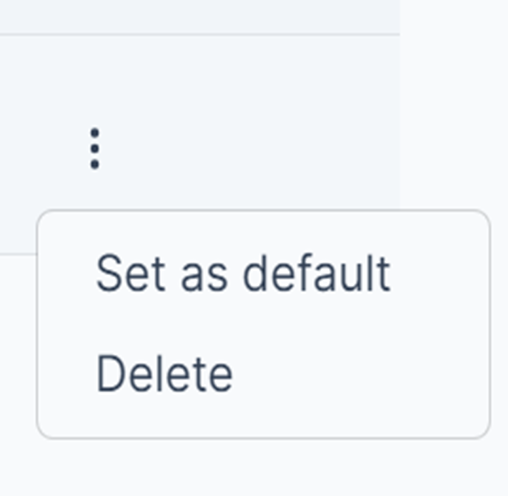
The options menu button.
- Set as default: This option allows you to designate the sender ID as the default option. When no sender ID is specified, the default sender ID will be used.
Note that to select a sender ID as the default, its status must be "approved".
- Delete: Selecting this option will prompt a confirmation pop up to delete the sender ID. Upon confirmation, the sender ID will be permanently removed from the system.
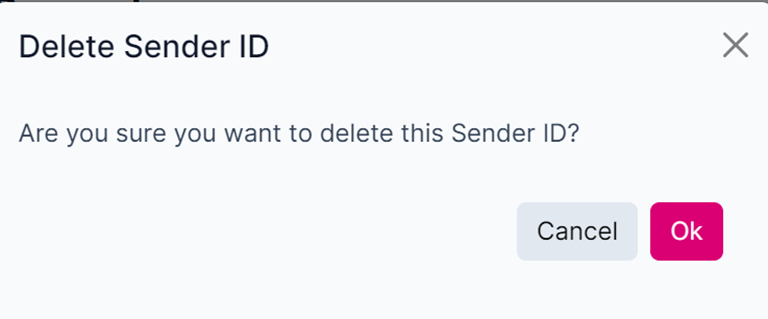
A confirmation pop up.
Updated 7 months ago