

The components of the “Bot Builder” page
Upon clicking on the “chatbots” button, you will be redirected to the “Bot Builder” Page. This page contains the following components:
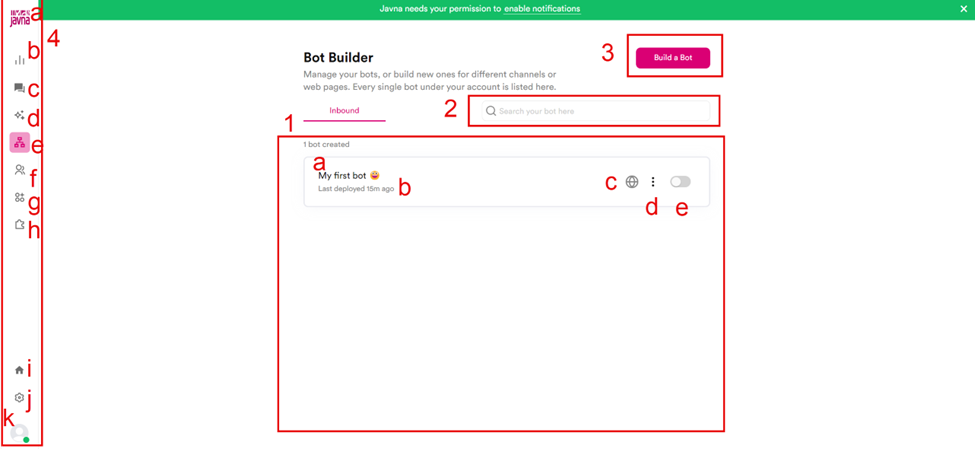
The components of the "Chatbot" page.
Bot List:
The Bot List displays all chatbots associated with your account, providing the following information:
a. Names: The name of each chatbot.
b. Last Deployed: Indicates when the bot was last deployed
c. Channels or Webpages: The specific channels or webpages where the chatbot is active.
d. The “Options Menu” Button: This menu includes the following actions:
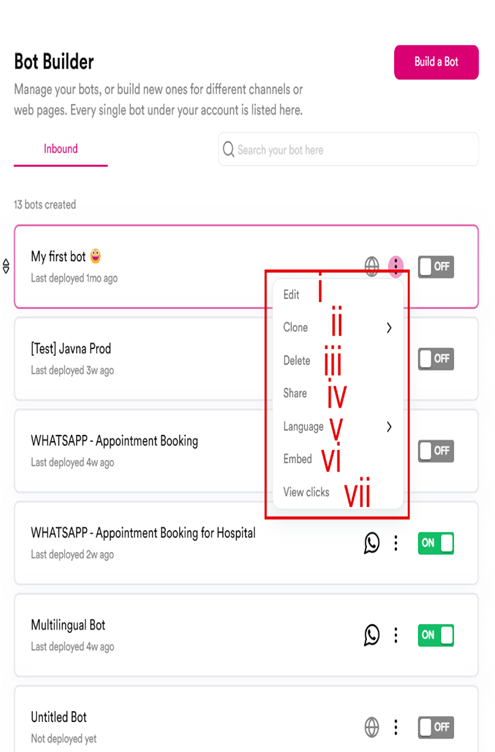
The options in the "Options Menu" button.
i. Edit: It allows you to modify the chatbot you have created.
ii. Clone: Create an exact copy of the selected chatbot. The options for cloning include: • WhatsApp • Web
iii. Delete: Remove the chatbot from your account.
iv. Share: You can share your chatbot by clicking on this button, then copying the generated link and sharing it with others.
v. Language Options: Available languages for the chatbot include: • English • Deutsch • Spanish • French • Portuguese • Arabic • Korean
vi. Embed: Place the chatbot directly into your webpage, making it accessible to customers while they browse without needing to go elsewhere. You can display it as a chat bubble or embed it in an iframe.
vii. View Clicks: Monitor interactions with the bot.
e. On/Off Switch: A toggle to easily activate or deactivate a bot.
2. Search Field:
Enables you to quickly find specific bots by entering keywords in this field.
3. Build a Bot Button:
Initiates the creation of a new chatbot.
4. Left-Side Menu:
Provides quick access to other sections, including:
a. Javna Logo: when you click on it, you will be redirected to the “Analytics Dashboard” page.
b. Analytics Dashboard: View performance metrics of your chatbots.
c. Live Chat: This section displays real-time conversations occurring between your customers and chatbots.
d. AI Studio: Explore AI features for chatbot enhancements.
e. Bot Builder: It is the page that you will be redirected when clicking on the “Chatbots” in Javna CpaaS, in which here you can build a new bot.
f. Contacts: Refers to the individual records of customers that contain their personal information and interaction history.
g. Channel Configuration: This section allows you to customize web appearance, general settings, popup messages, and trigger conditions to enhance user engagement and brand alignment.
h. App Market: when you click on this button, you will be redirected to a page where you can discover and integrate your favourite apps with Javna.
i. The “Back to home” button: This button will redirect you to the “Homepage” upon clicking on it.
j. Settings: Adjust various settings, such as Notifications, Live Chat, and Account management.
k. Profile Picture: Click on it to view any additional accounts, select your language preference, and check your profile's active status.
Updated 3 months ago