

Onboarding your Zid store with your Javna Account
To use Zid within Javna account, you first need to onboard your Zid Store with your Javna Account.
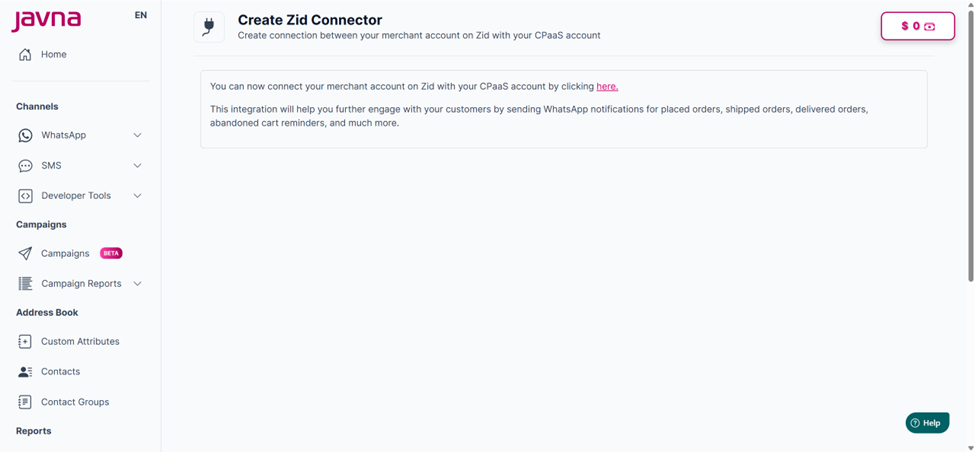
Creating Zid connector
In the following steps, we’ll guide you through how to complete this onboarding process.
- Go to the Zid Website.
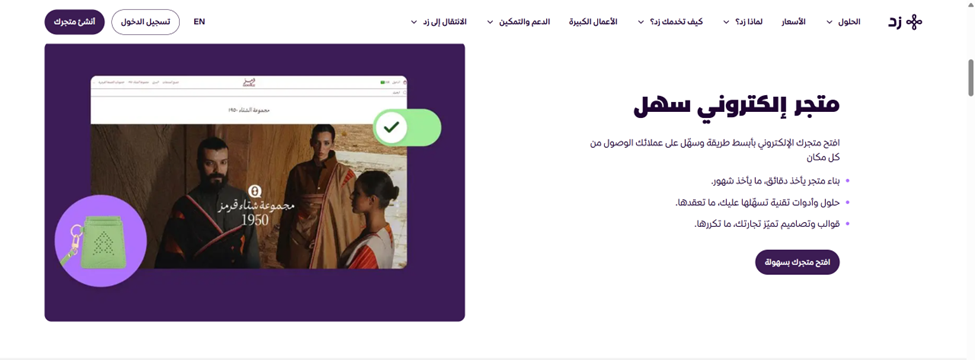
Zid Website.
-
If you already have a store, sign in. Or if you don’t have a store yet, you can create one.
-
Navigate to the Solutions (الحلول) section, then select Apps (التطبيقات).
On the Apps page, click on the “Explore the Zid App Marketplace” (شيّك على سوق التطبيقات) button to continue.
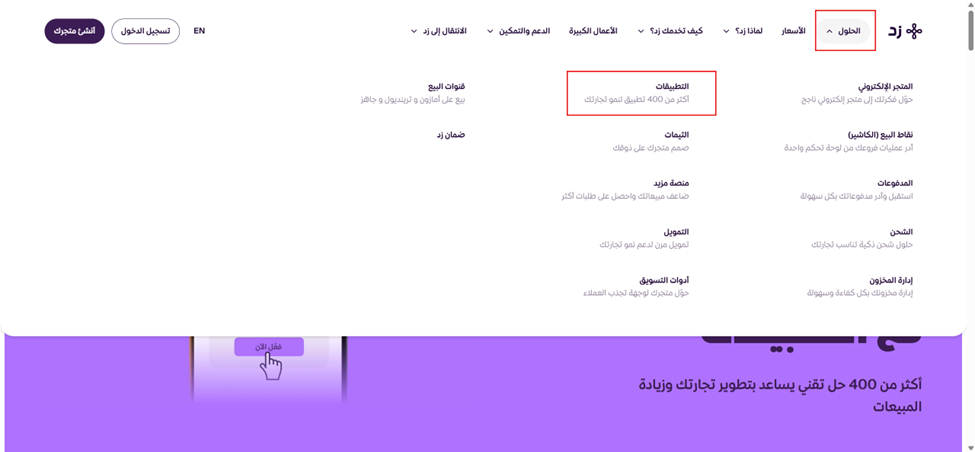
NAVIGATING the Solutions (الحلول) section, then selecting Apps (التطبيقات).
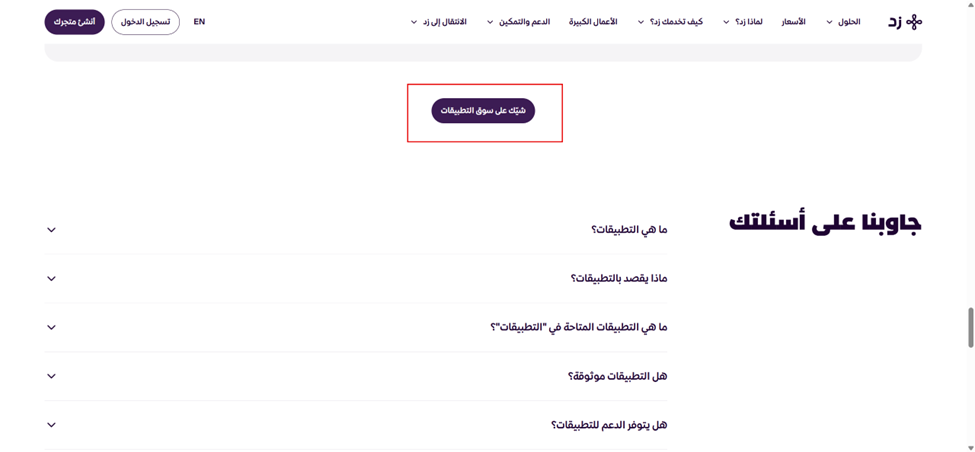
Exploring the Zid marketplace.
- You will be redirected to the Zid App Marketplace.
In the search bar, type “Javna” (in English) or “جافنا” (in Arabic).
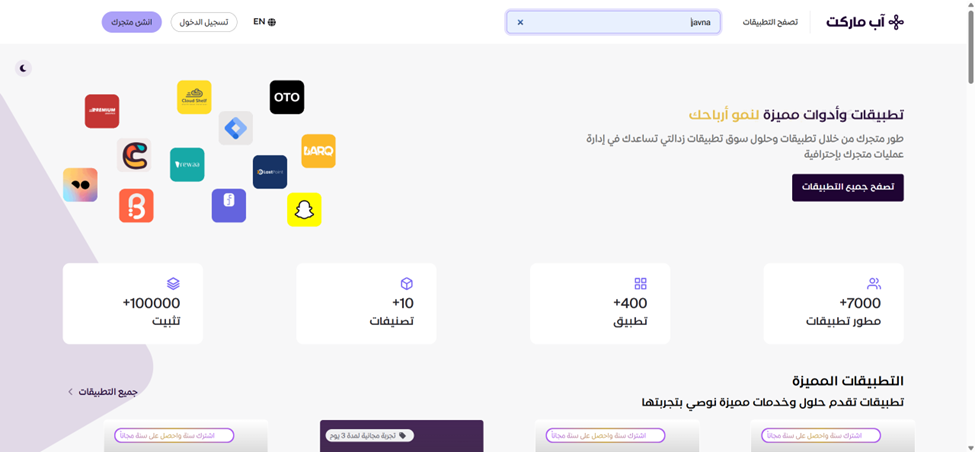
Typing Javna in English
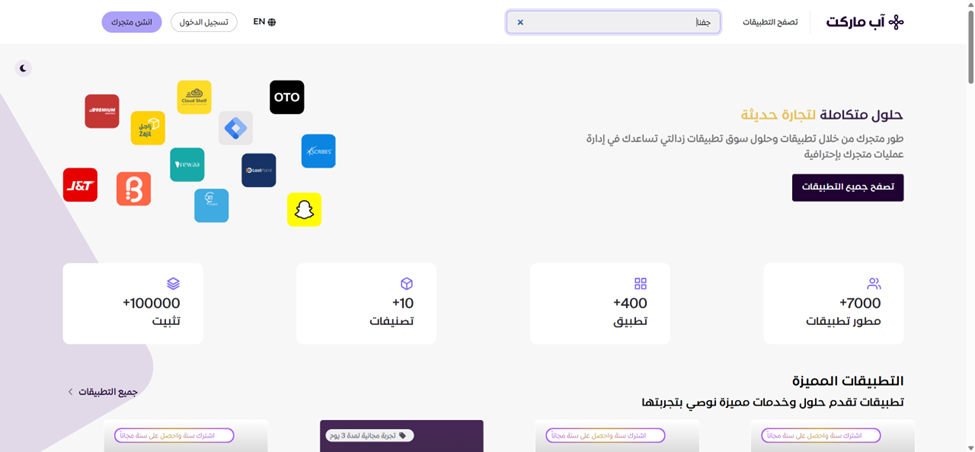
typing جفنا in Arabic
- Click on the Javna app from the search results.
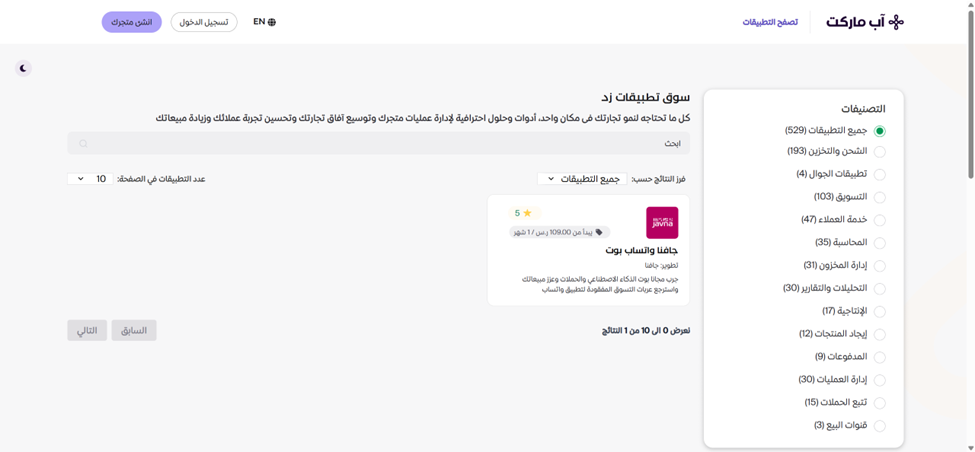
Clicking on the javna app.
- Scroll down to view the available subscription plans and choose one to subscribe.
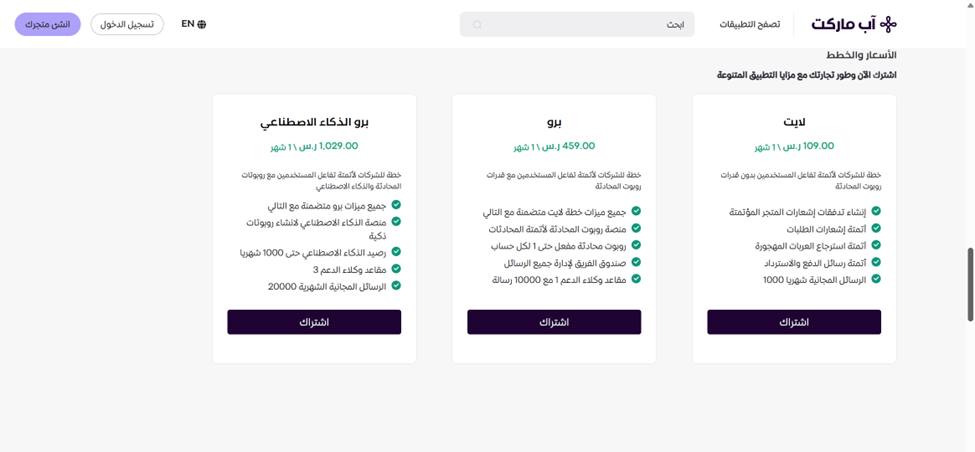
The available subscription plans
- After subscribing:
• If you are already signed in to your Zid store, you will be redirected to your dashboard store on Zid.
• If you are signed out, you will be redirected to sign in to your Zid store first. - From the Zid dashboard:
• Open the left-side menu and select Apps Store (سوق التطبيقات), then search for Javna.
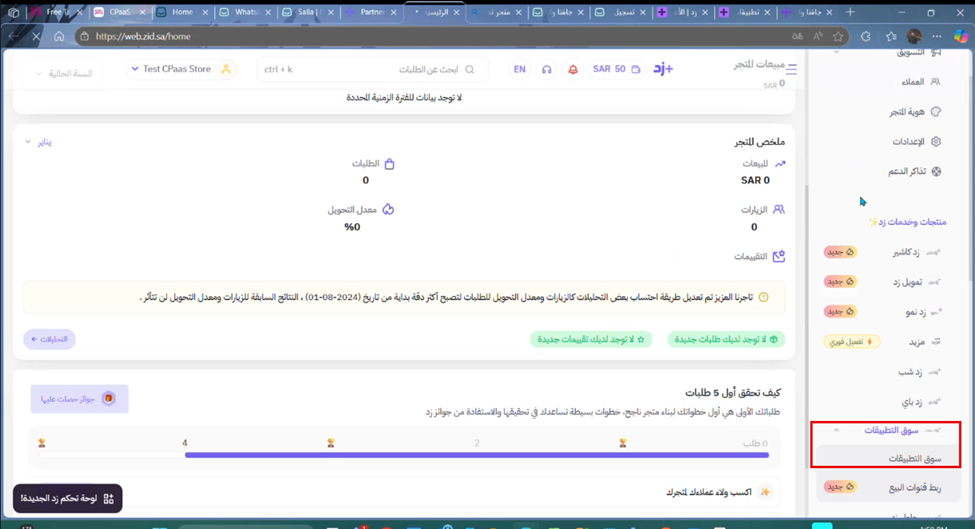
selecting App store from the left side menu.
or
• Go to My Apps (تطبيقاتي) on the dashboard page to find Javna (جفنا).
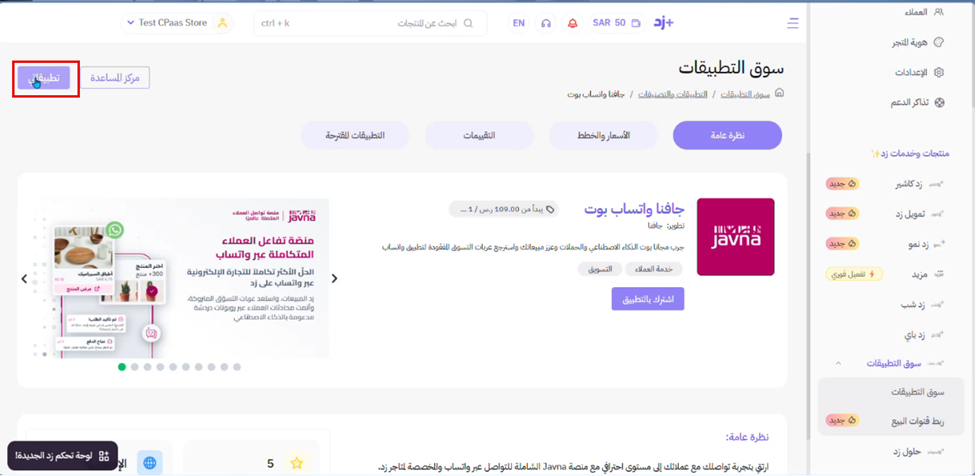
Clicking on تطبيقاتي
Note: You must already have Javna account and be logged in before activating the app.
- A pop-up will appear after clicking to activate the app. In this pop-up, review and accept the Terms and Conditions (الشروط والأحكام), then click “Activate App” (تفعيل التطبيق) to complete the activation process.
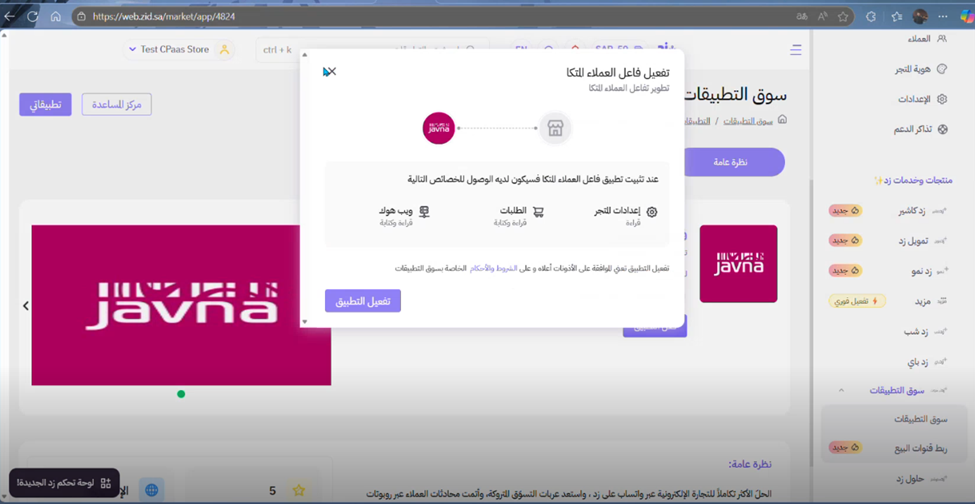
completing the activation
- After this, you will see that Javna will request permissions from your store.
• If you want to proceed, click “Install App” (تثبيت التطبيق).
• If you do not want to continue, click “Cancel” (إلغاء العملية).
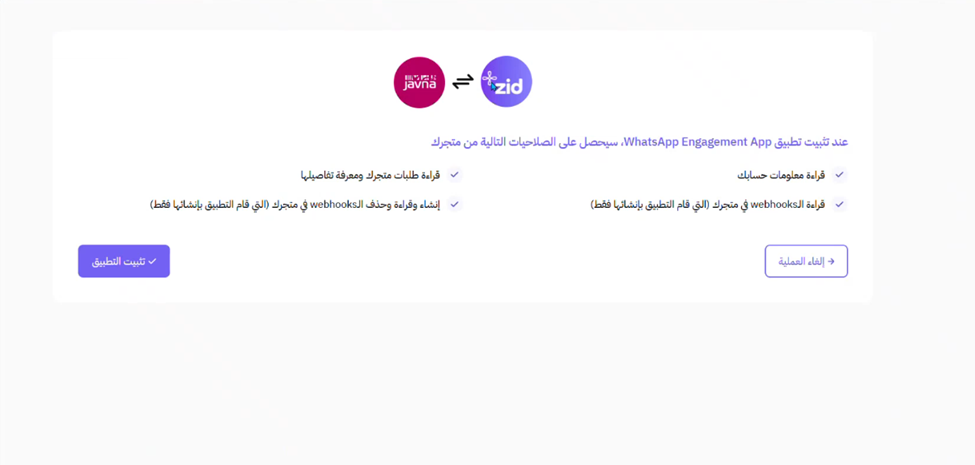
requesting permissions from your store
- After clicking on “تثبيت التطبيق” you will be redirected to “Zid Flow” page in your Javna Account, and onboarding is successfully completed. You can now start creating flows.
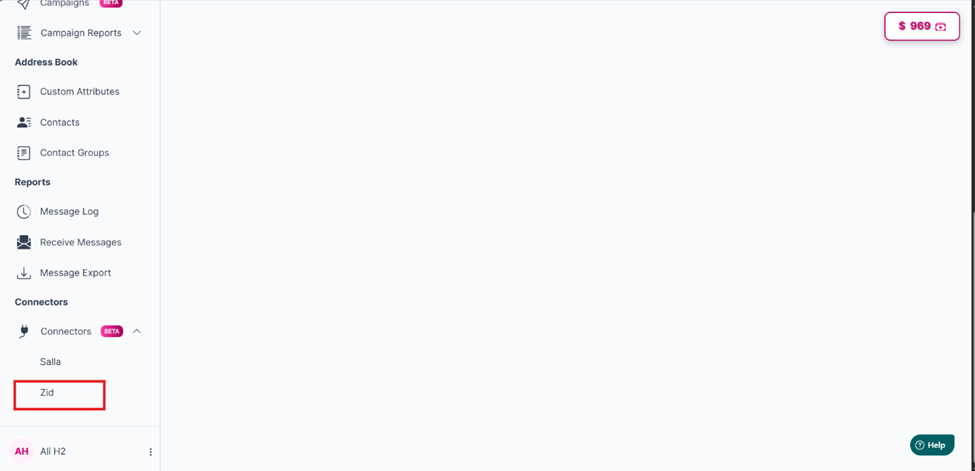
Selecting Zid to navigate to the "salla flow" page.
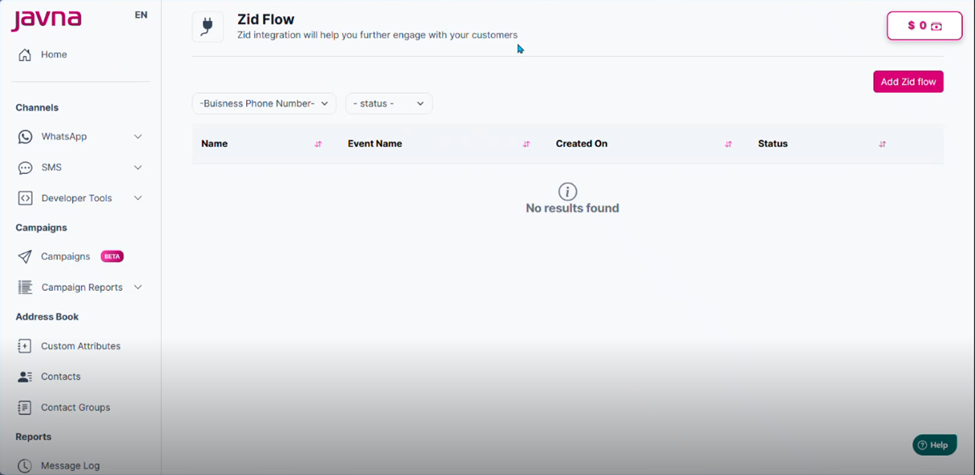
The salla flows page.
Updated 7 months ago