

Editing your profile
You can edit your profile by following these steps:
- From the options menu button, click on "Profile."
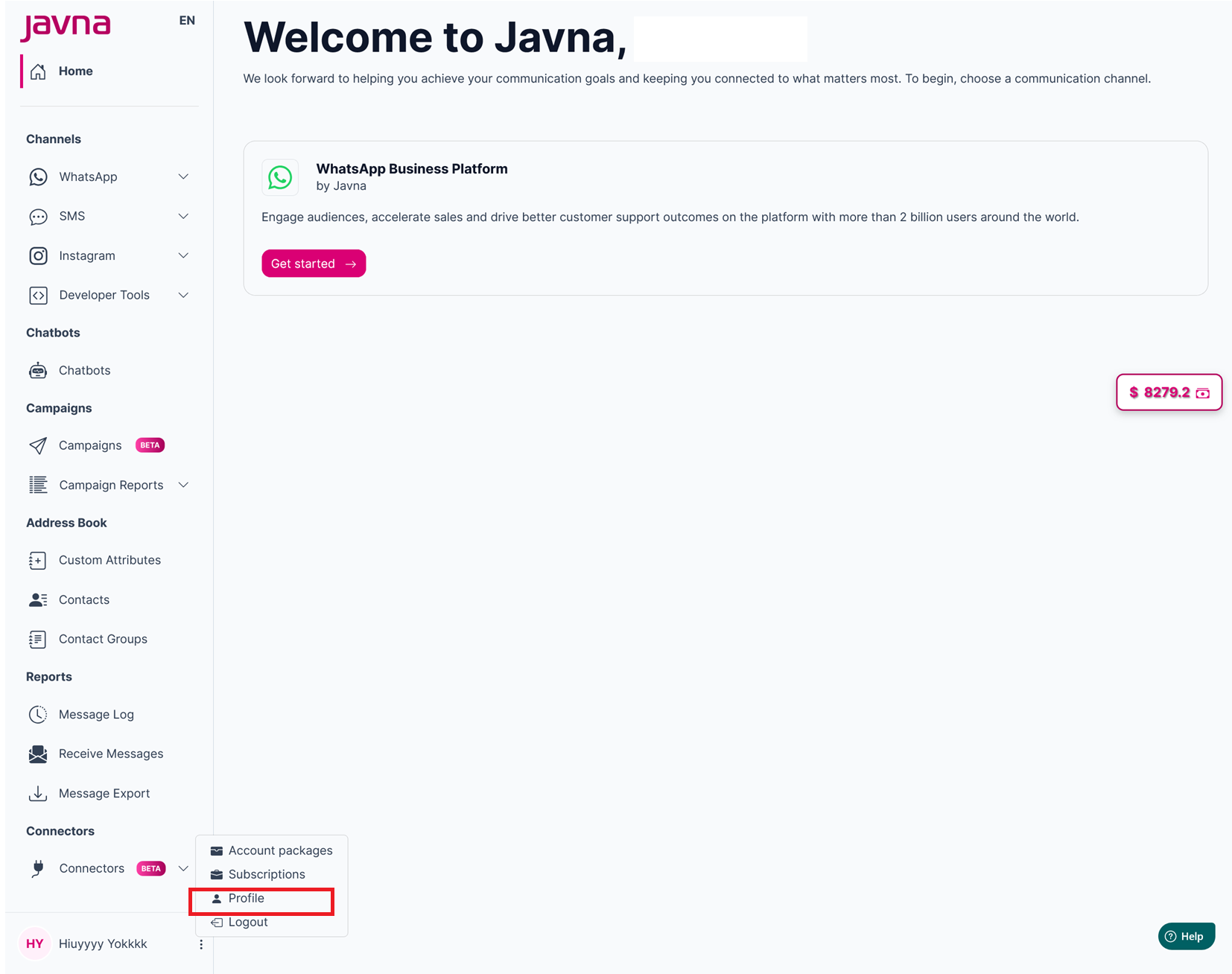
Clicking on "Profile"
- You will be redirected to your profile page where you can view the following details:
- Username
- First Name
- Last Name
- Phone Number
- Country
- Time Zone
- Language
- Company Name
- Website
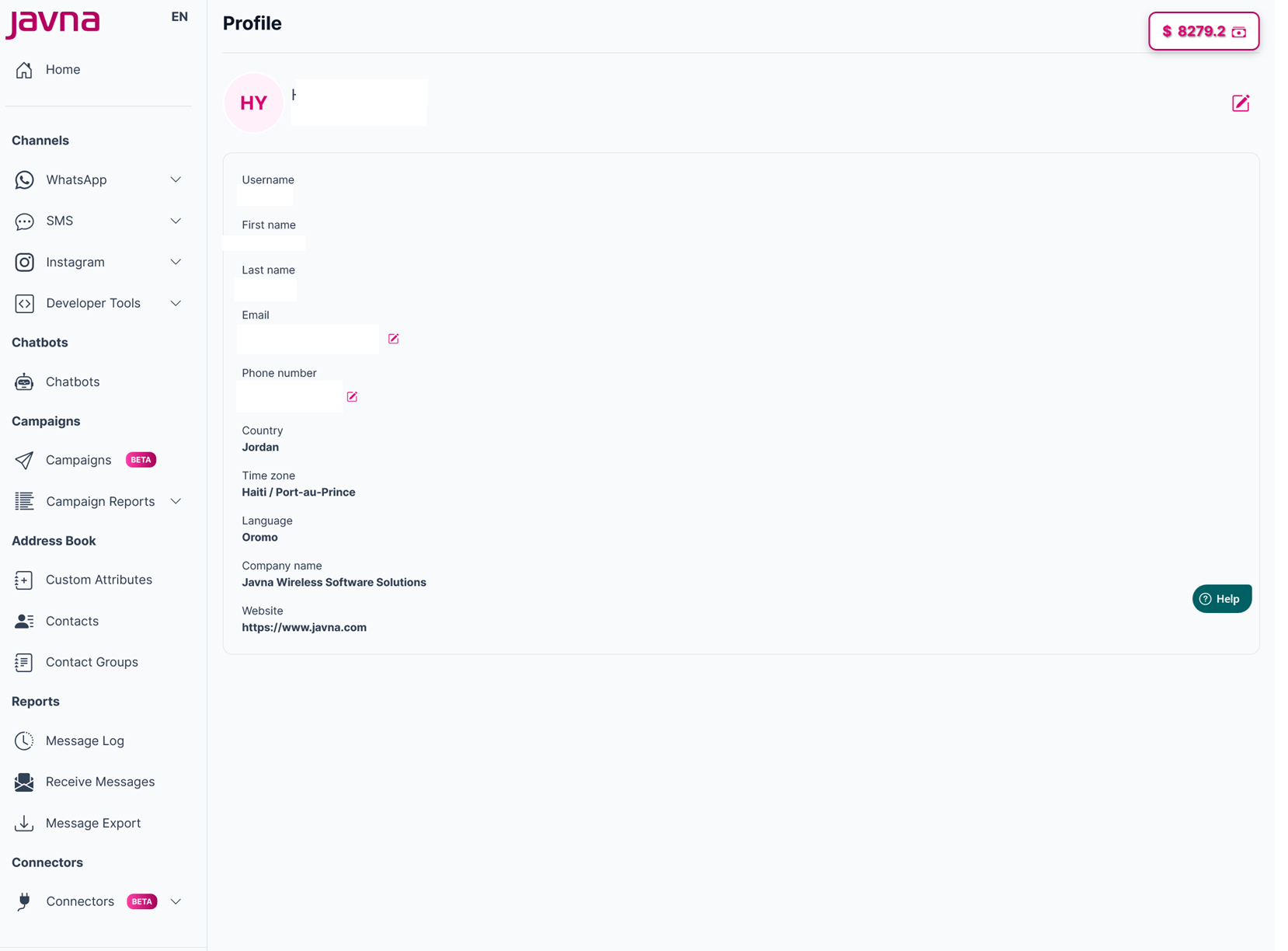
The page where you will be redirected when you click on the profile button
- To Update Your Email, follow these simple steps:
a. Click the “Update” button next to your email address.
b. Enter your new email address in the email field.
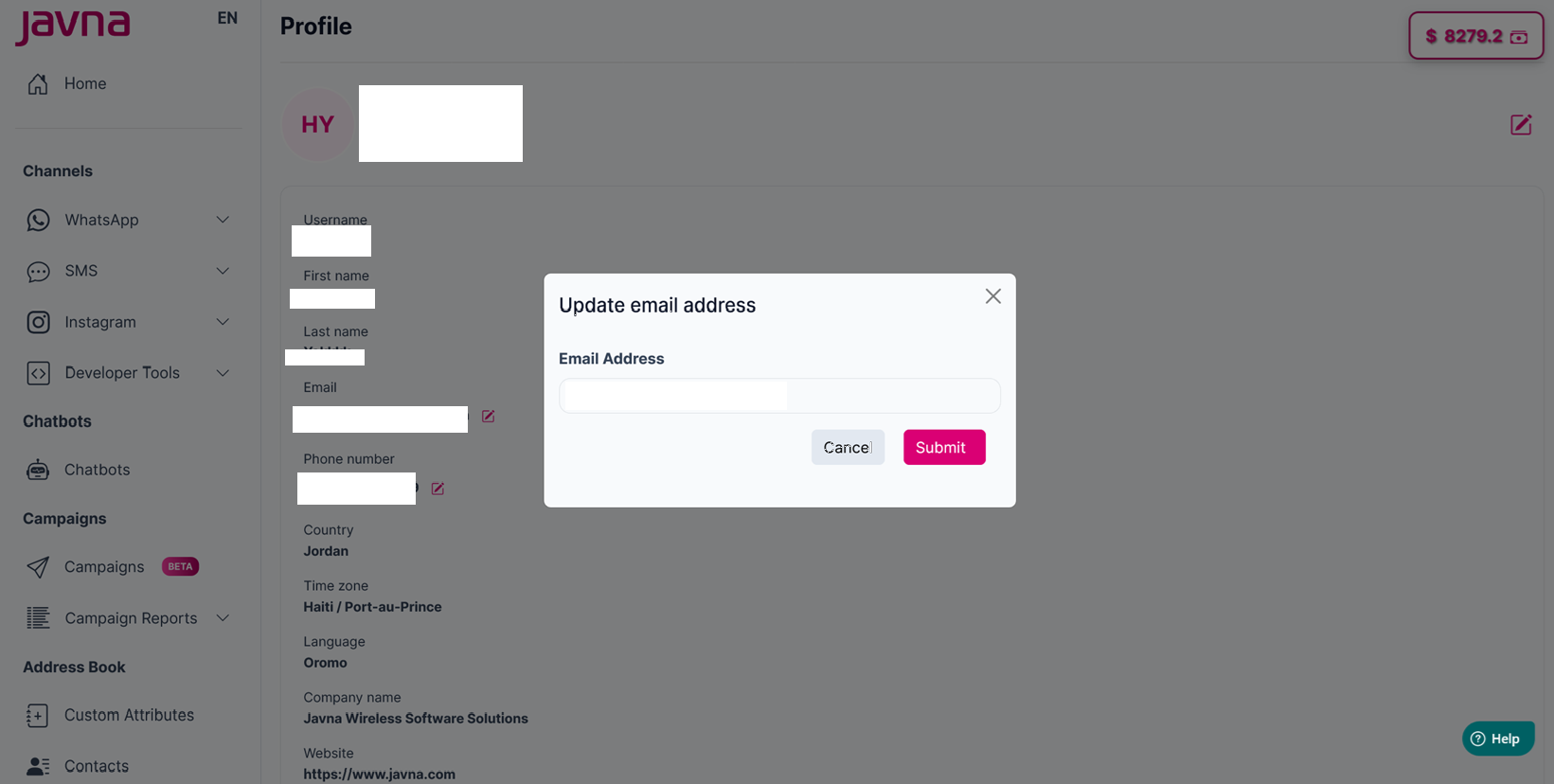
Entering your new email address in the email field
c. Check your new email for a verification code.
d. Enter the verification code in the provided field, then click on the “Verify and Save” button.
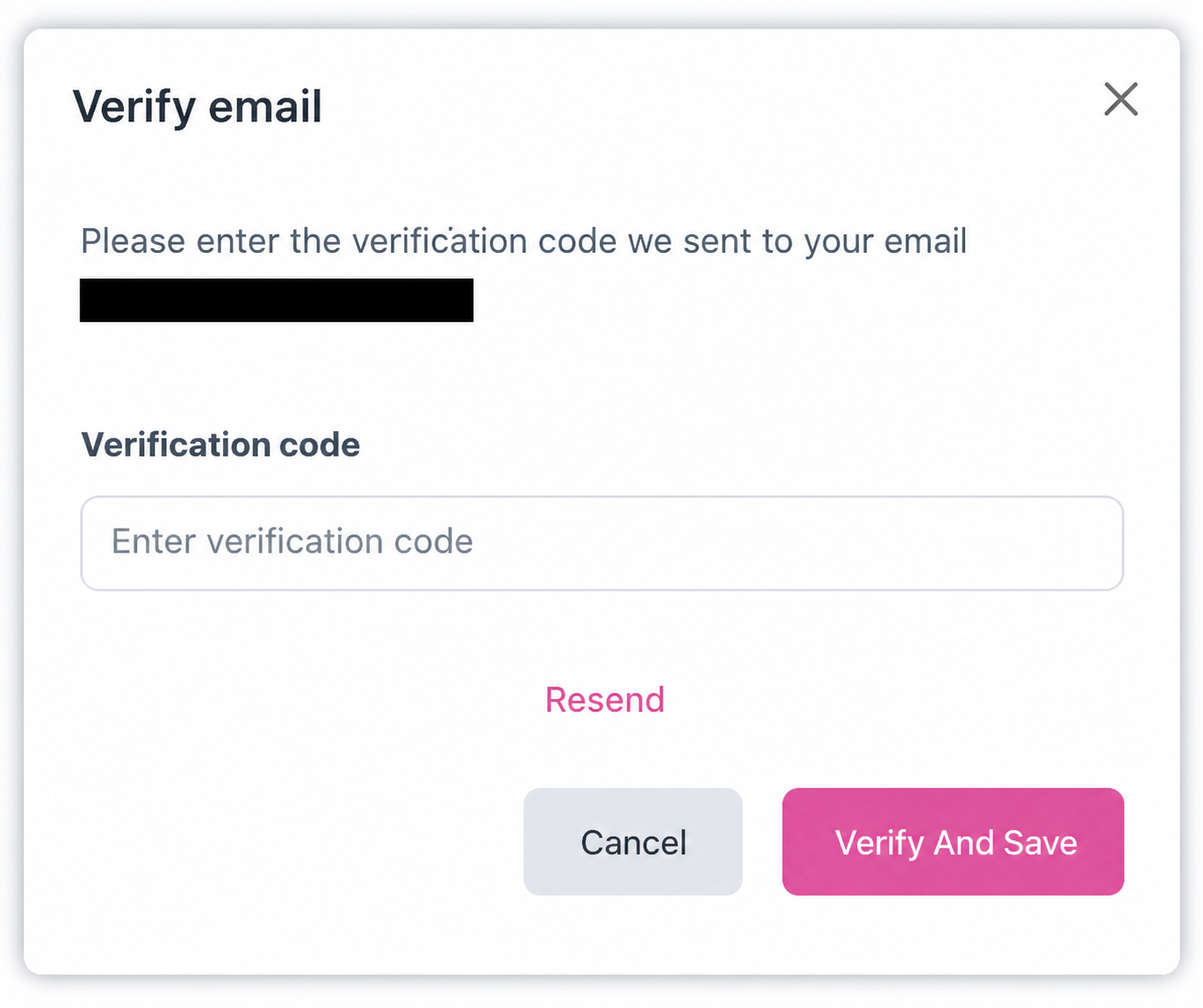
Entering the verification code in the provided field then click on the "verify and save" button
e. A confirmation message will appear, indicating that your email has been successfully verified.
- To Update Your phone number, follow these simple steps:
a. Click the “Update” button next to your phone number.
b. Enter your new phone number in the “phone number” field
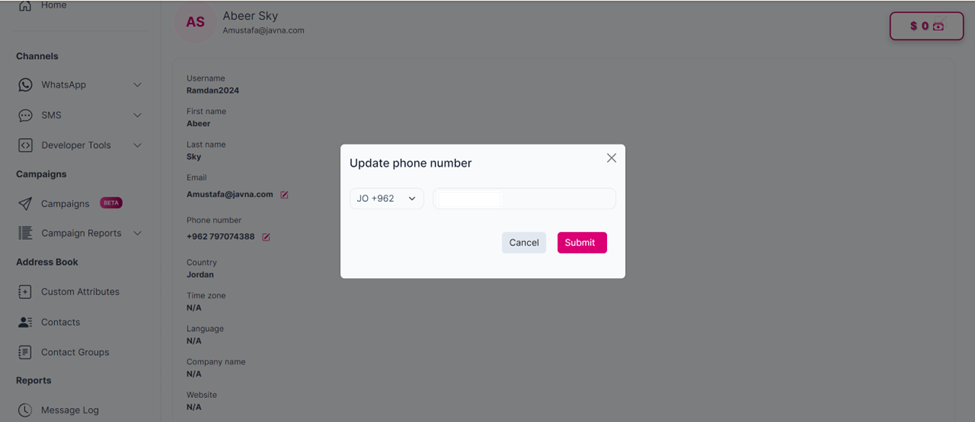
Entering your new phone number in the "phone number" field.
c. Check your new phone number for a verification code.
d. Enter the verification code in the provided field, then click on the “Verify and Save” button.
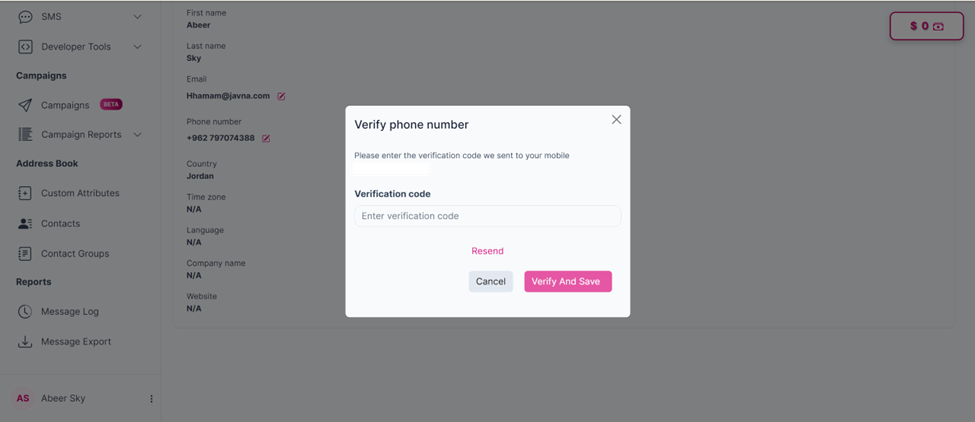
Entering the verification code
e. A confirmation message will appear, indicating that your phone number has been successfully verified
- You can edit your first name, last name, country, time zone, language, company name, and website by clicking on the edit button.
- Click on the "Save" button to apply and save your changes.
Updated 3 months ago