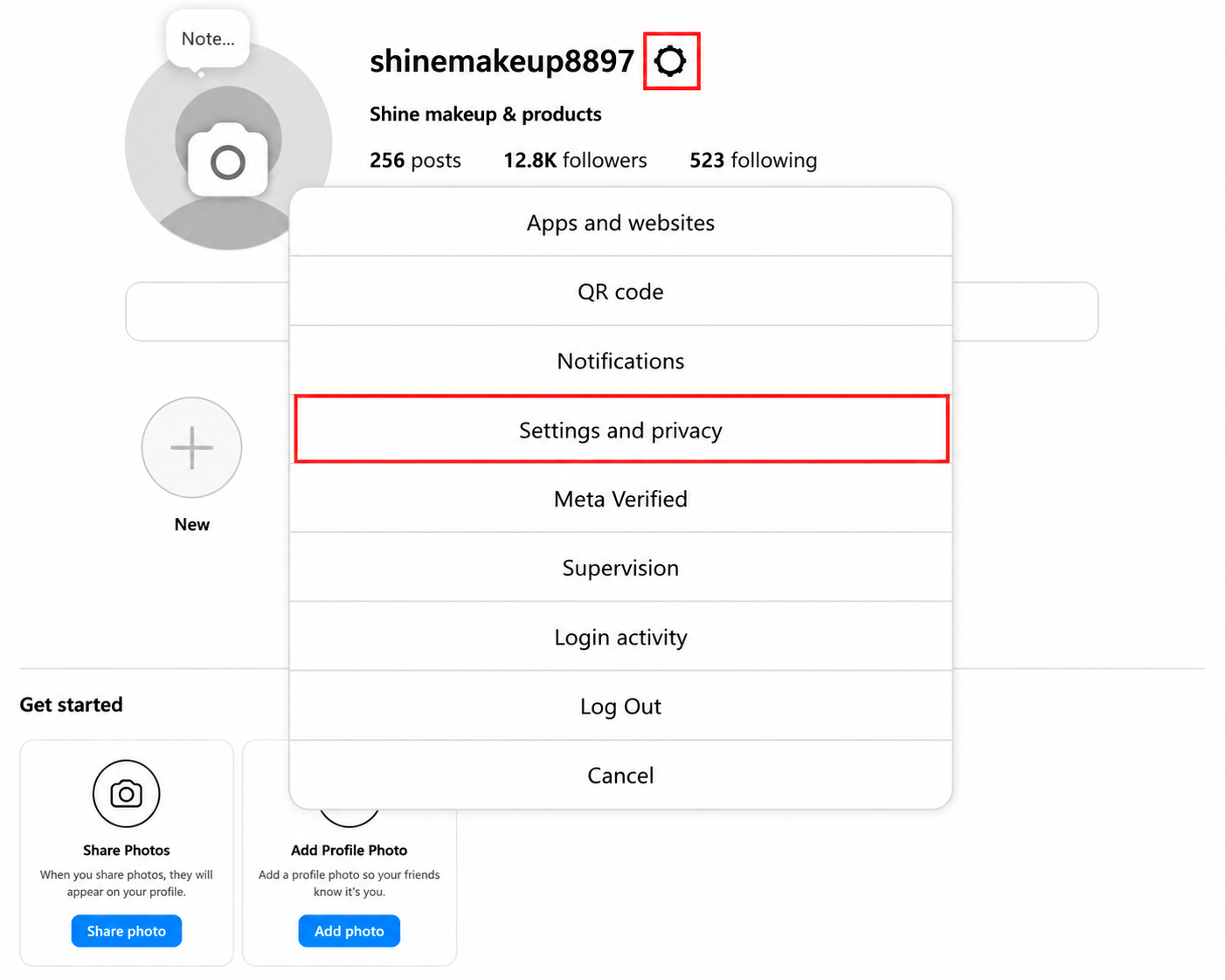
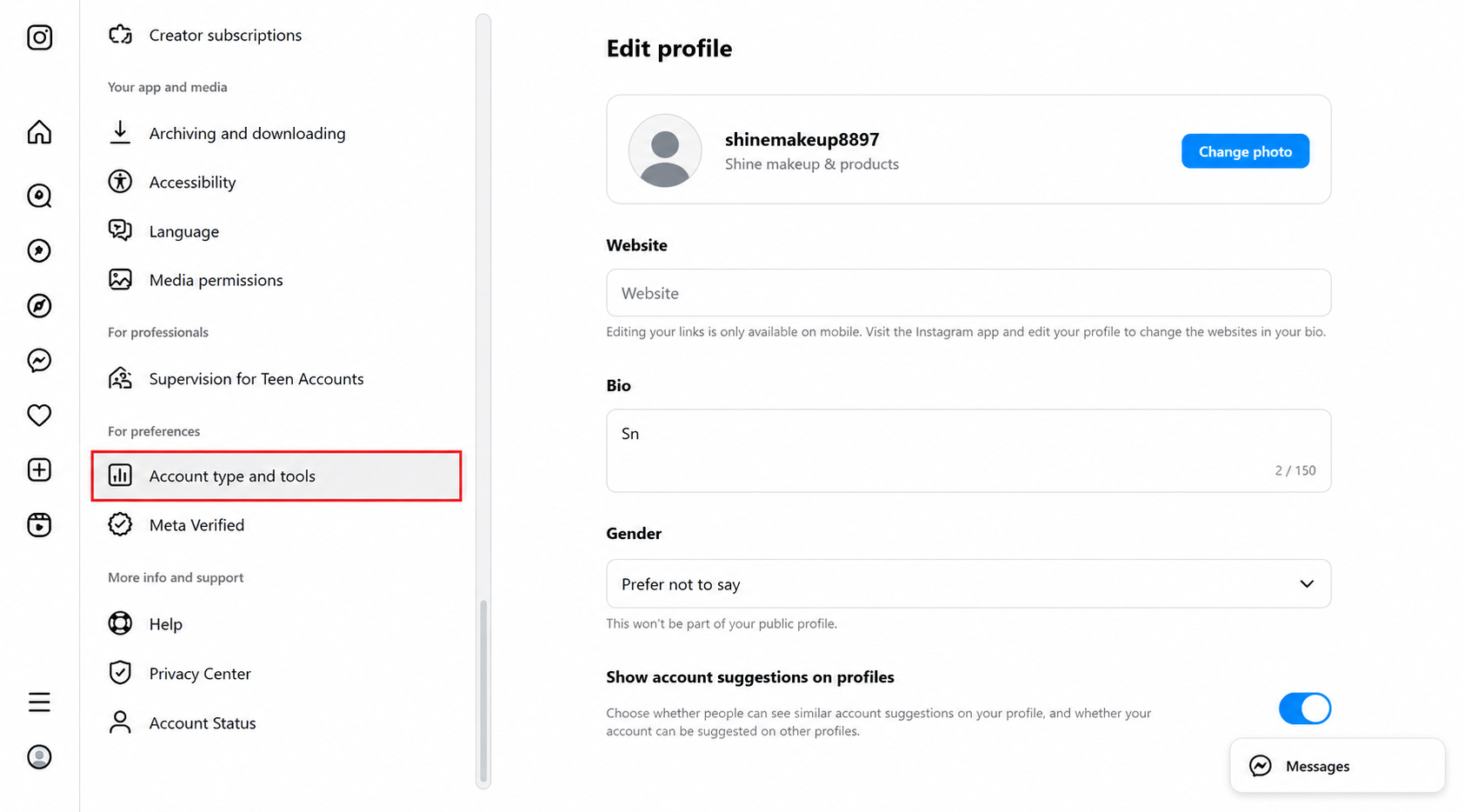
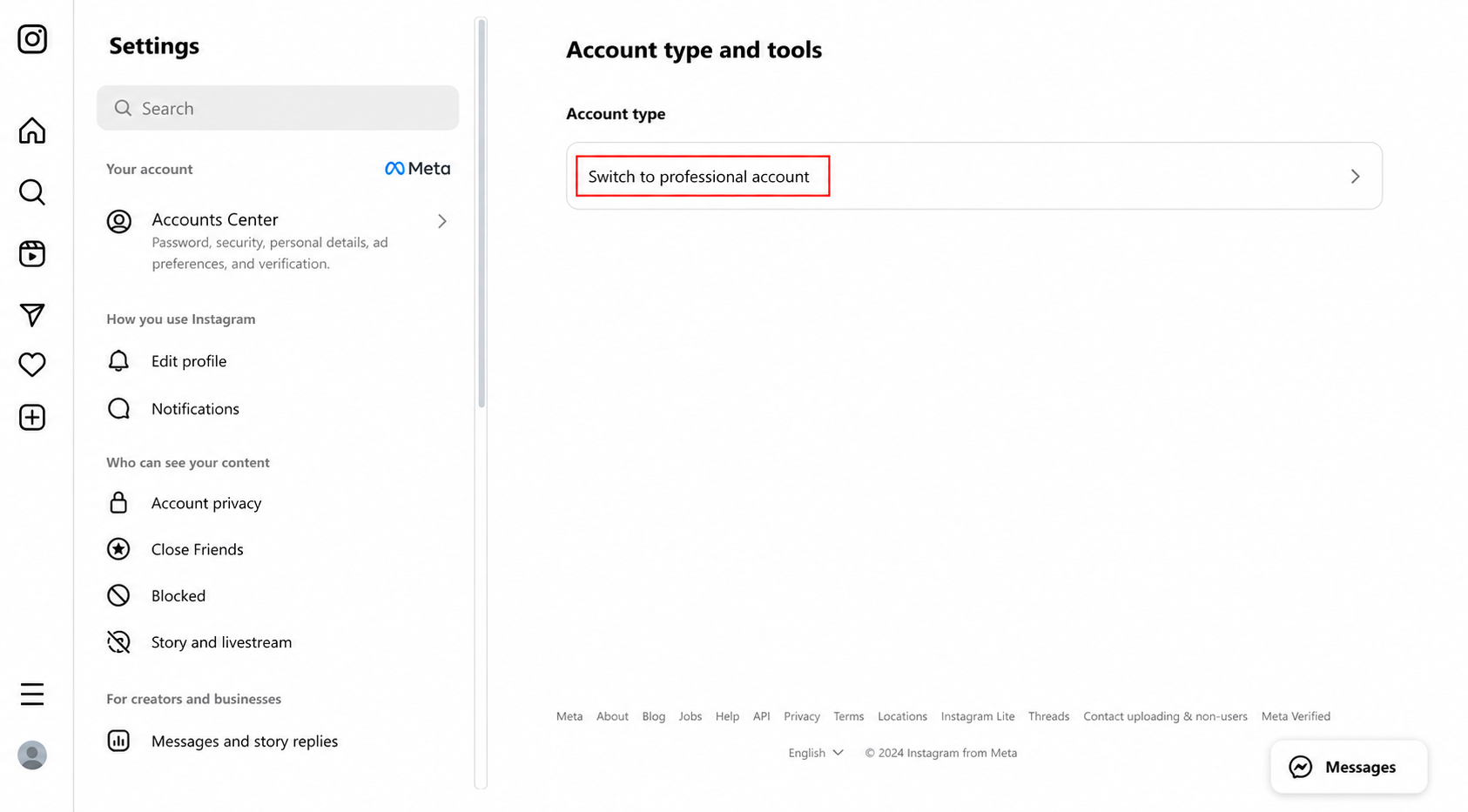
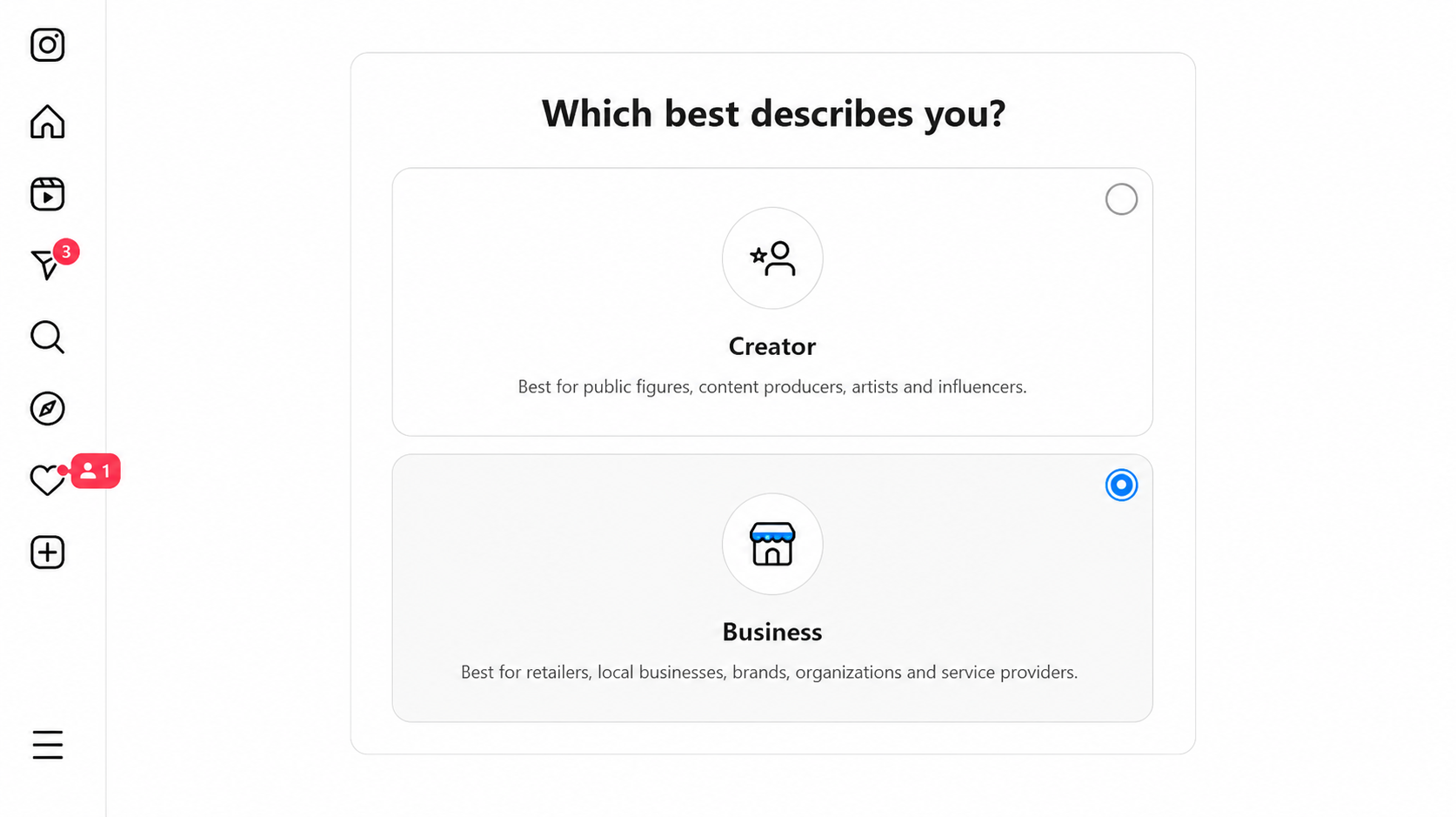
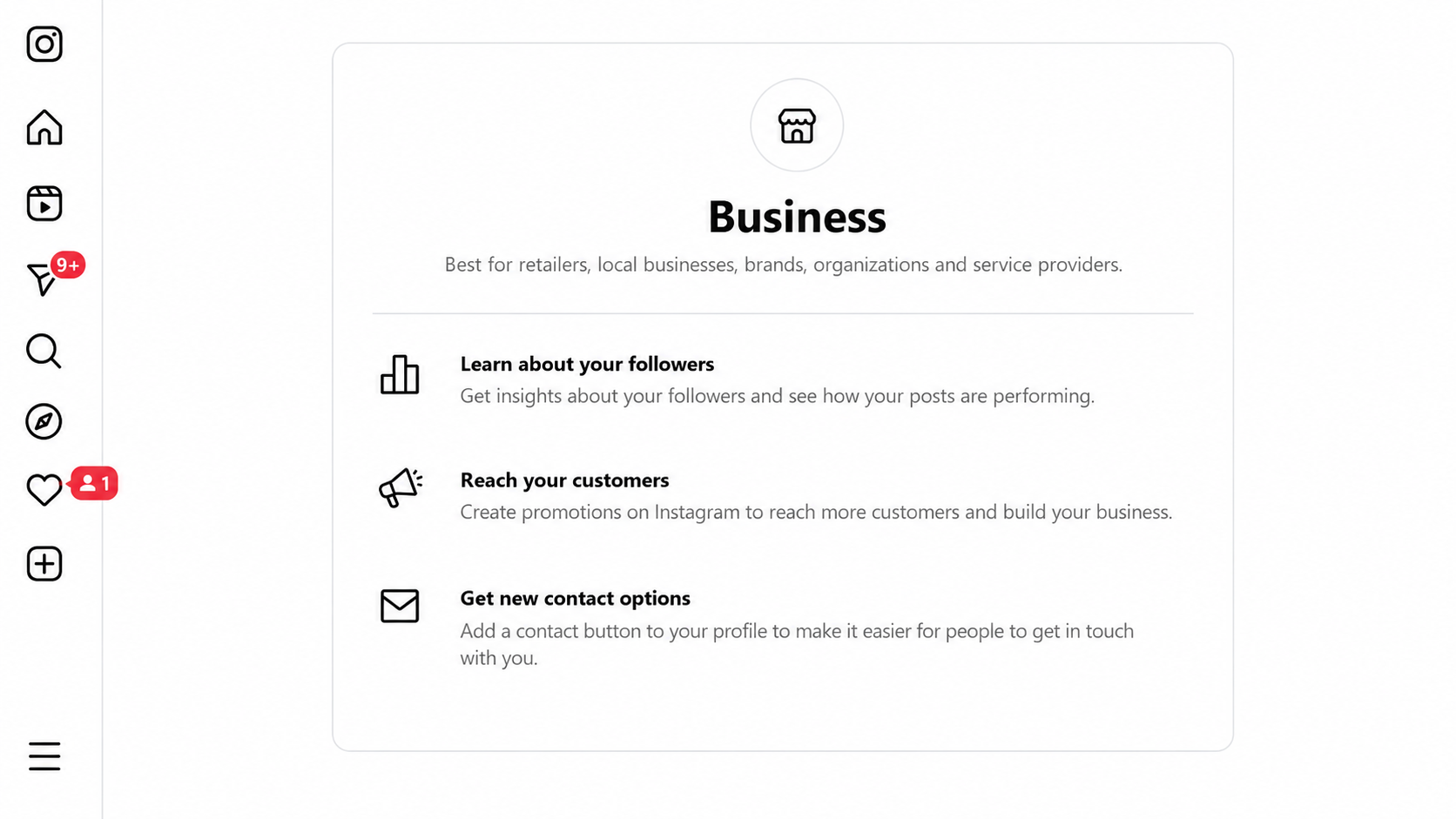
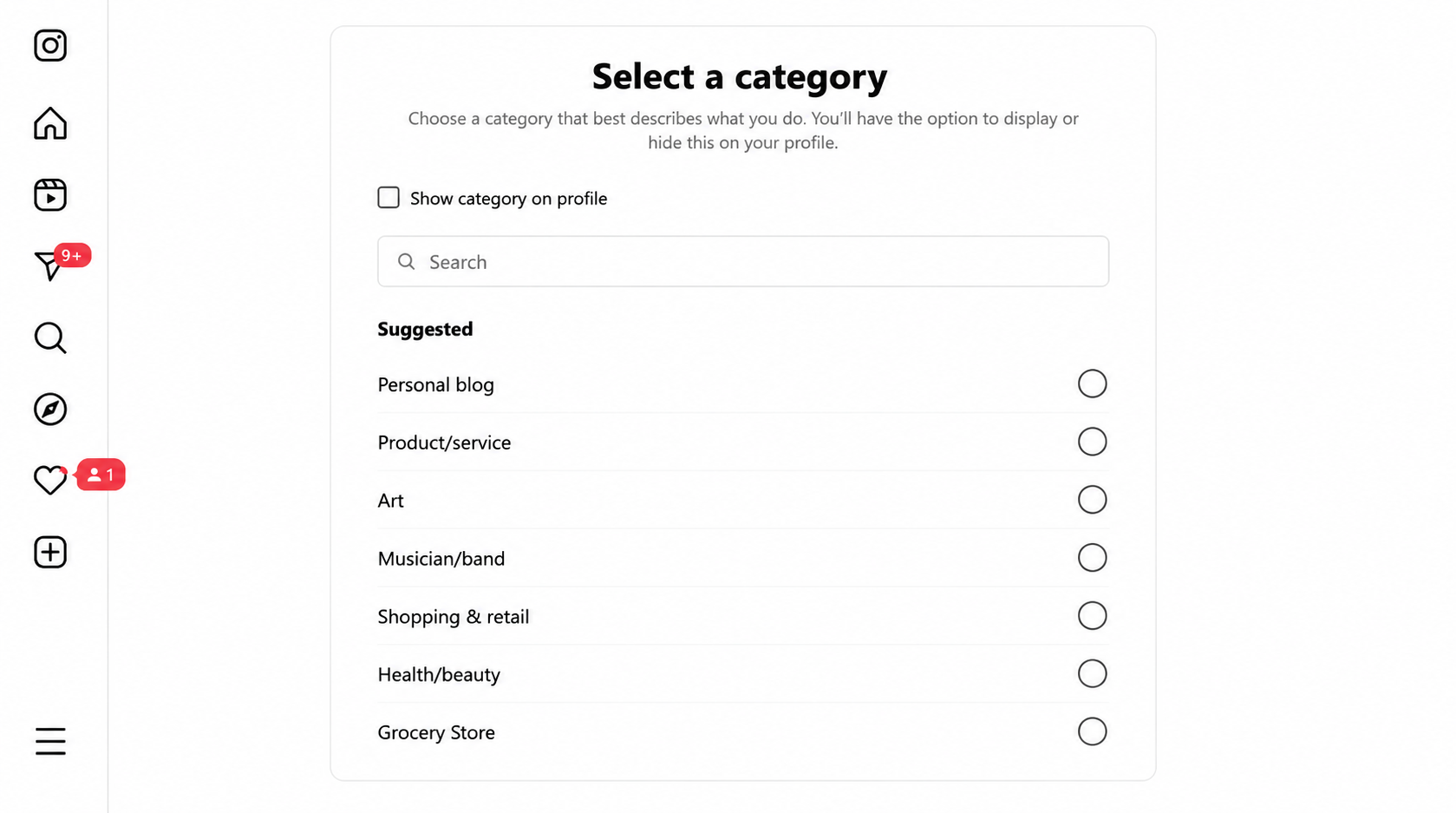
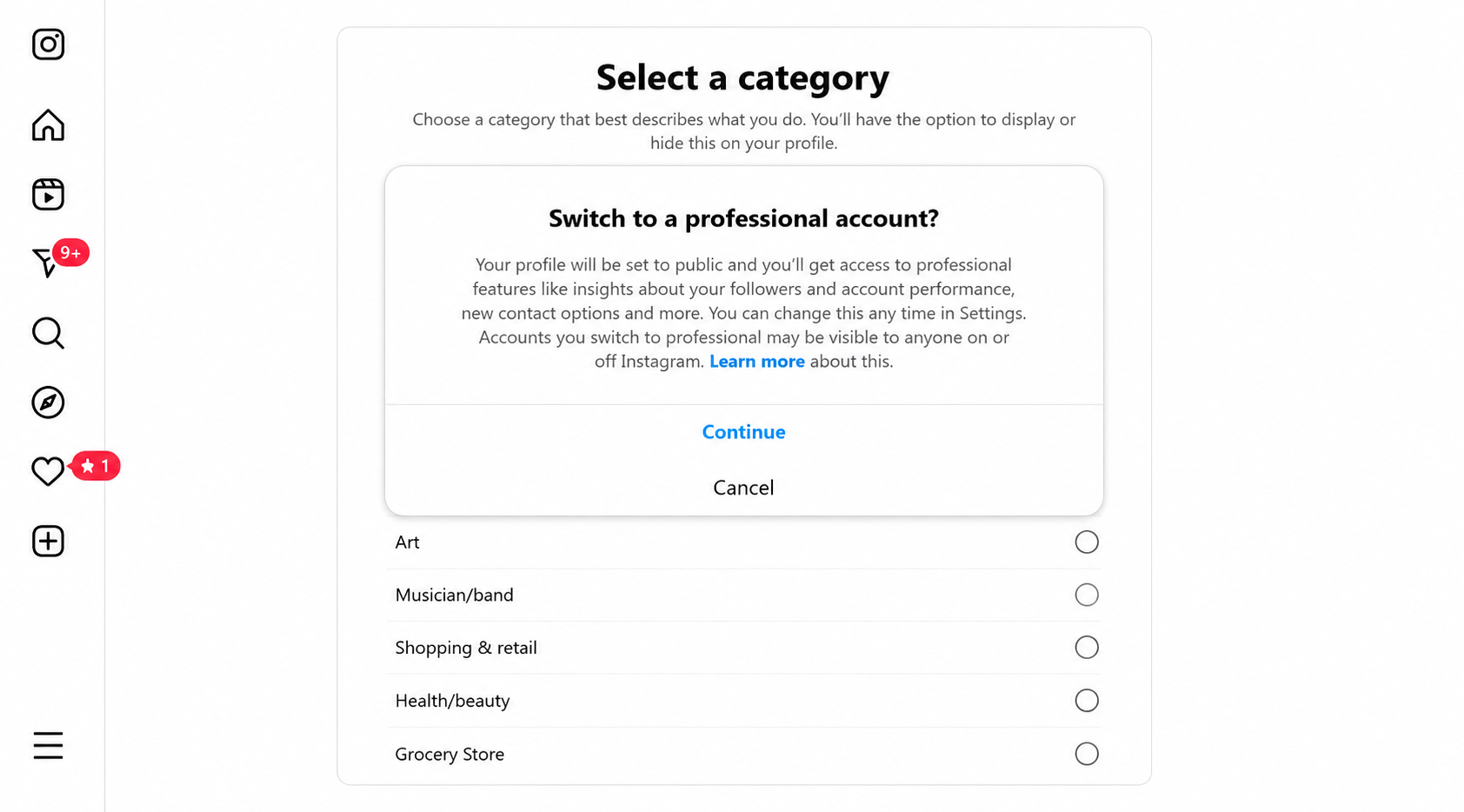
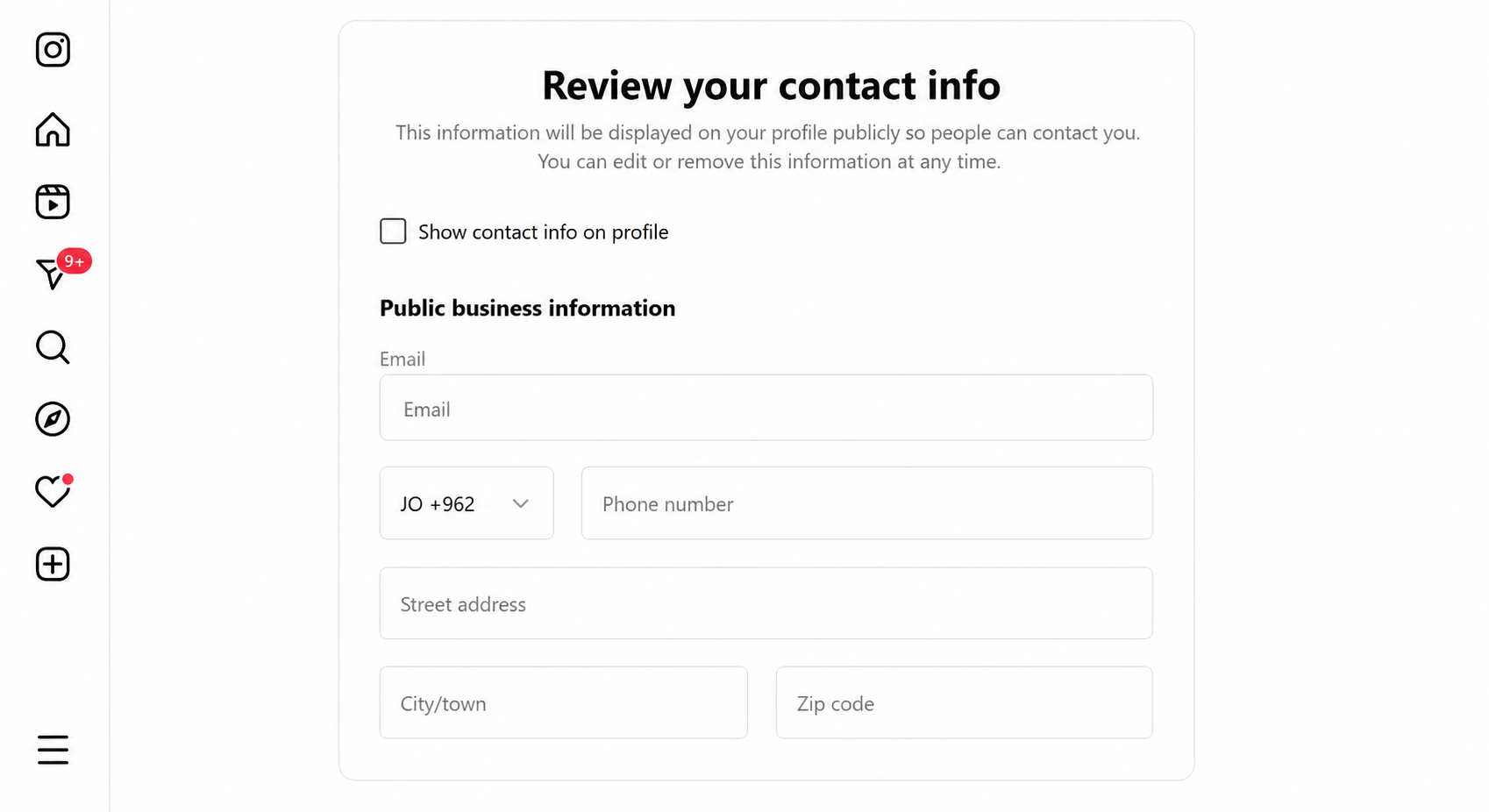
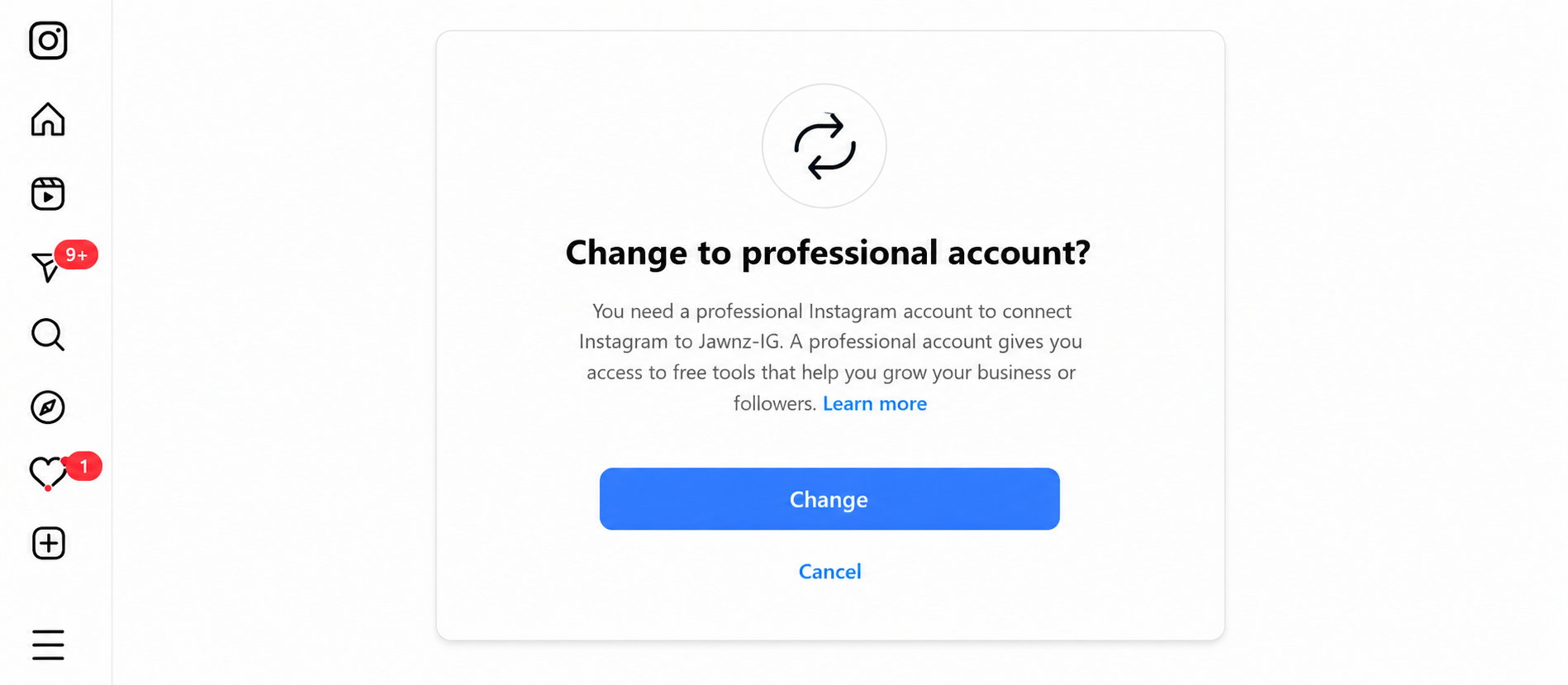
Note: If your Instagram account is not configured as a Professional Account, a pop-up will appear asking you to switch your account type. Click Change and follow the steps described above.
Important: If you do not switch to a Business Account, the onboarding process will fail and you will remain on the Instagram tab.
Changing your account to professional
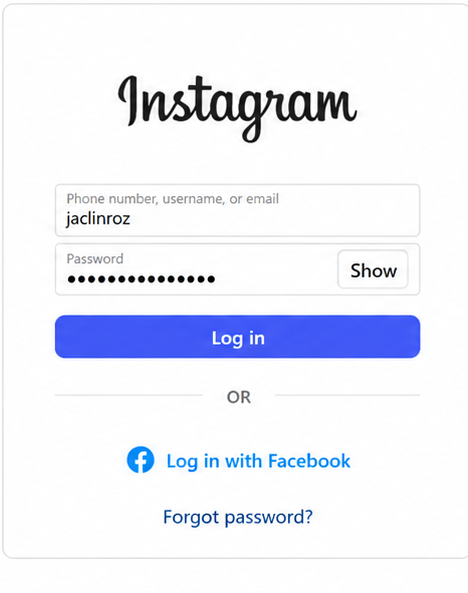
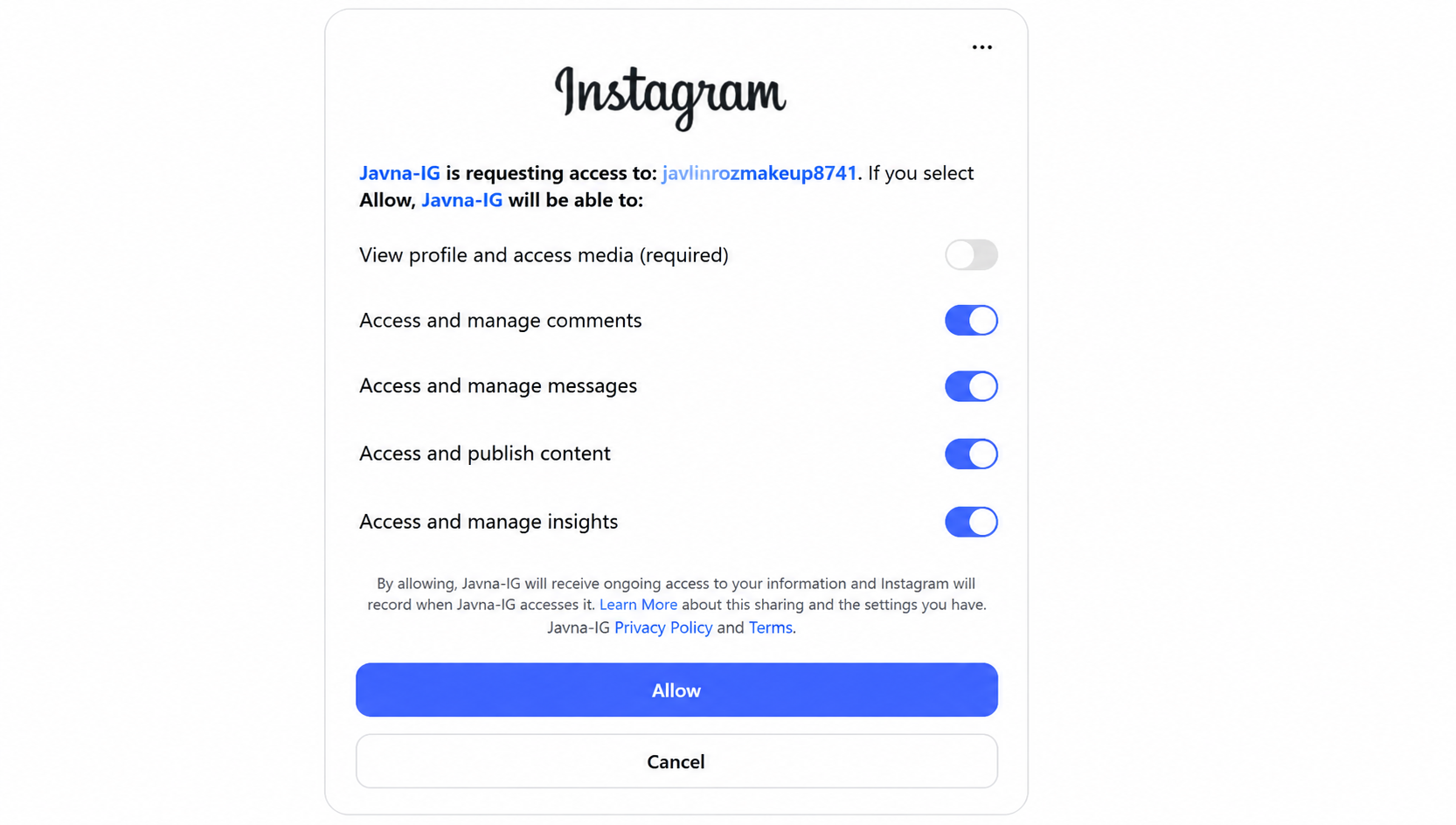
Click the Allow button to give Javna permission to access and manage your Instagram messages, content, insights, and comments.
These permissions are enabled by default during onboarding. You can turn them on or off at any time using the toggle switches.
Giving Javna Permissions
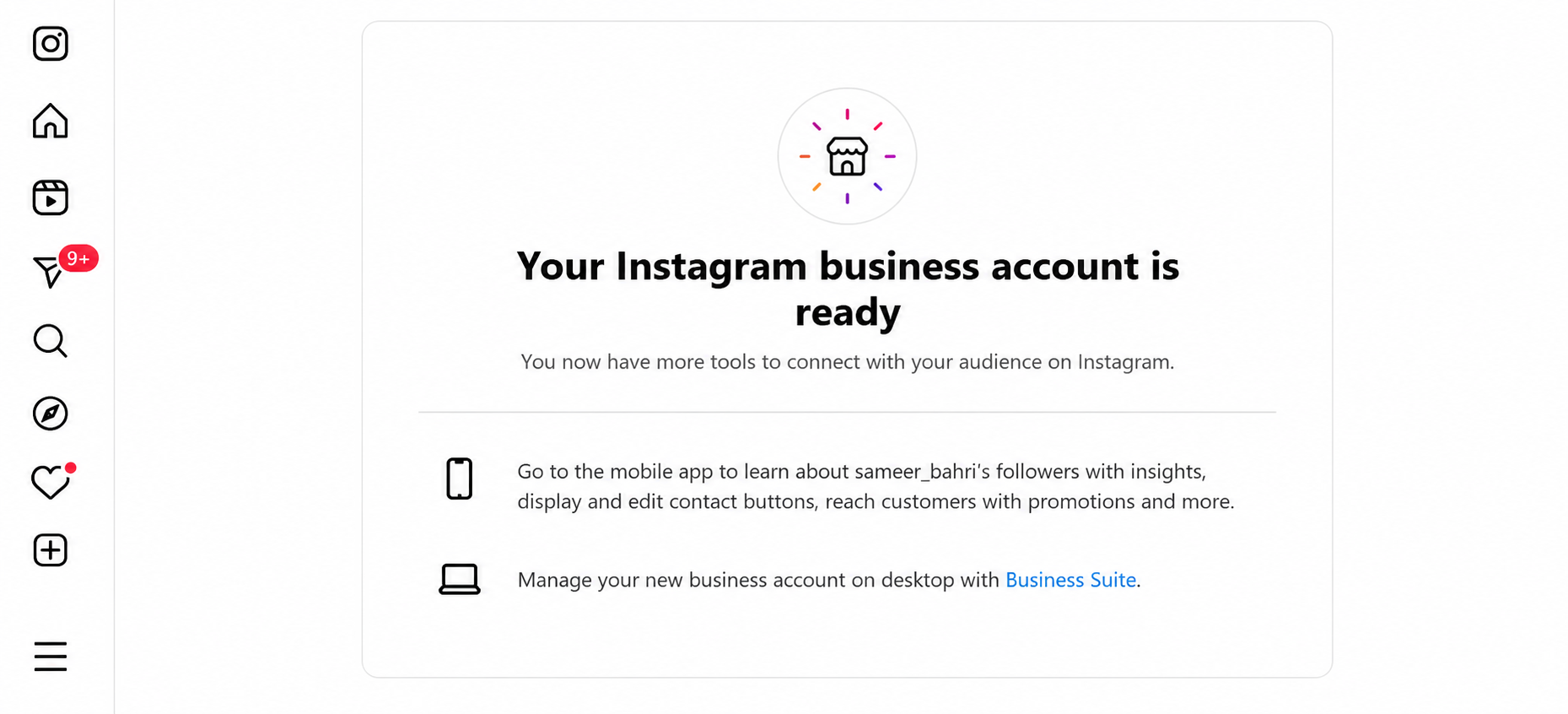
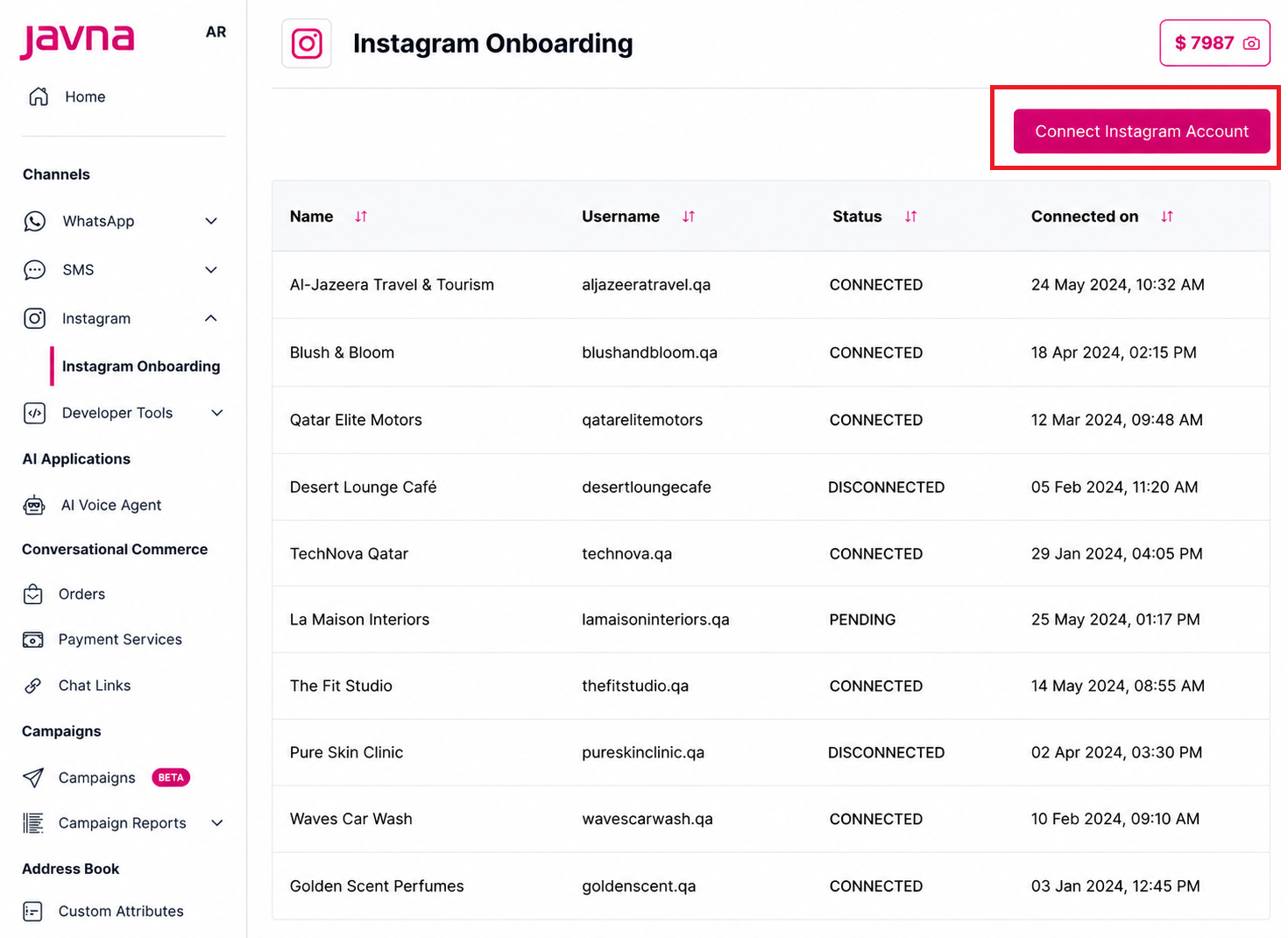
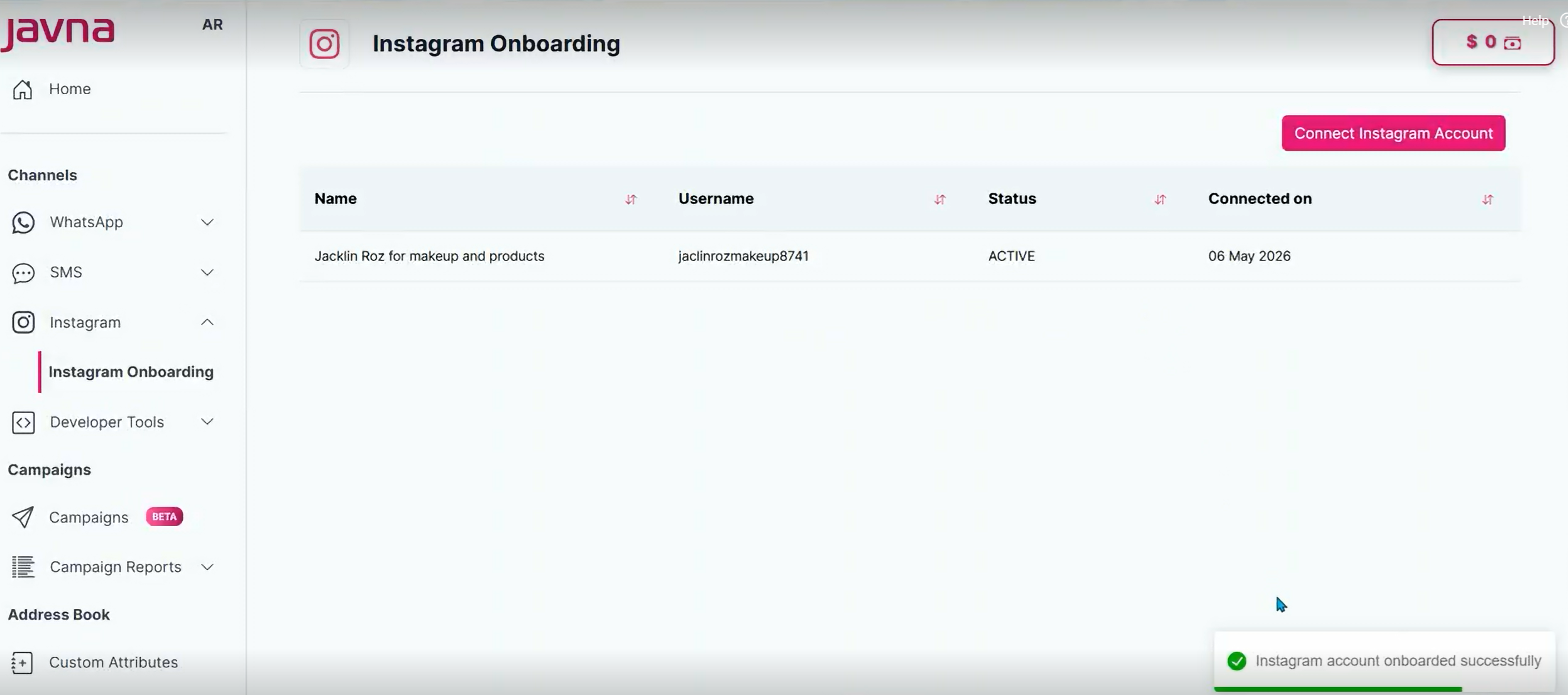
A confirmation message will appear indicating the Instagram account has been onboarded successfully, and the connected account will be listed in the table.
A confirmation message and the Instagram connected accounts list
Note: By following the same onboarding steps, you can connect multiple Professional Instagram accounts to your CPaaS account.