

Creating Message Templates
To create a new message template, please follow these steps:
- Access the message templates page, refer to this section "accessing the "message template" .
- After redirecting to the message templates page, click on the “Create message templates” button.
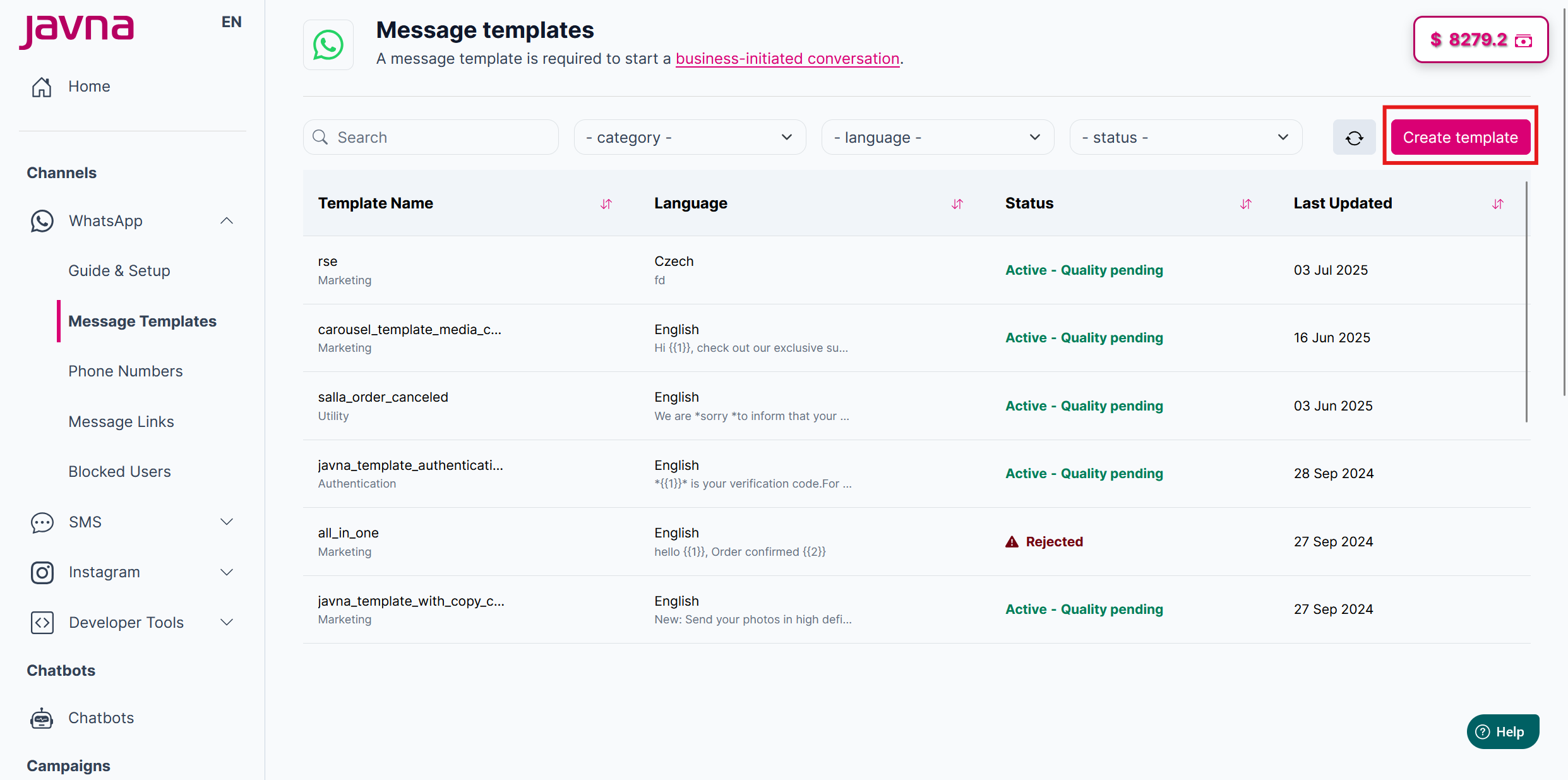
The "Create template" button
- You will be redirected to the “New message template” page.
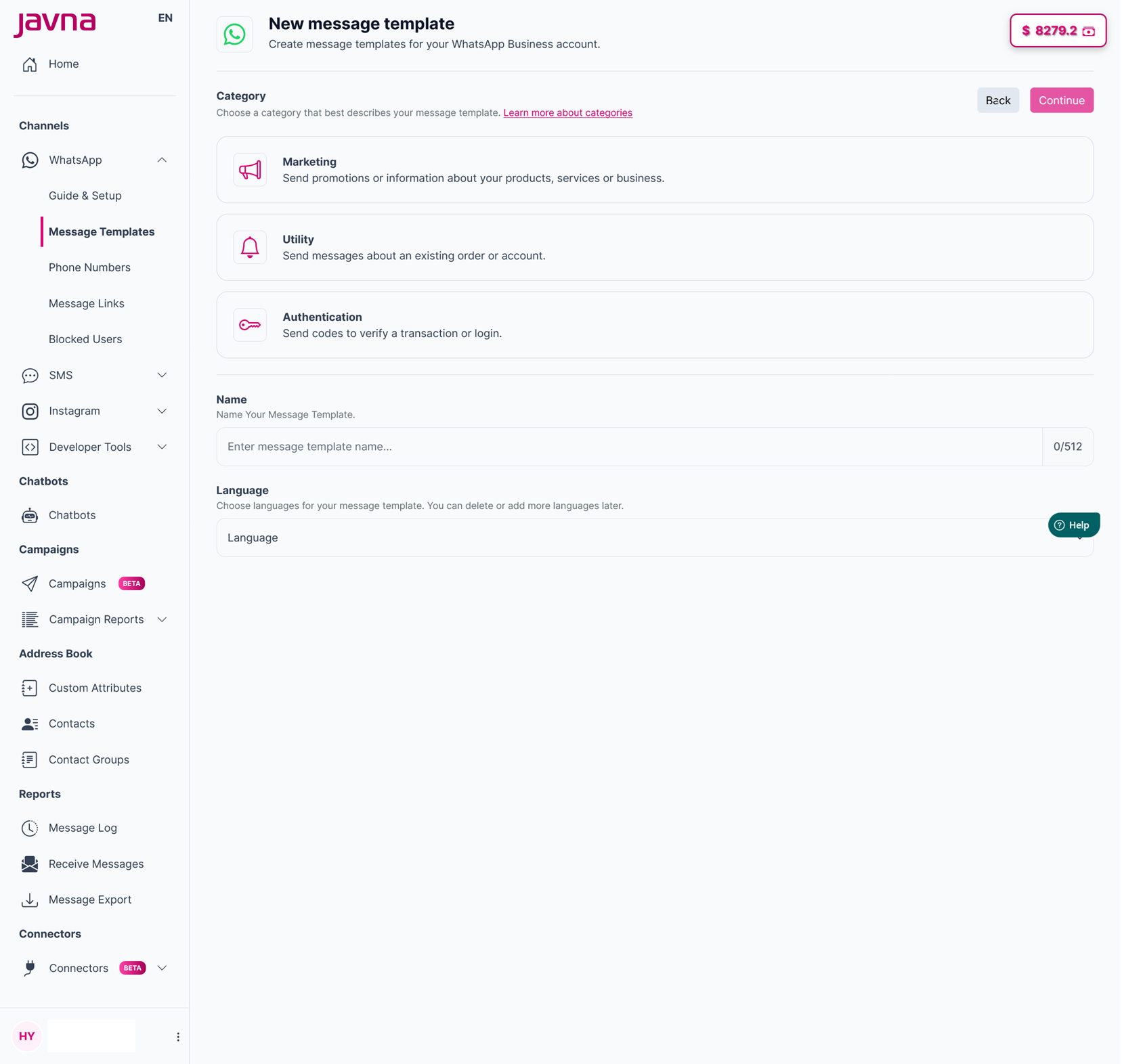
The “New message template” page
- Select one of the following categories that best suits your message template:
- Marketing: you can use this template to send promotional offers, product announcements, and more to increase awareness and engagement.
- Utility: you can use this template to send account updates, order updates, alerts, and more to share important information.
- Authentication: you can use this template to send codes to verify transactions or other security codes.
- Enter a name for your message template, ensuring it does not exceed 512 characters and contains no Arabic or special characters. Then, select the appropriate language for your message template.
** Note: Spaces in the name will be shown as underscores.**
- Click on the “Continue” button.
In the next sections, we will continue in the steps to complete creating your message templates based on the category that you choose.
Updated 7 months ago
Did this page help you?