

Creating authentication message templates
Follow these steps to create an authentication message template:
- Navigate to the “new template message” page and choose the authentication category. Refer to this section "Creating Message Template" .
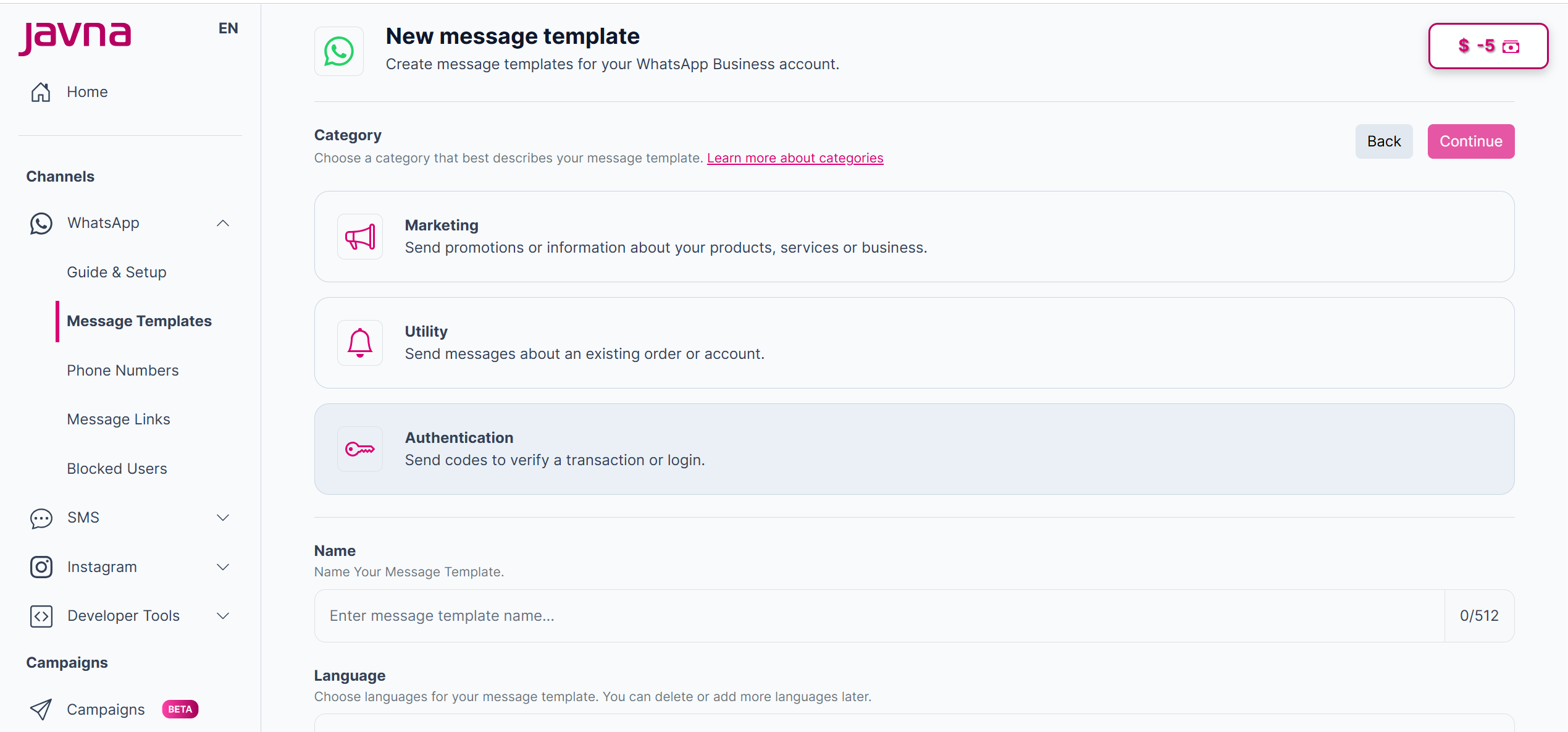
selecting the authentication category
- You will be automatically redirected to the "Edit Template" page.
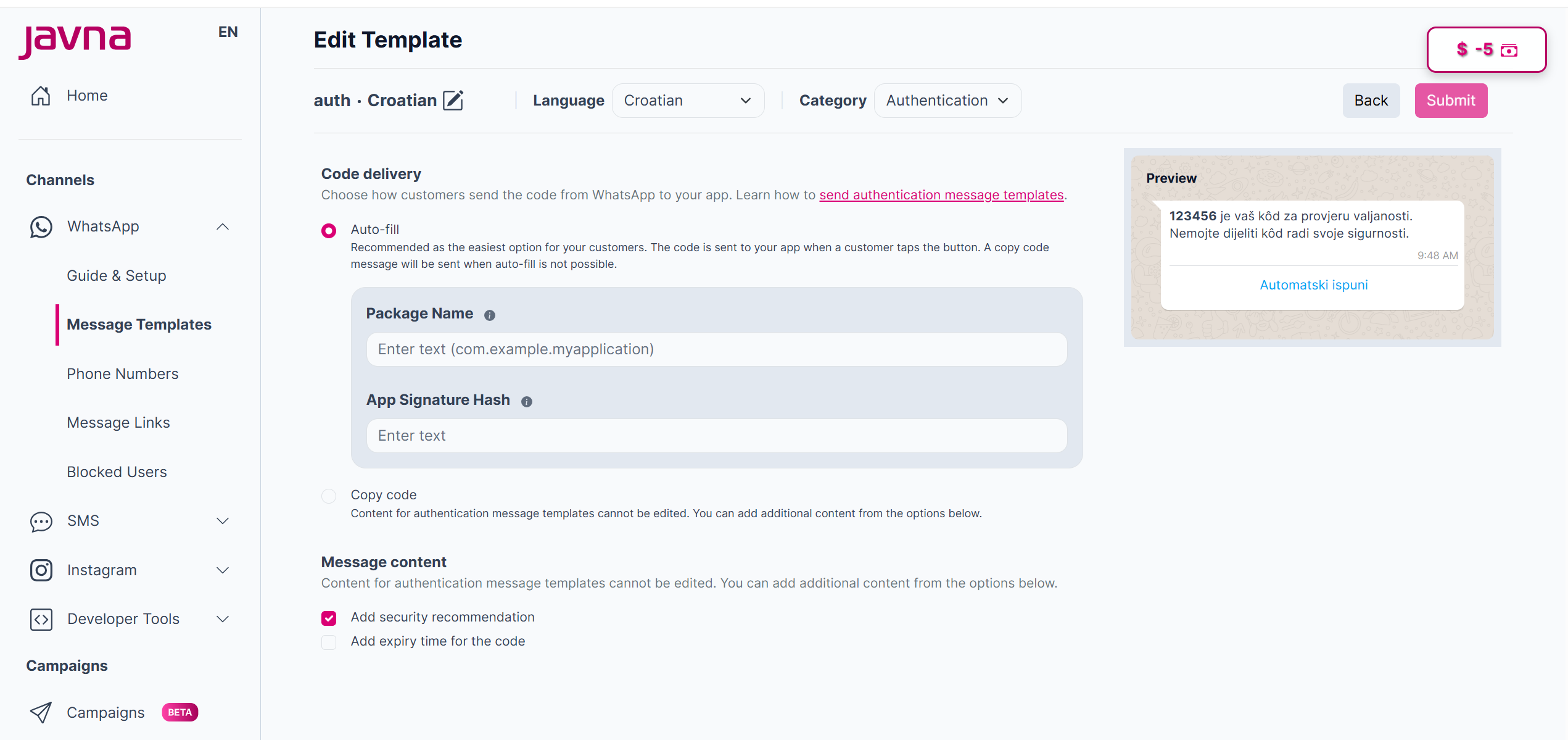
The "Edit Template" page
- Choose how customers will send the code from WhatsApp to your app:
- Auto-fill: Considered the easiest way for customers. The code is sent to your app when the customer taps the button. If sending an auto-fill message is impossible even though you have selected it, a copy code message will be sent to your customer instead.
i. If you choose autofill, then you should enter both:
-
Package Name: The package name must meet the following validation criteria: It must have at least two segments, separated by dots. Each segment should begin with a letter, and all characters in a segment must be alphanumeric or underscores.
-
Signature Hash: The signature hash parameter for an OTP button must meet the following validation criteria: It must be exactly 11 characters long and can contain alphanumeric characters and the symbols “/”, “+”, “=”.
ii. you can add additional content from these options:
-
Add security recommendations, when you add this, the message body will be: "123456 is your verification code. For your security, do not share this code".
-
Add the expiry time for the code. Check this box to set an expiry time for the verification code. You can choose a duration between 1 and 90 minutes. The message sent to customers will say: "123456 is your verification code. This code expires in [X] minutes.".
-
You can edit the text on both the copy code and autofill buttons.
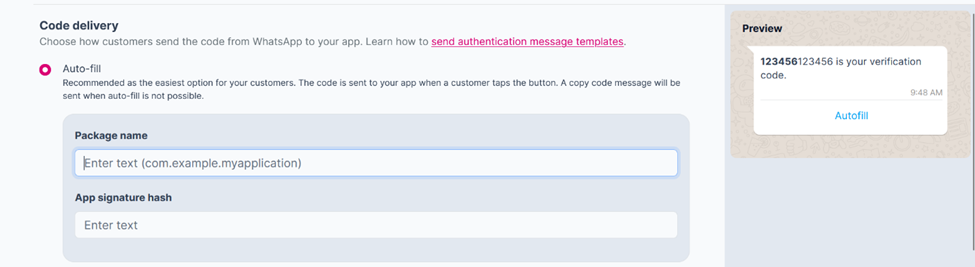
The "package name” and the "App signature hash".
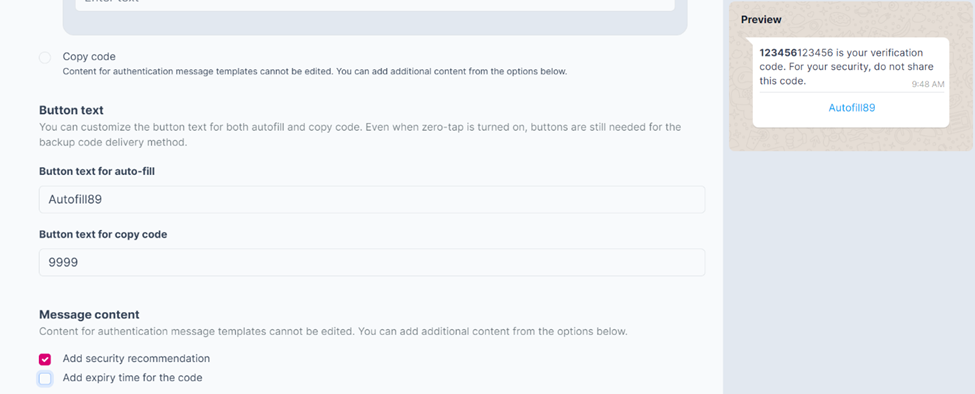
The Additional information you can add.
- Copy Code: Content for authentication message templates that include copy code buttons can't be edited. You can add additional content from these options:
- Add security recommendations.
- Add the expiry time for the code.
- Edit the copy code button text.
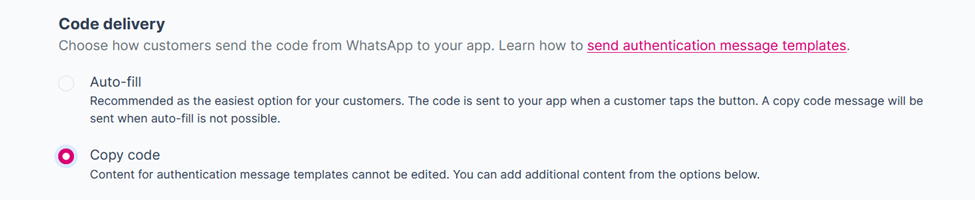
Selecting the "copy code" method.
- Once all fields are filled correctly, click on the “submit” button. This action will:
a. Send the template to Meta for verification.
b. Add the template to the templates list with an "In review" status.
Updated 7 months ago