

Editing Contacts
To edit contacts, follow these steps:
- Navigate to the "contacts" page. Refer to this section Navigating to the "contacts" page.
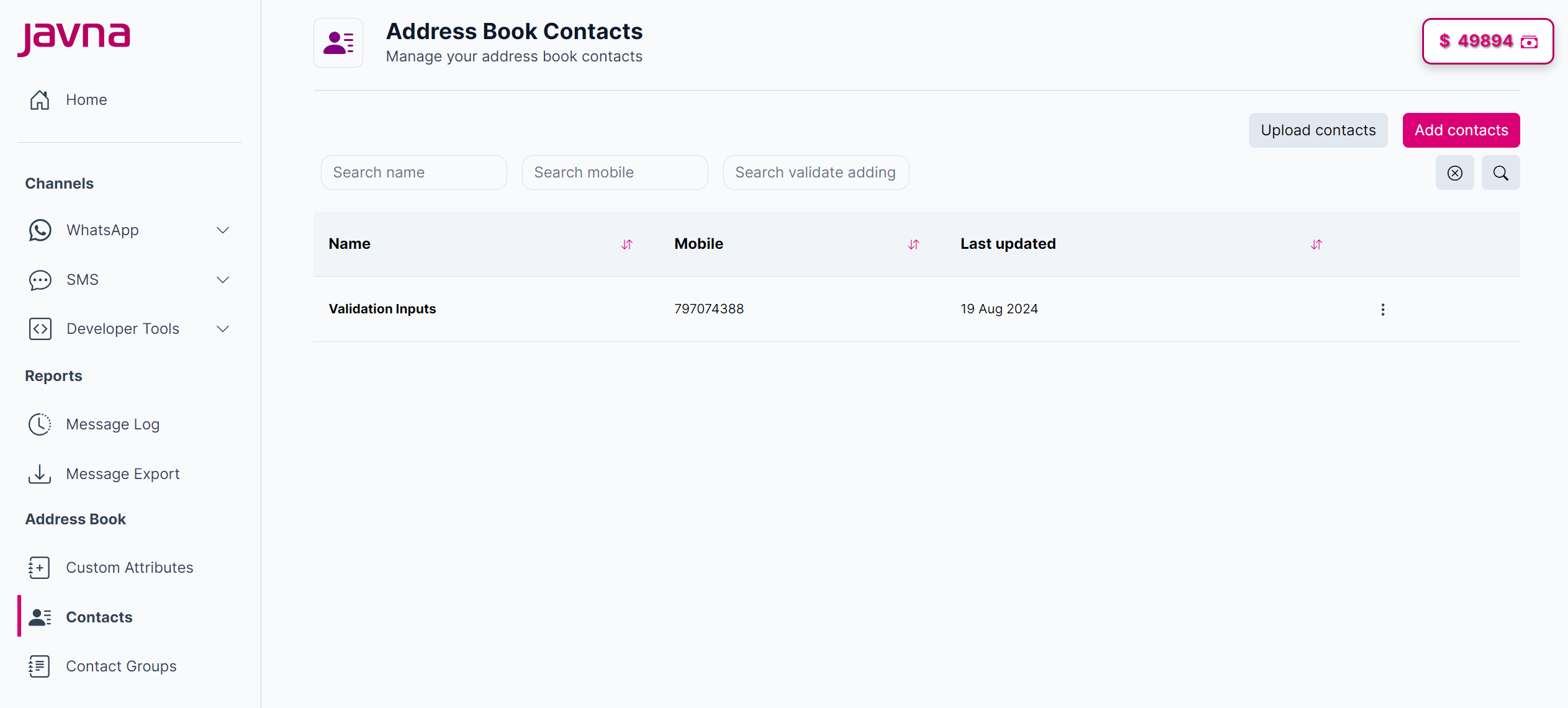
The "Address Book Contacts" page.
- Click the options menu button next to the contact you wish to edit, then select "Edit".
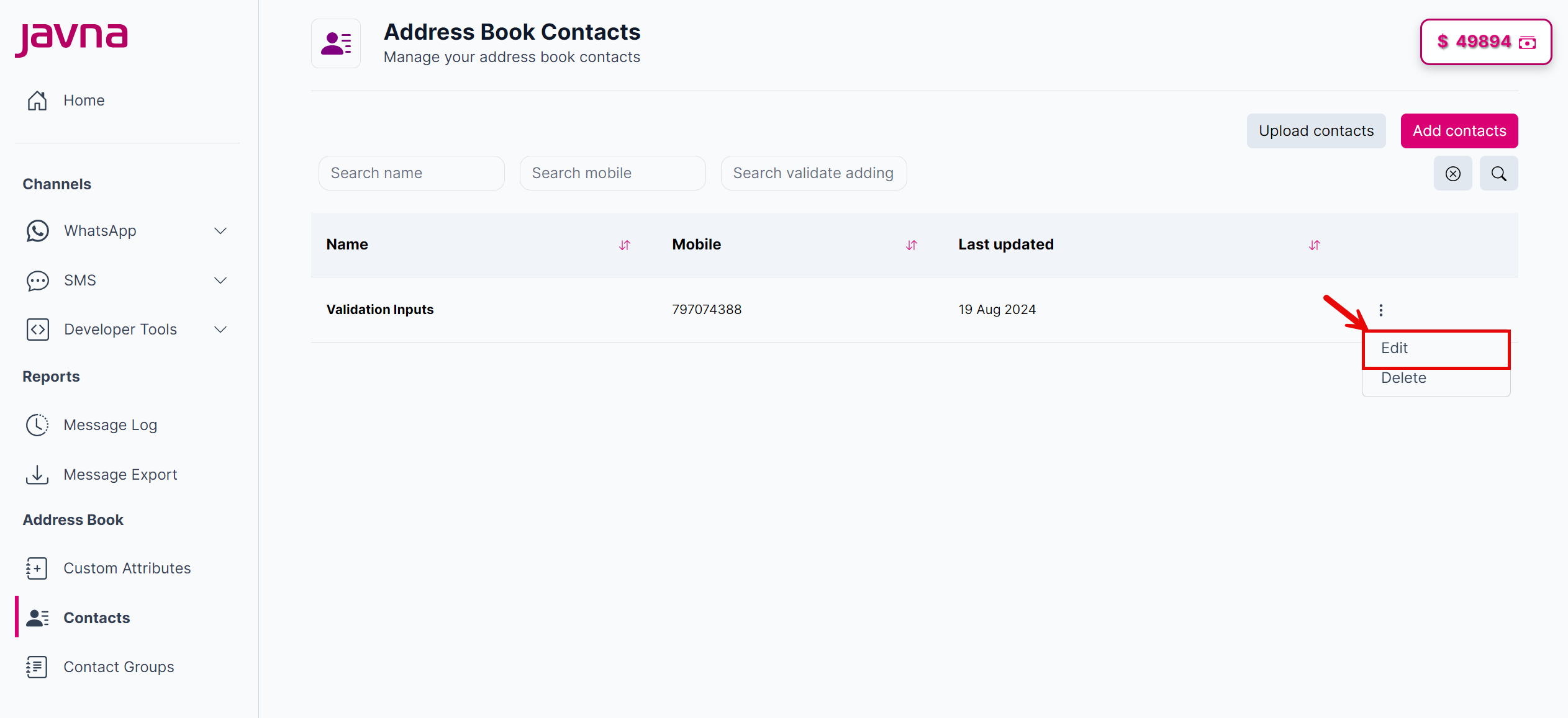
Clicking on the "Edit" button.
- After clicking "Edit," you will be redirected to the "Update Address Book Contact" page, where you can modify the first name, last name, and mobile number, and the custom attribute.
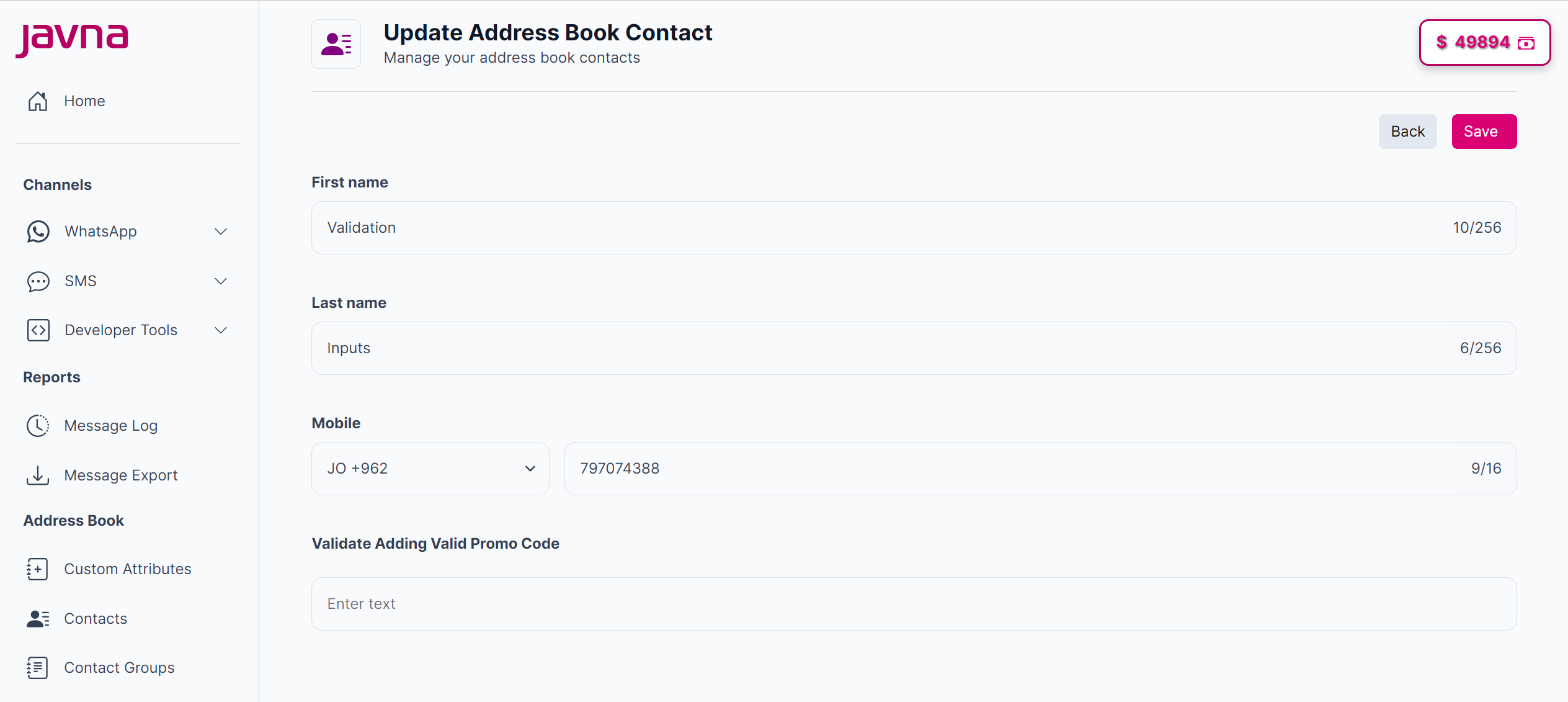
The "Update Address Book Contact" page.
- Once you've made your changes, click on the "Save" button to apply them, a confirmation message indicating that the “Contact Updated successfully” will appear, or click on the "Cancel" button to discard any changes.

The confirmation message.
Updated 7 months ago
Did this page help you?