

Building one-off campaign
To build your one-off bot, follow these steps
- Navigate to the “Bot Builder” page. Refer to section (Navigation to the "bot builder" page).
- Click on the “Build a Bot” button, then Select “Build an Outbound Bot”.
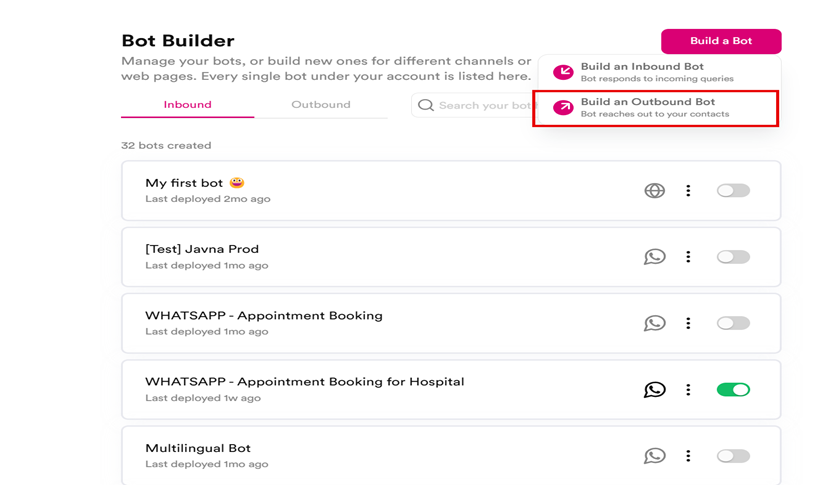
Selecting "Build an Outbound Bot" button.
- Choose the “One-off” for your campaign type.
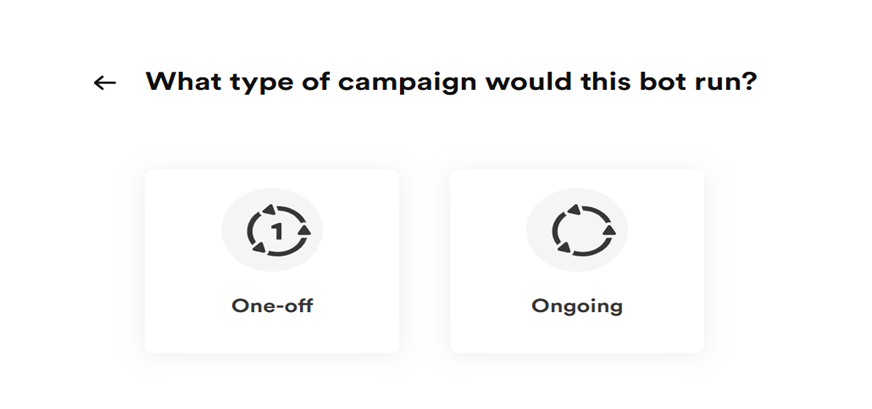
Types of Campaigns that this bot would run
- Click on the “Trigger” action block. A panel will open on the right side of the screen, where you can define which contacts the outbound bot should reach out to by selecting one of the following options from the dropdown menu:
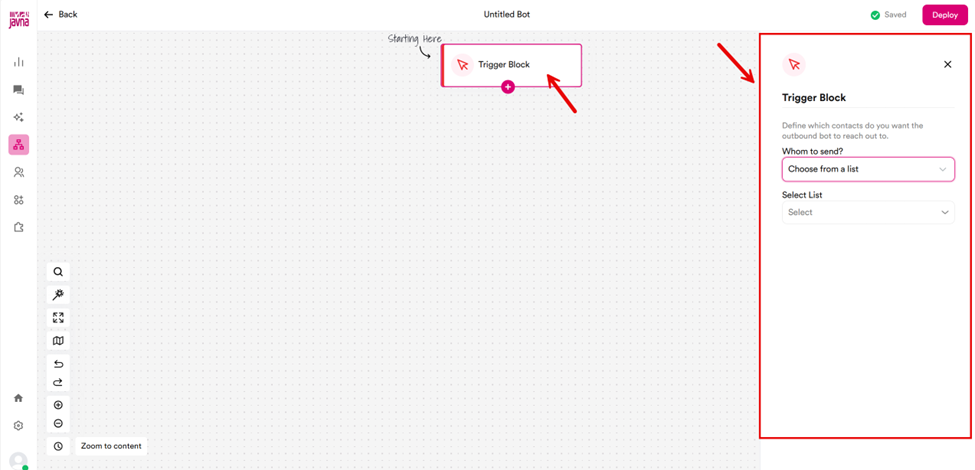
Clicking on the "Trigger" action block.
a. Upload CSV File: After selecting this option, please follow these steps:
i. Upload your CSV file, you can download sample CSV for your reference.
ii. After uploading, you will need to map the columns of the CSV to the variables in your account. This mapping allows you to dynamically replace values in your campaign messages. For example, if you want to personalize a message like, "Hello (name), glad we could meet on (date)," ensure that the Name and Date fields in your CSV are correctly mapped to the corresponding variables.
Note: It is mandatory to have a phone/email field mapped, in order to be able to send a campaign to contacts.
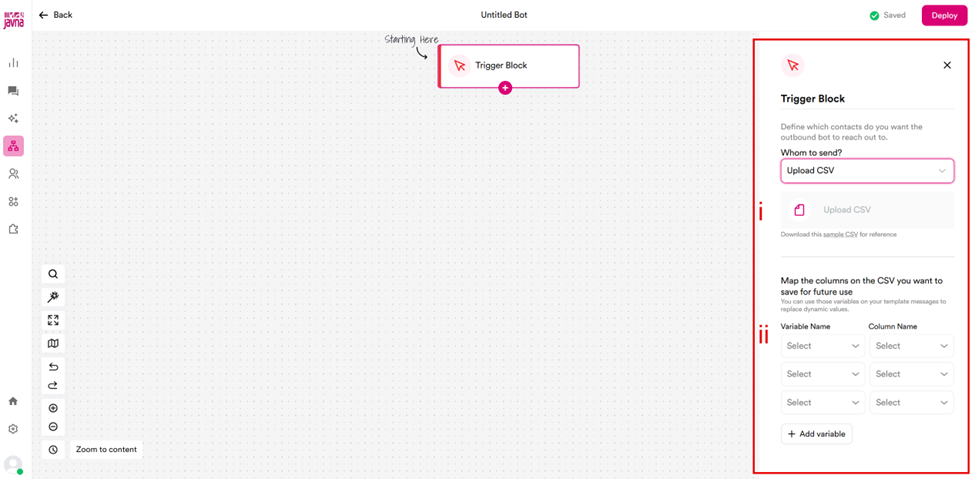
Uploading CSV File.
b. Choose from the List: If you select this option, you will need to choose a list from the dropdown menu.
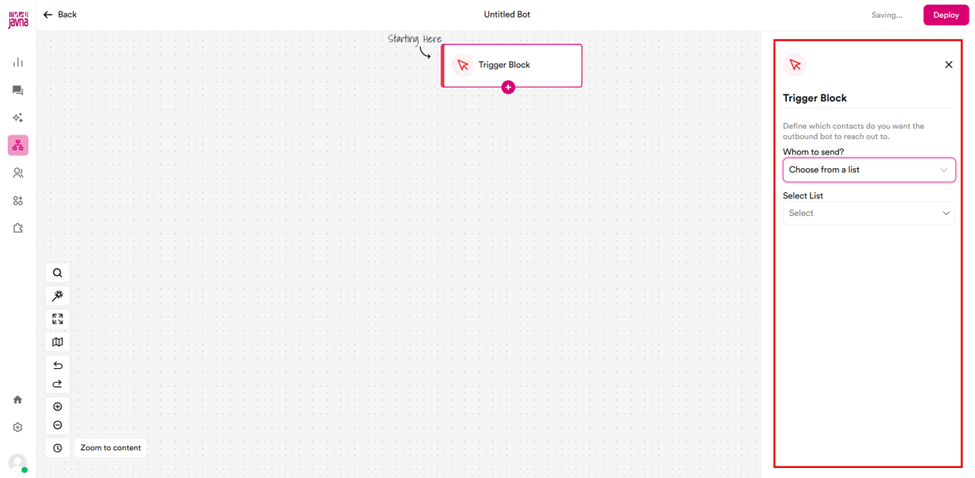
Choosing from a list
- Click on the plus (+) icon in the "Trigger Block" block to add an action block. You can add one of these action blocks:
- Send WhatsApp: Using the Send WhatsApp action block, you can send a WhatsApp message proactively to your contact.
- Delay: The delay action pauses the flow for a set period, either as a relative delay (e.g., 4 hours, 5 days) or a fixed delay (e.g., June 21, 2024, at 10 AM America/New York).
- Send status: Design personalized campaigns with conditional messaging outcomes, where messages can be unsent due to invalid numbers, sent but undelivered, delivered but unseen, or seen without a reply (WhatsApp only).
- Condition: Use the condition action block for chatbot flows that require evaluating a logical condition to determine the next step in the flow.
- HTTP Request: Performs an HTTP request with a third-party app's REST API endpoint.
- Java Script: Executes a javascript code on the client side..
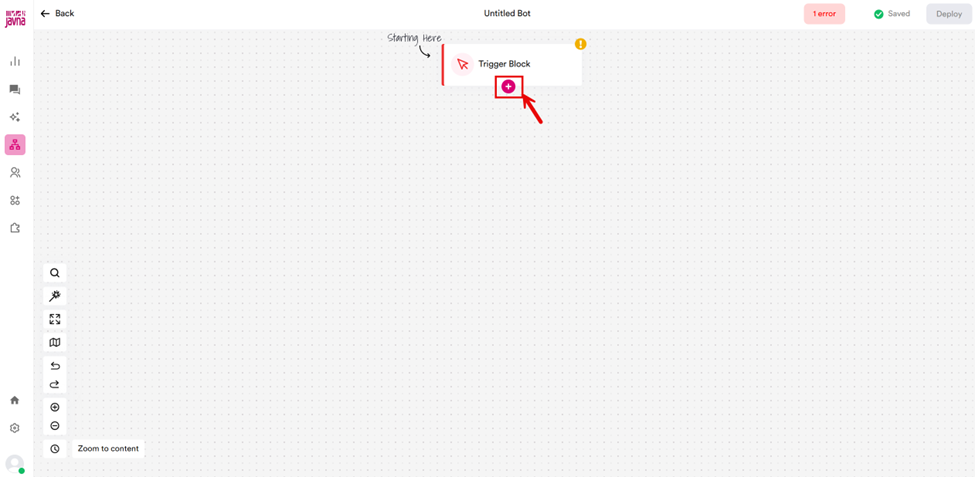
Clicking on "+" icon
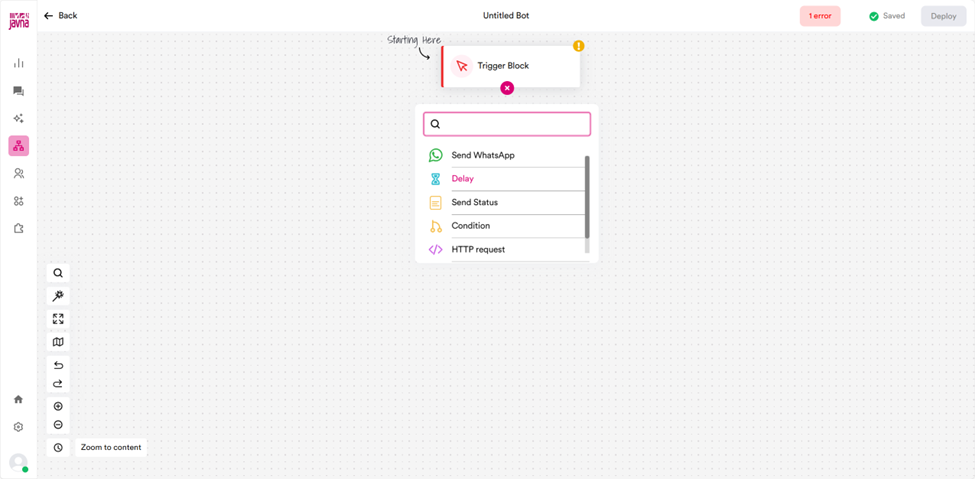
The action blocks.
- Once you have added an action block, click on it to open the right panel, where you can make changes.
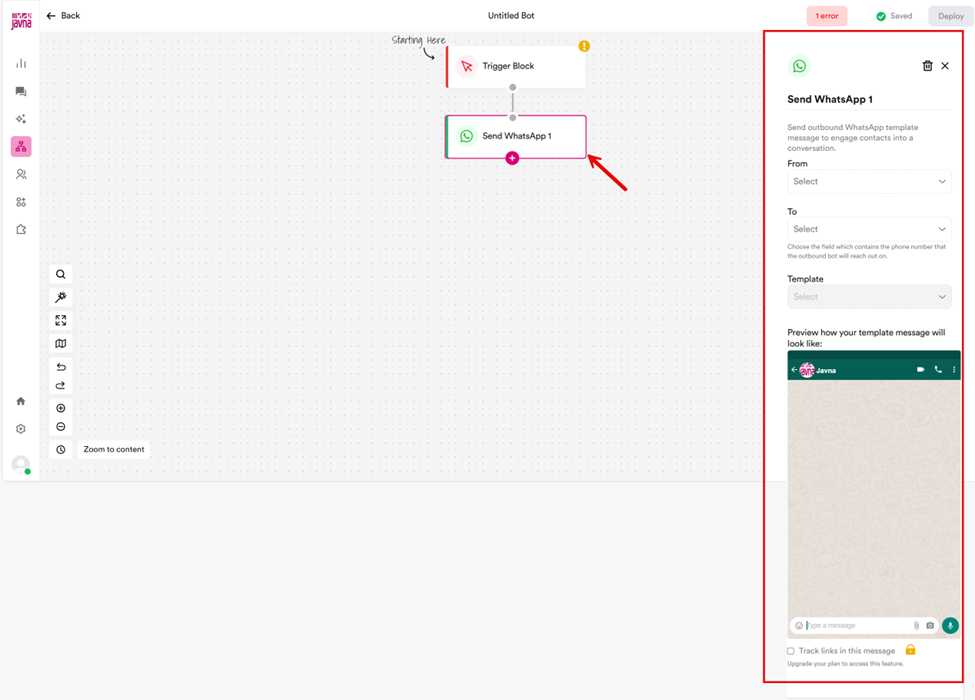
Clicking on the "Action block" to open the right panel.
- Once your flow has been created, double-check all the messages for typos or any other mistakes, then click on the "Deploy" button, A confirmation prompt will be shown to you for final approval before launching the campaign.
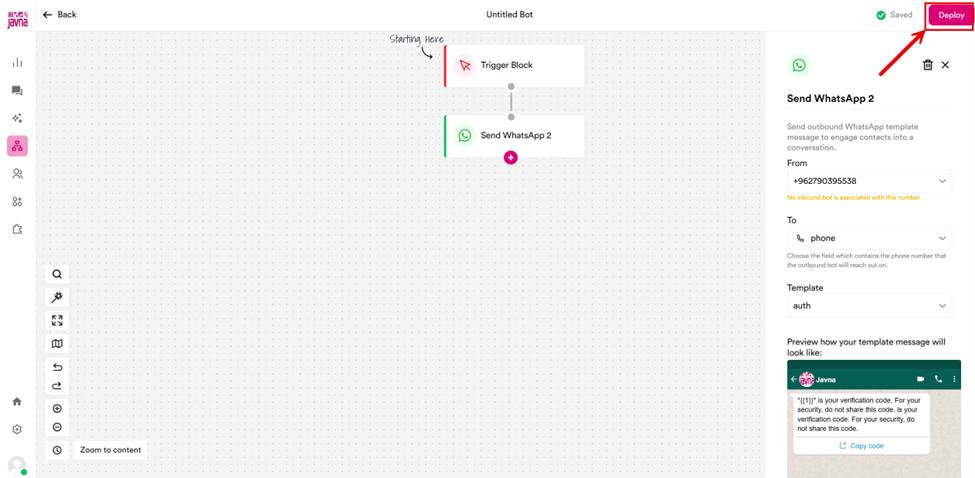
Clicking on the "Deploy" button.
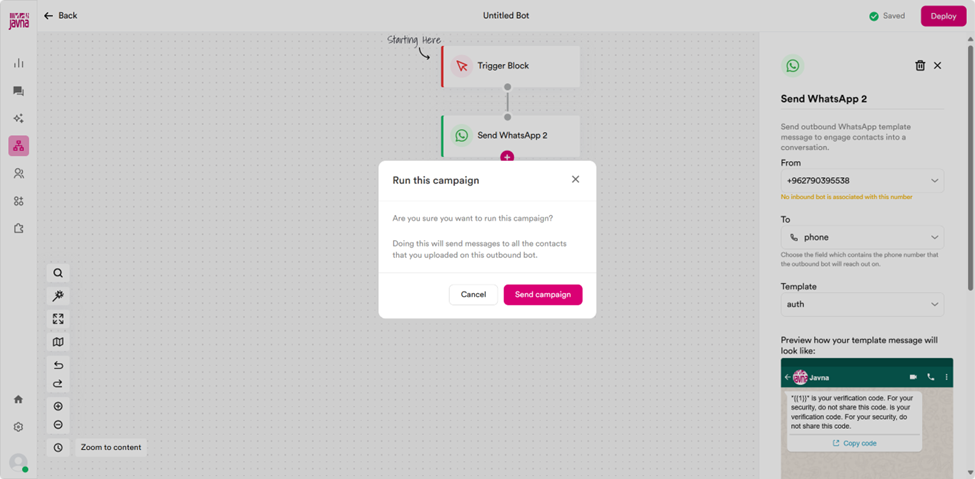
A confirmation message is appearing to Run this campaign.
Note: Once the bot is deployed, it cannot be stopped. All contacts will start getting the messages that you have defined
- You will be able to see the results of the campaign by clicking on the numbers to go to a deeper view and be able to download a CSV file which will contain the results of the campaign on a per contact basis.
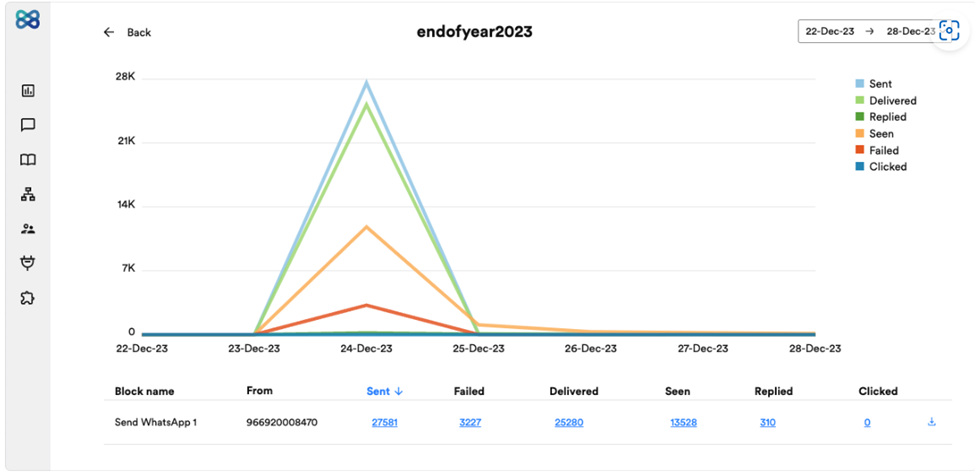
Detailed view of campaign analytics
Status fields you will see are as follows:
- Sent: The contact has been sent the message
- Failed: The message was undeliverable to the contact.
- Delivered: The message was delivered to the contact.
- Seen: The message was seen by the contact (Only on WhatsApp).
- Replied: The message was replied back by the contact.
- Clicked: The message had a link which was clicked (Only on Email)
Updated 7 months ago