
How to Cancel Your Subscription
- Go to the “Subscription Dashboard”. refer to (navigation to the subscription page)
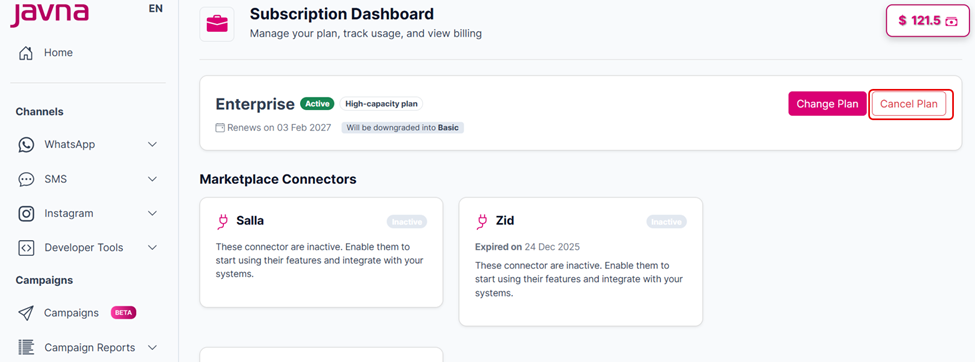
The "Cancel Plan" button
- Click on the “Cancel Plan” button.
- Review the cancellation details in the confirmation pop-up.
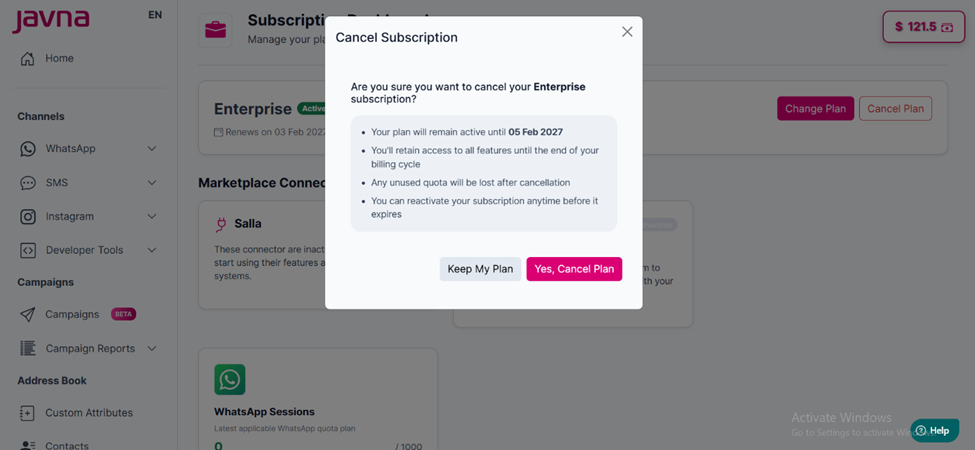
The "Cancel subscription" pop up.
- Click on the “yes, cancel plan” button to continue the cancellation process, or you can keep the plan as is by clicking on the “keep my plan” button.
- A confirmation message will appear indicating that “you have cancelled your subscription successfully”
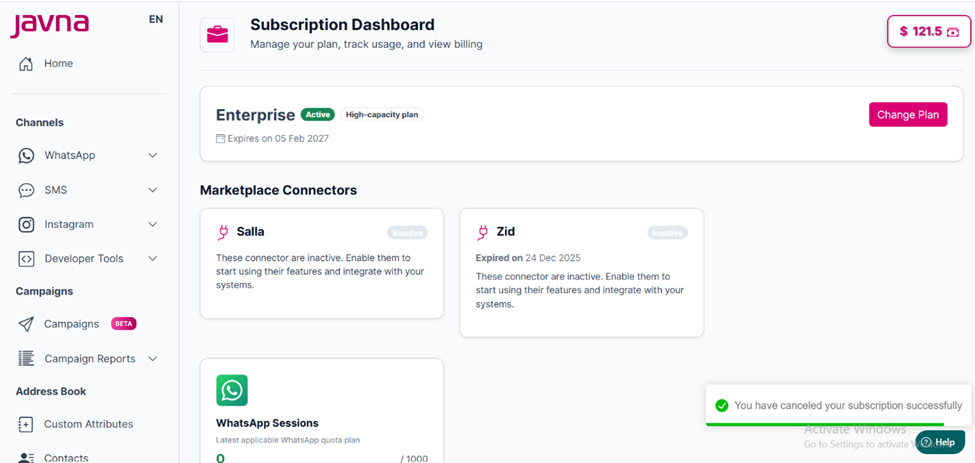
A confirmation message
What Happens After Cancellation
• Your subscription remains active until the end of the current billing cycle.
• No further charges will be made after the subscription ends.
• You will receive an email confirmation that your subscription cancellation is scheduled.
Expired Plans
• Before expiration, you will receive a “Your subscription will expire soon” email.
• When the plan expires, the “Change Plan” button disappears and is replaced with an “Activate Your Subscription” button.
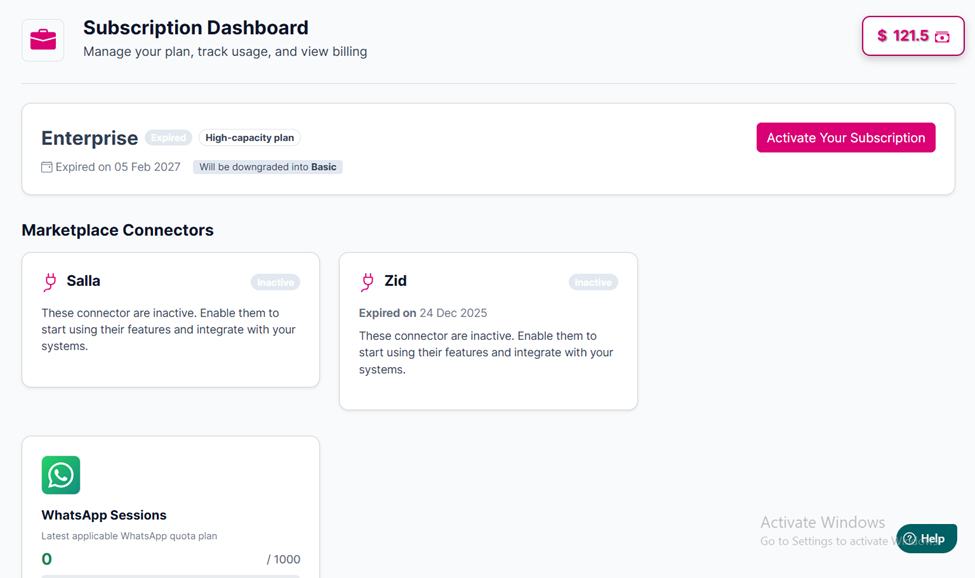
The “Activate your subscription” button
• When you click “Activate Your plan,” you will be redirected to the list of available plans. The plans are displayed as new subscription options, not as Upgrade or Downgrade options, since the subscription is inactive.
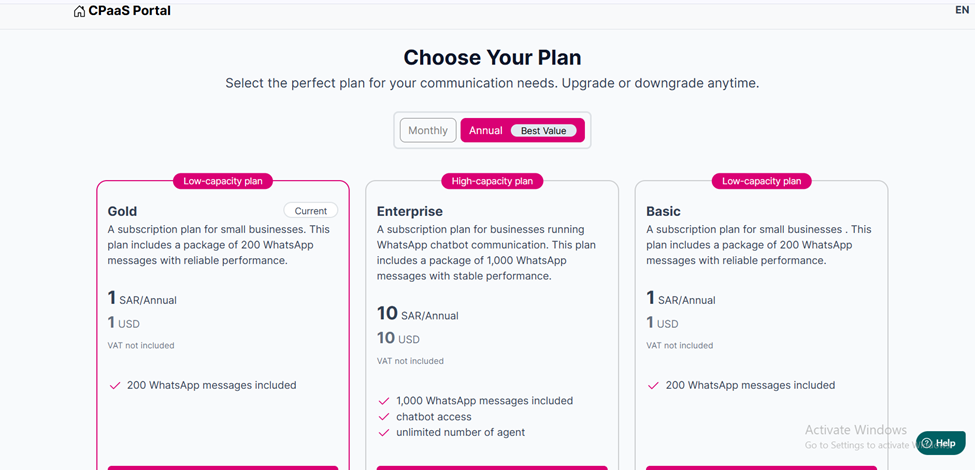
The list of available plans
• After expiration, you will receive a “Your subscription has expired” email.
Updated 3 months ago