

Overview on Javna CPaaS Homepage
After logging in to Javna CPaaS, you will be redirected to the homepage of your account. This page serves as a centralized hub for accessing important features of the platform.
Let's take a closer look at what you can expect to find on this page:
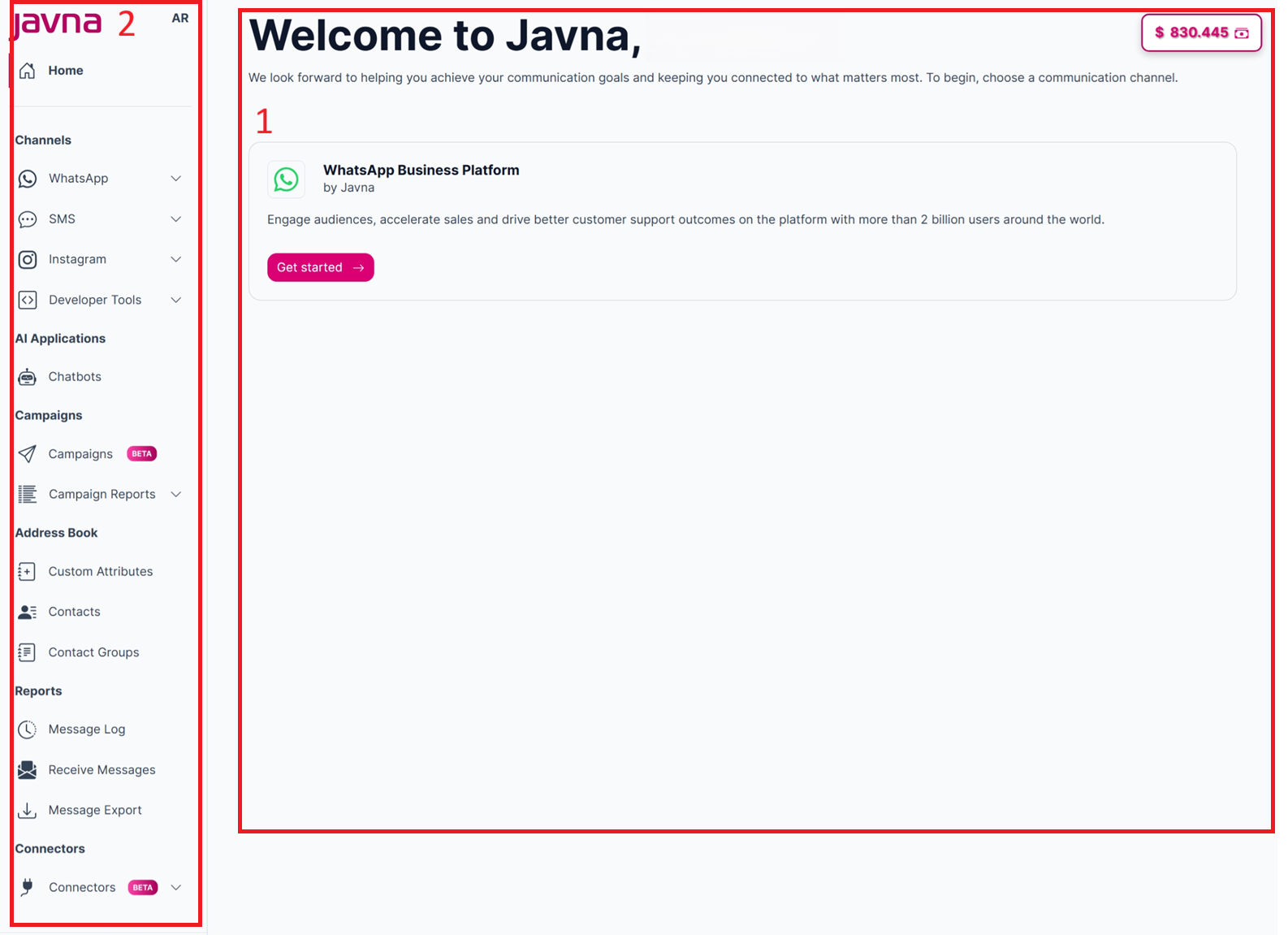
The Components of the Homepage
1. Homepage Dashboard:
Here you can find:
a) The communication channels you have added to your profile, as each communication channel is composed of:
- A button labeled "Get Started": which is displayed within the communication channel section, and when you click on this button, you will be redirected to the “Guide and Setup” page.
b) The current credit button: When you click on the "current credit" button, you'll be redirected to a page displaying all the amounts added to your account along with the dates of these transactions. This page also shows your current account balance.
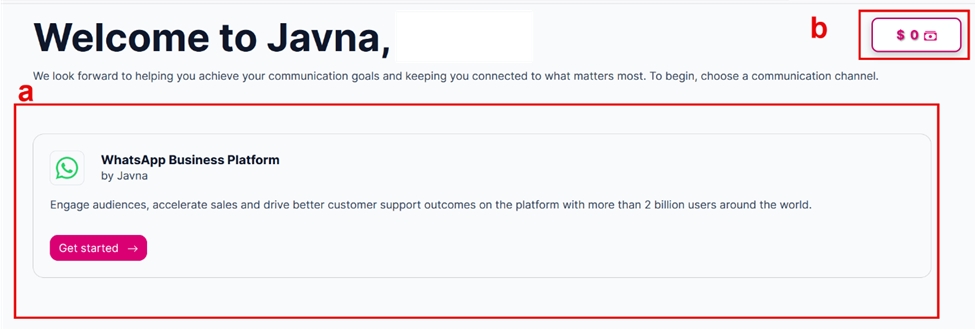
The Homepage Dashboard Components
2. Left Side Menu:
Within this menu, you'll find various options:
a) Home: when you click on it, you will be redirected to the homepage of your profile.
b) Communication Channels:
- WhatsApp: Here you can register, access and manage your WhatsApp channel as it includes buttons for the Guide & Setup, Message Templates, Phone numbers, message links and blocked Users.
- SMS: In this communication channel area, you can add new SMS sender IDs for your communications, remove those that are no longer needed, or set a default sender ID.
- Instagram: Here, you can connect your Instagram account to your Javna account and view a list of connected accounts, including the name, connected date, status, and username.
- Developer Tools: Here, you can generate API keys for secure access to our services and configure your webhook settings to enable real-time event notifications.
c) Chatbots: Here, you can create and manage chatbots that help automate communication with your customers. You can build conversation flows, customize responses, and set up different actions to improve user interactions.
d) Campaigns: The Campaigns section allows you to create and manage marketing campaigns. You can create campaigns, schedule their delivery, and track their performance. Additionally, you can investigate the reasons behind any campaign failures.
e) Address Book: This section allows you to manage all your contacts efficiently. You can add, edit, and delete contacts, organize them into groups, and assign custom attributes.
f) Reports:
- Message Logs: Here you can access the detailed logs for all your WhatsApp messages and SMS.
- Message Export: This feature allows you to export a detailed report of customer-generated message traffic directly to your email inbox
- Receive Messages: The "Receive Messages" page shows all the messages sent to your account in real time. It lets you see who sent the message, what they said, when it was received, and which number it was sent to.
g) Connectors: Connectors allow you to integrate external platforms like Salla and Zid with your Javna account to automate workflows and enhance customer communication. By connecting your store, you can sync events and trigger automated messages such as order updates, payment confirmations, and reminders — helping you deliver a seamless, real-time customer experience.
h) User Profile: You can edit your profile details, log out, and access your account packages from here.
Updated 3 months ago