

Business Verification
Business Verification is the process of confirming the legitimacy of your business through Meta. Completing business verification helps establish trust, unlock additional WhatsApp Business Platform capabilities, and may be required for certain account features and messaging limits.
To verify your business, follow the steps below:
1- Go to the Business Manager’s Security Center and Click ”Start verification”.
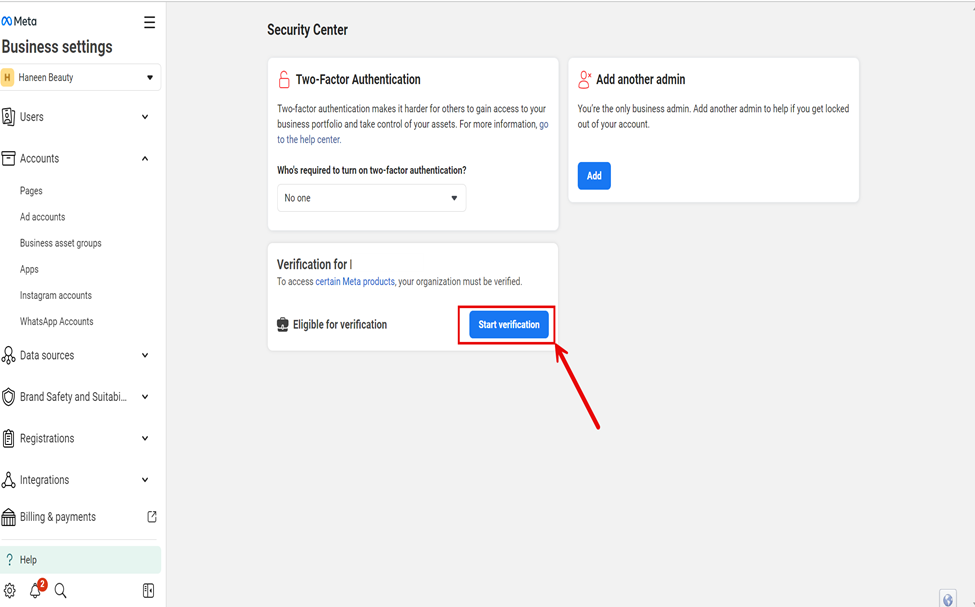
The "Start Verification" button.
2- When clicking on “Start Verification”, You’ll be informed that during the verification process you’ll verify your business details and confirm your connection to the business.
3- Click on the “Get Started” button.
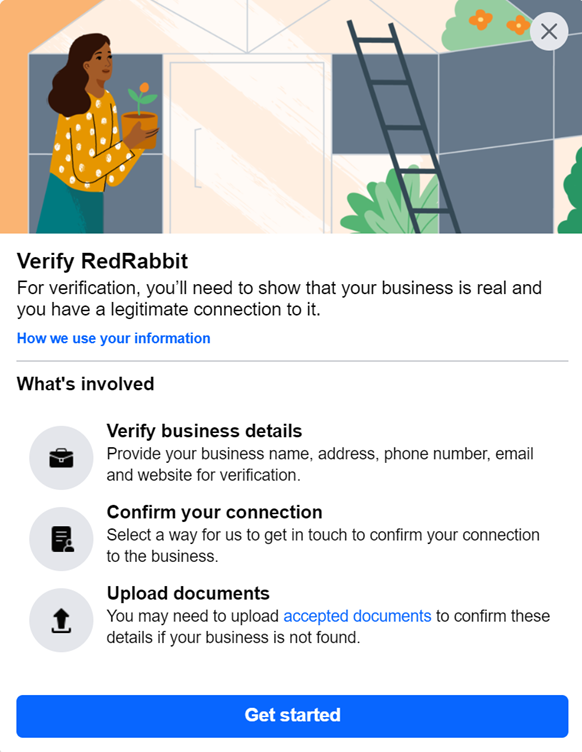
The "Get Started" button.
4- Select the country where your business is located.
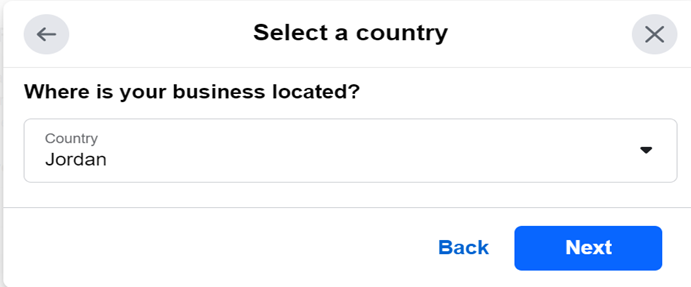
Selecting the country where your business located.
5- Add your business’s details, including the legal business name, address, phone number and website.
Please make sure everything is accurate and identical to the documents you’re submitting in the next steps, or otherwise you’ll go through the verification process all over again.
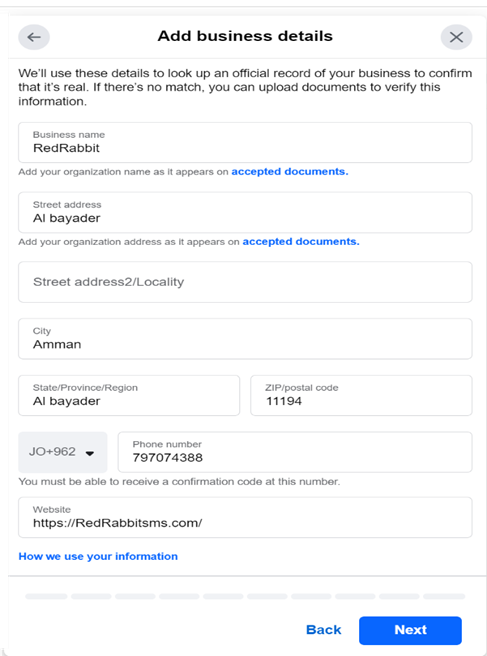
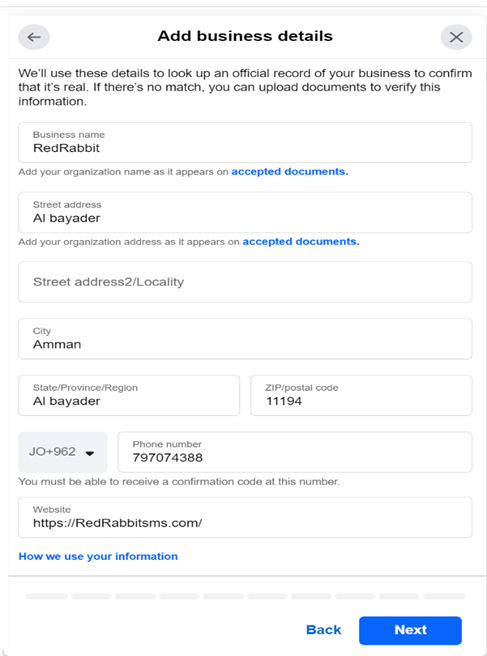
Adding Business details.
- Meta will search for businesses that match your added information, if any of the businesses found match your business, select it, otherwise click on “My Organization isn’t listed”, then click on "Next."
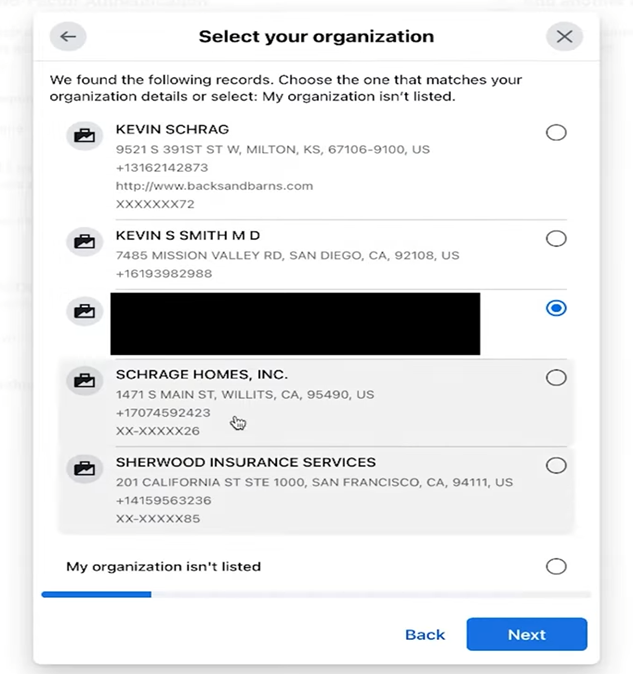
Selecting your organization.
- If no matching record is found, you should first select a contact method then click next.
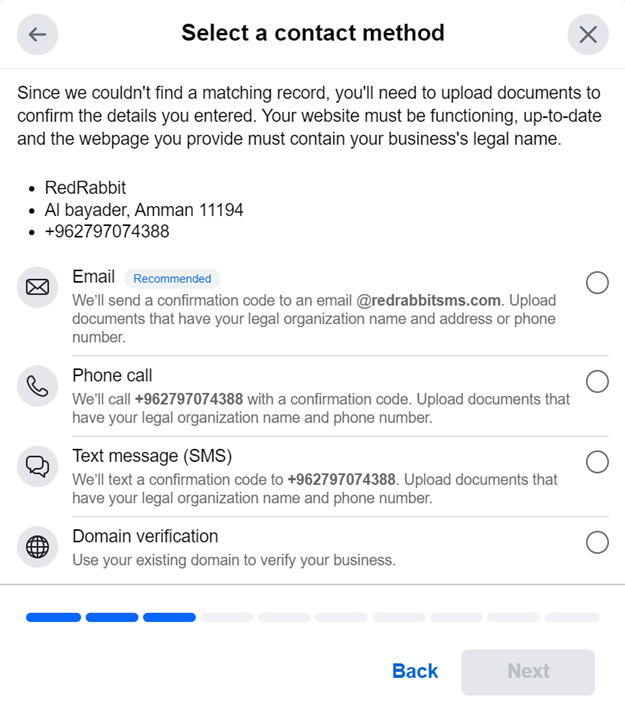
Selecting contact method.
- Upload supporting documents, such as a business license or articles of incorporation, to confirm the details you entered.
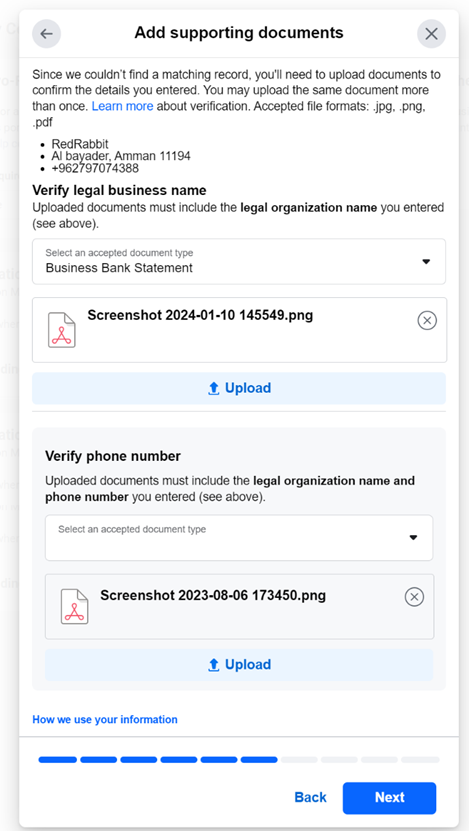
Adding supporting documents.
- Ensure to verify your business using the contact method you have selected during the verification process and then click on “send email”.
If you select “email”, the email domain you should add must match your organization’s website domain.
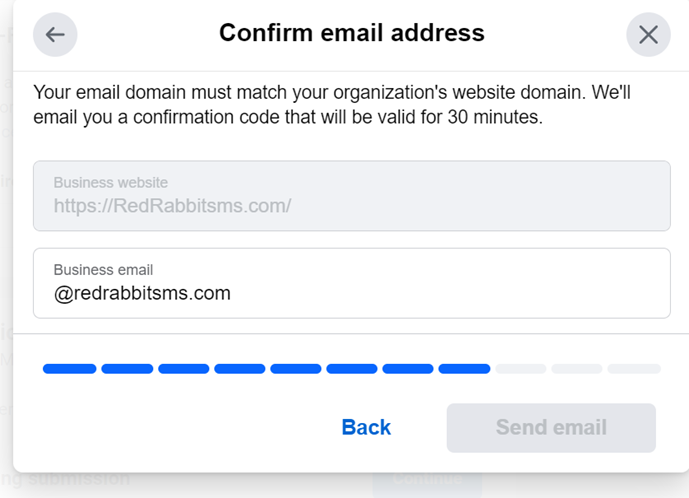
Confirming email address.
- Enter the confirmation code you received via the contact method you selected during the verification process—either by email, phone, text message, or WhatsApp.
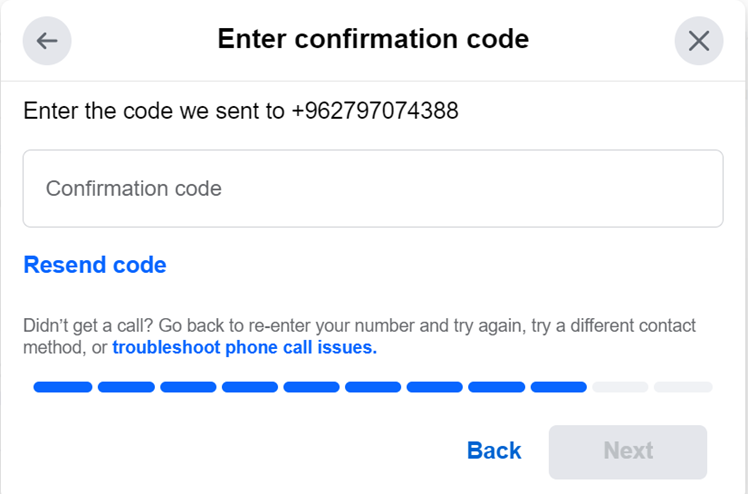
Entering the confirmation code.
- After submitting your information, carefully review your business details. If any issues are detected, make sure to correct them before proceeding.
Failure to address these issues may result in the rejection of your submission
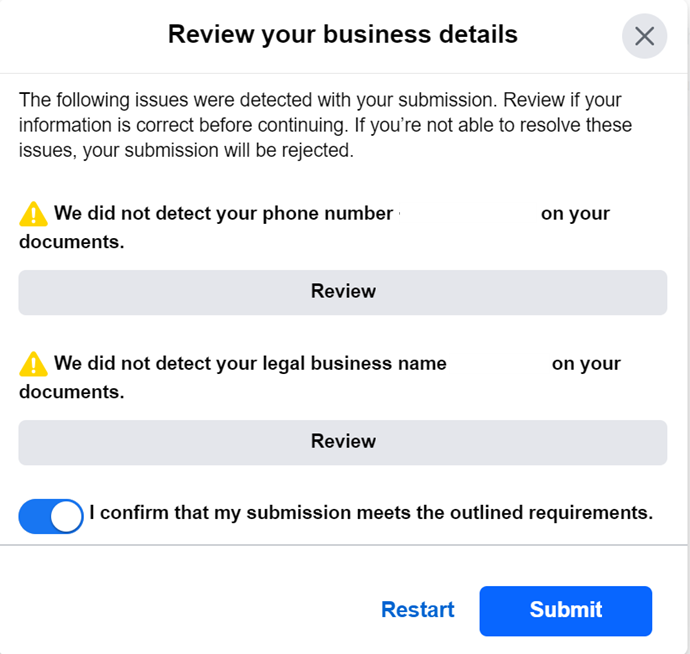
Reviewing your business details.
- After submitting your information, you will receive confirmation that your submission has been received.
Verification is subject to Meta's review process and may take several business days.
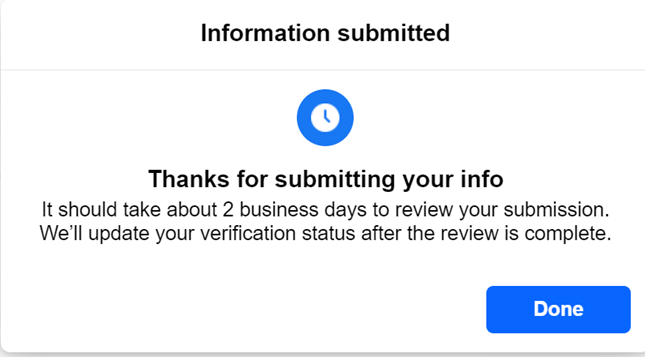
A confirmation message indicating that your submission has been received.
Updated 3 months ago