

Forgetting password
If you’ve forgotten your password, follow these simple steps to reset it and regain access to your account:
- Go to the Login Page: On the login page, click on the "Forgot Password" button.
- Enter Your Email: You will be redirected to a page where you need to enter your email address in the provided field. After that, click the "Reset Password" button.
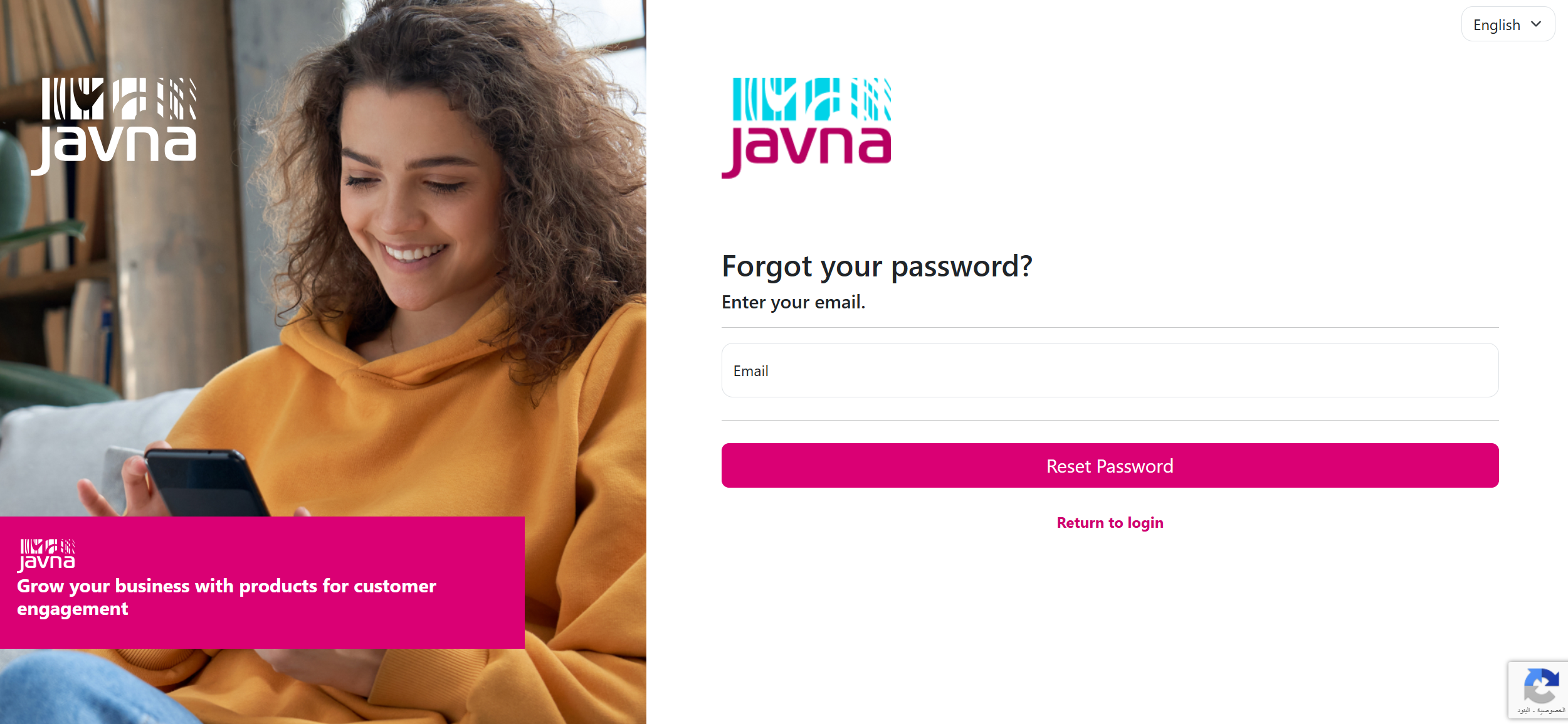
The "Forgot Your Password" page.
-
Confirmation Message: You will be redirected to the Forgot Password Confirmation page, where a message will appear stating: “Please check your email to reset your password.”
-
Check Your Email: Open your email inbox, where you should receive an email that titled with “Password Reset Request”.
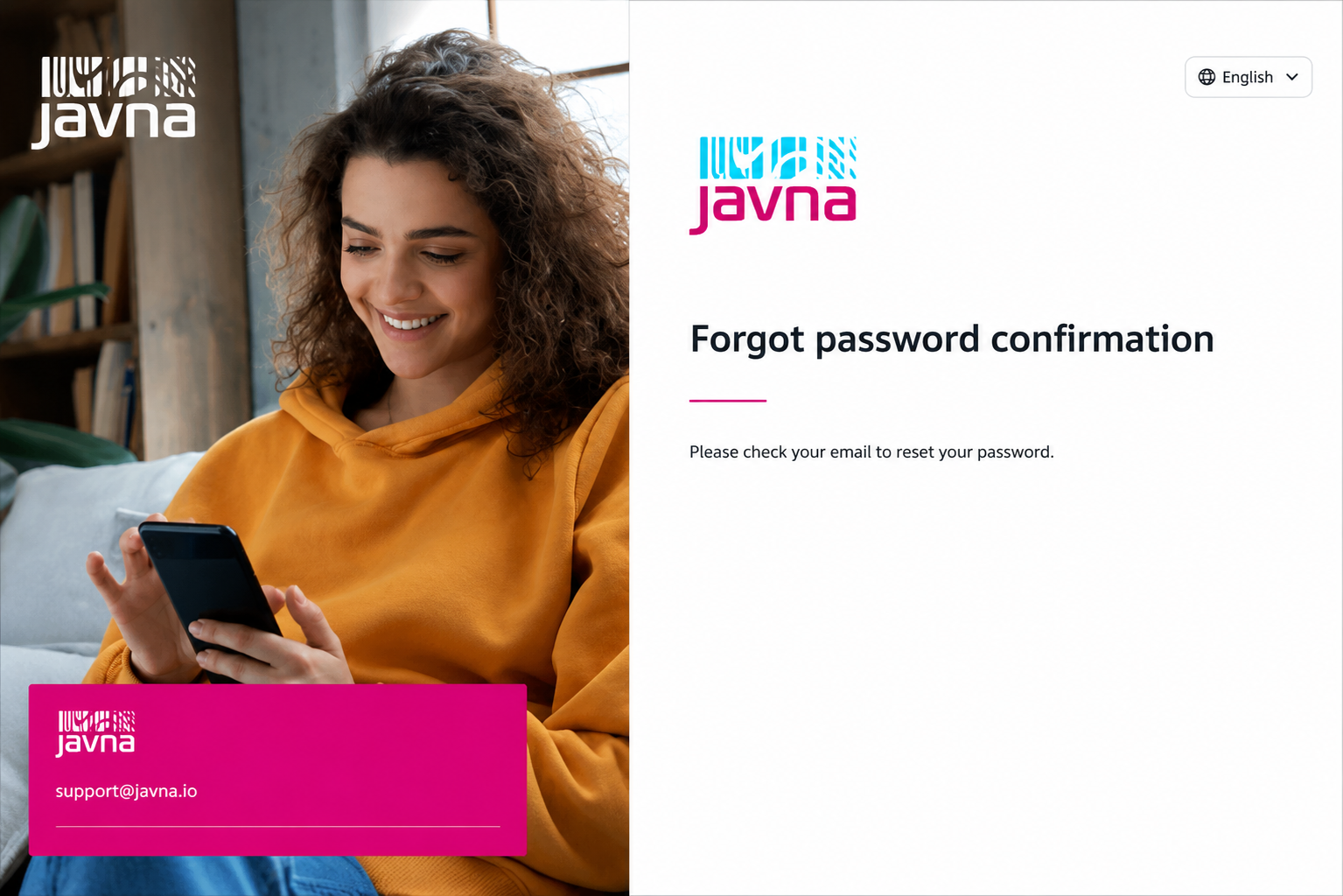
The "Forgot password confirmation" page
Note: For security reasons, the reset link in this email will expire after one hour and after it is used before.
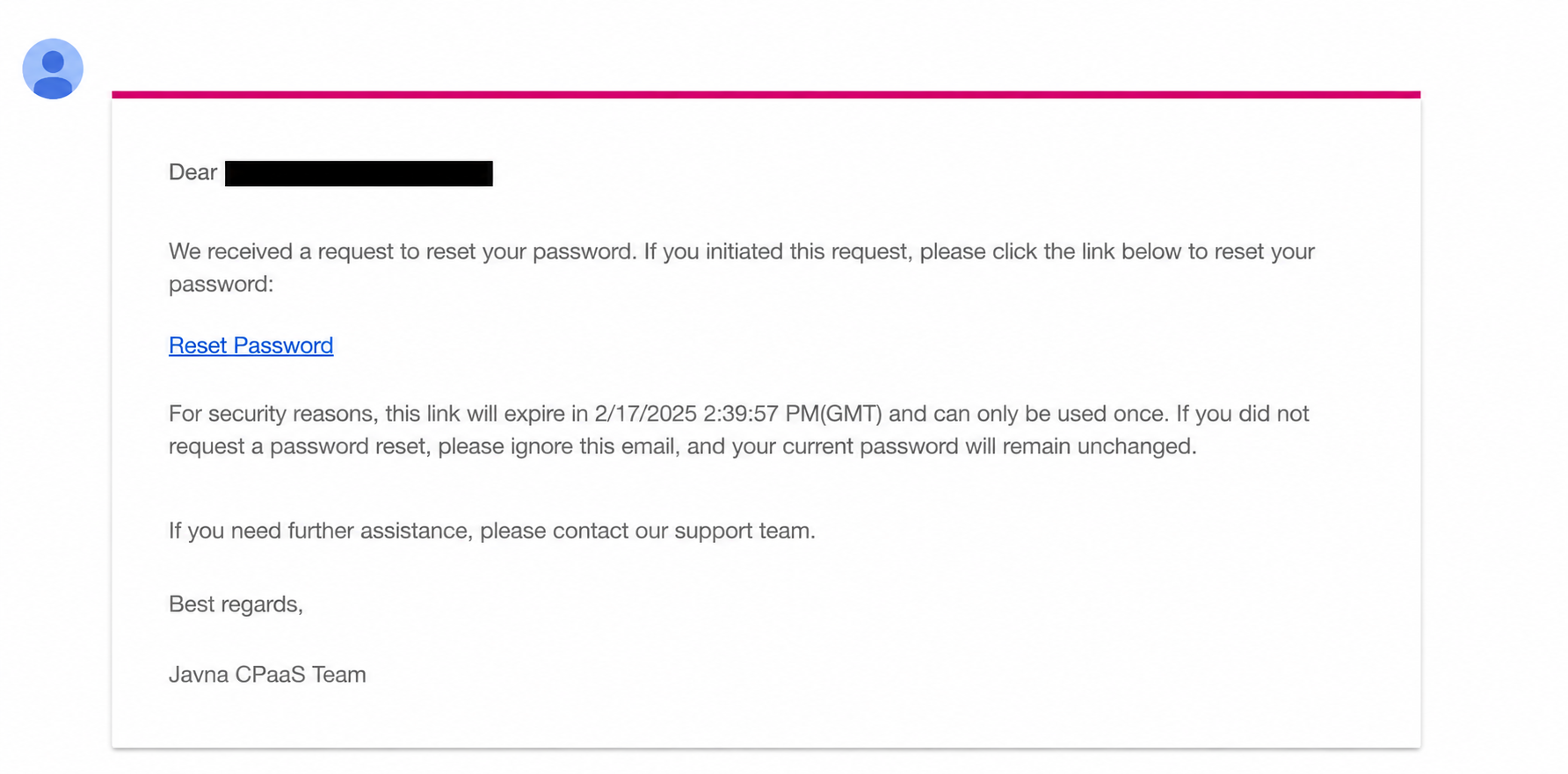
Example of the Password Reset Email
- Click the Reset Link: Once you click the Reset Password button in the email, you will be redirected to the Reset Password page.
- Reset Your Password: On the Reset Password page, complete the following steps:
-
Enter your email address in the provided field.
-
Create a new password that meets the following criteria:
At least one uppercase letter (capital letter)
At least one number
At least one special character (e.g., @, #, $, %, etc.)
-
Confirm your new password by entering it again in the designated field.
- Submit: After filling out the required fields, click the Submit button to complete the password reset process. Once your password has been successfully reset, you can log in to your account using the new password.
Updated 3 months ago