

The components of the "Custom Attributes" page
Upon redirecting to the "Custom Attributes" page, you will find several essential components:
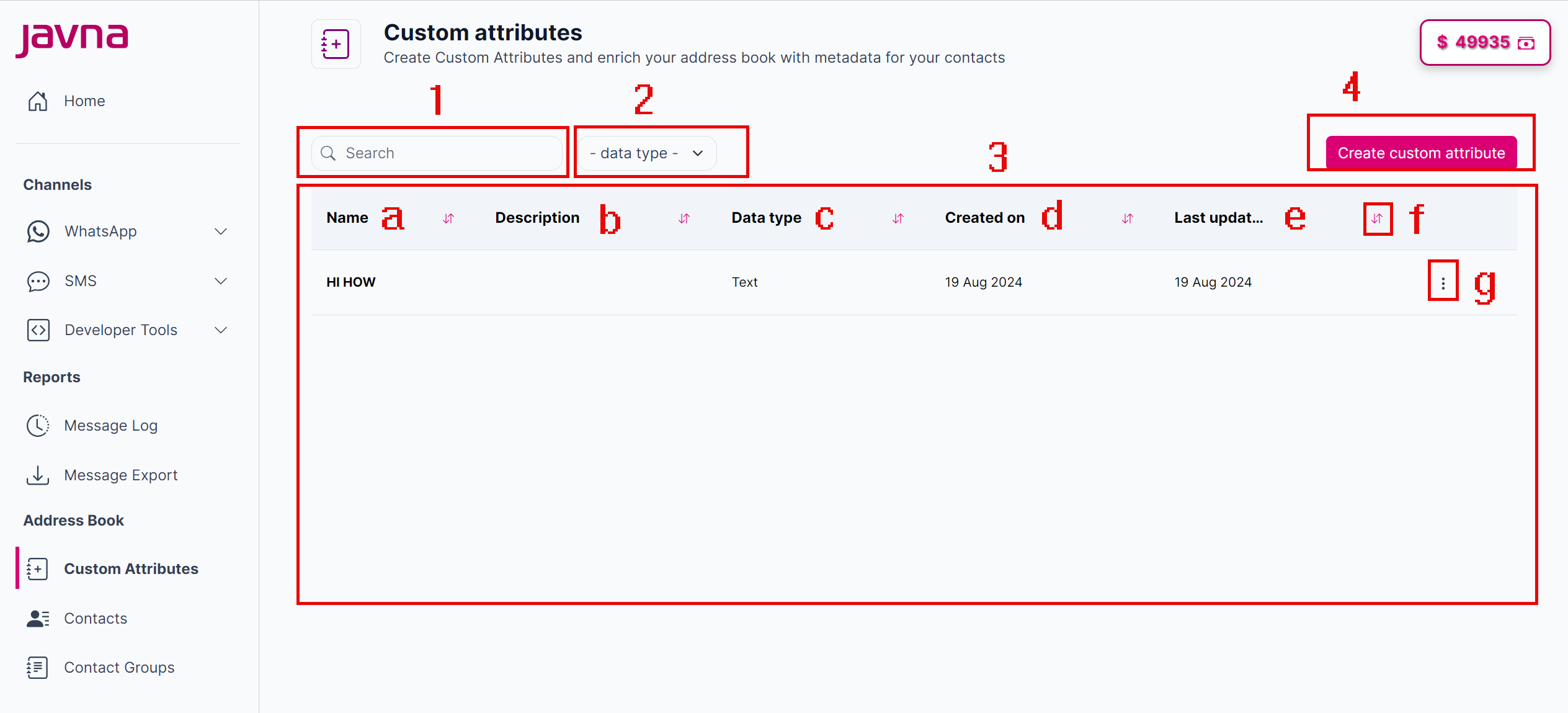
The components of the "Custom Attributes" page.
1-Search Box:
A field where you can type in to quickly find specific custom attributes from the list
2-Data Type Filter:
A single selection filter that allows you to filter the list of attributes based on the type of data they store, such as text, number, date, or bit.
3-Attributes List
This list contains:
a. Name: Displays the name of each custom attribute.
b. Description: A brief explanation of what the attribute is used for.
c. Data Type: Indicates the type of data that the attribute contains. The available data types are:
- Text: This type allows you to store any kind of text or characters, such as names, addresses, or notes.
- Number: This type is used to store numerical values, which can be used for quantities, measurements, or any other numeric data.
- Date: This type allows you to store dates, such as birthdates, appointment dates, or any relevant calendar dates.
- Bit: This type is used for binary values, often representing yes/no or true/false options.
d. Created On: The date when the custom attribute was originally created.
e. Last Update: The last time the custom attribute was modified.
f. Sorting Button: This button allows you to sort the list of custom attributes. Clicking the sorting button will toggle between ascending and descending order, helping you quickly organize and find the information you need.
g. The "Options Menu" button: To the right of each custom attribute in the list, you’ll find an options menu, represented by three vertically aligned dots. Clicking this menu will reveal two key actions: - Edit: This option allows you to modify the details of the selected custom attribute, such as changing its name, description, or data type.
- Delete: This option lets you remove the custom attribute from the list.
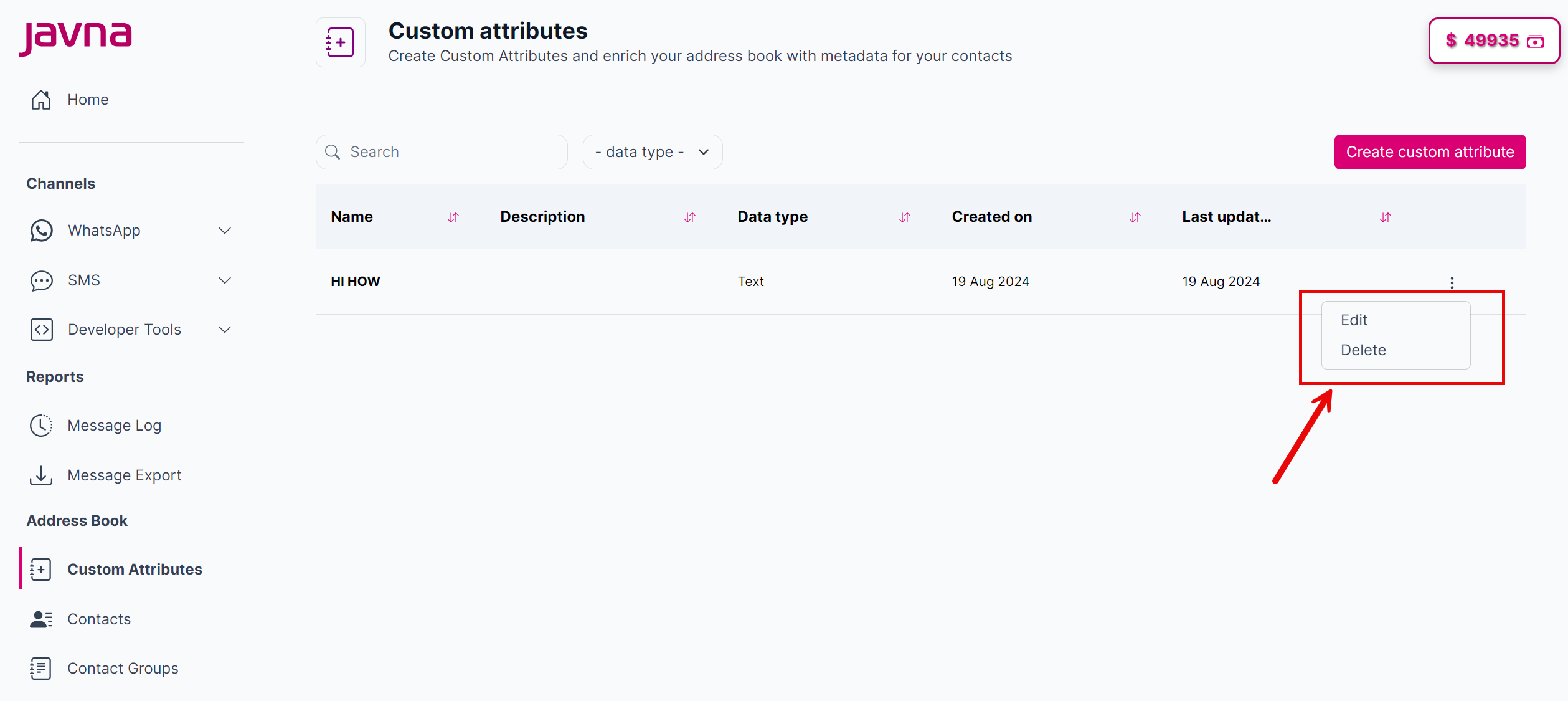
The "Options Menu" button.
4. Create Custom Attribute Button
This button opens a form where you can define a new custom attribute. You’ll specify the name, description, and data type for the attribute, and then save it to add it to your address book.
Updated 7 months ago