

Creating Your Sender ID Requests
In this section, we will learn more about how you can create your sander ID Requests:
1- Navigate to the “Sender ID Request Section”.
2- From the “SMS Sender ID Requests” page, click on the “Create Sender ID Request” button.
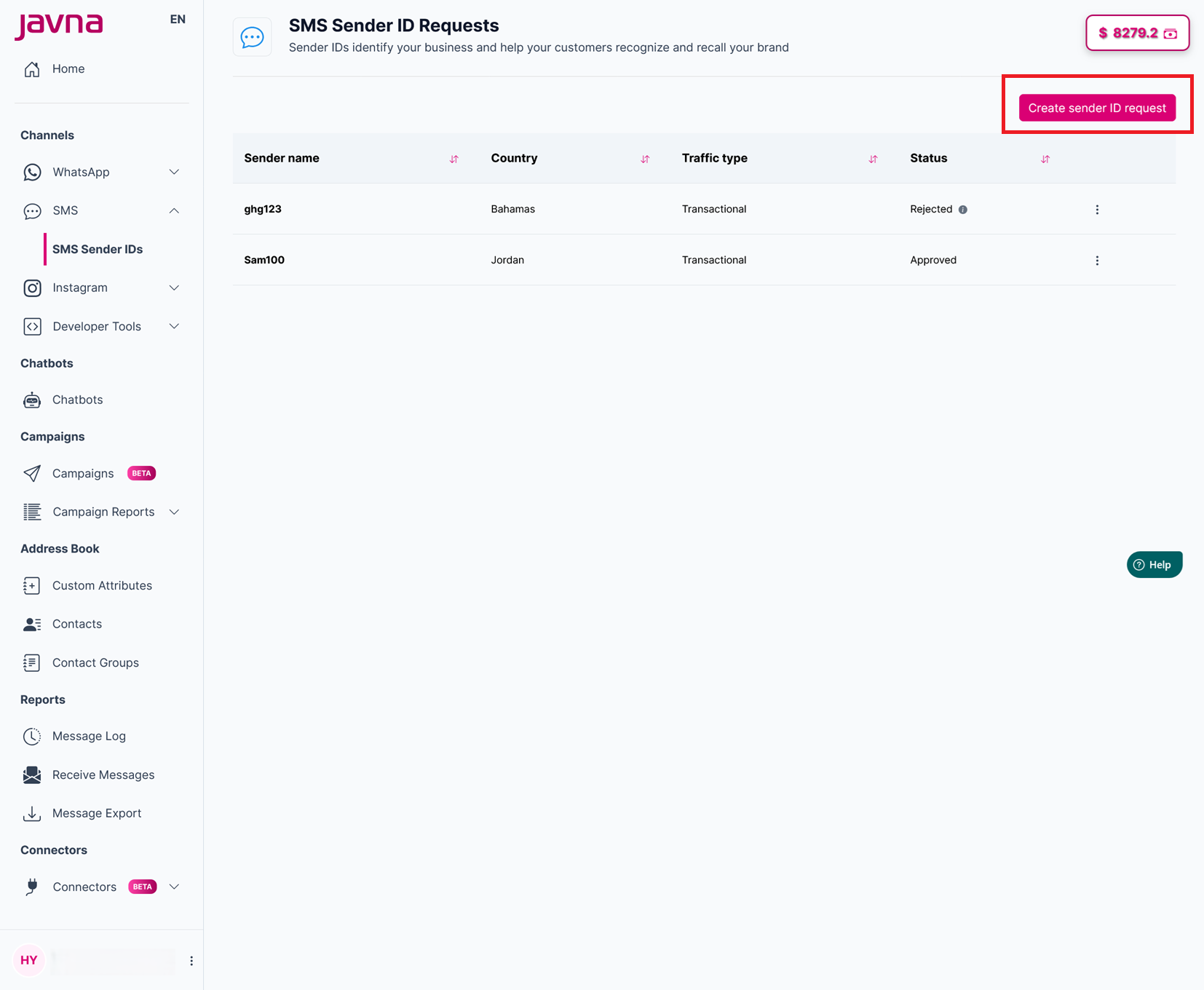
The "Create Sender ID Request" button
- You will be redirected to the “Create Sender ID Request” page.
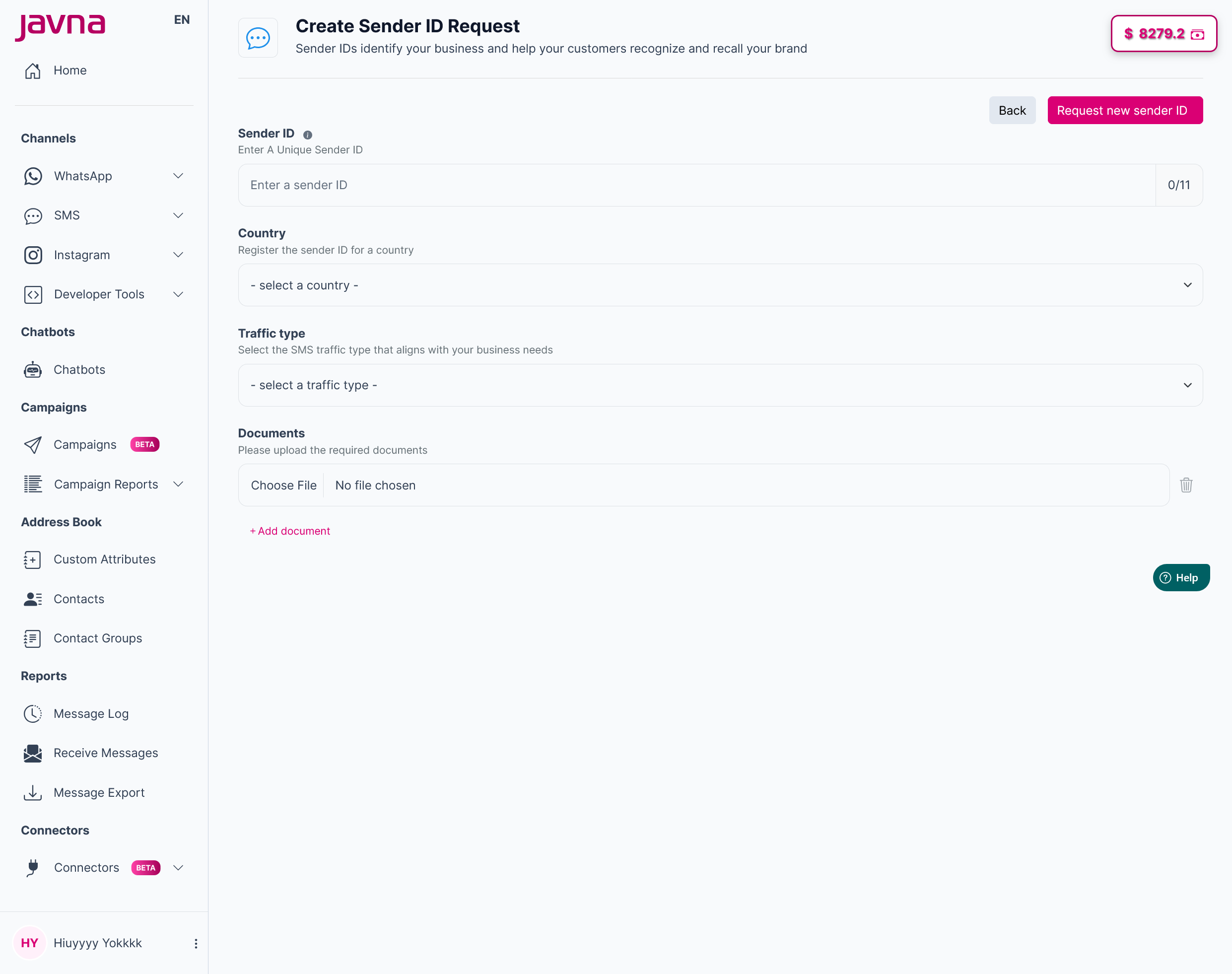
The "Create Sender ID Request" page.
- Enter your desired Sender ID in the provided field. Please note the following guidelines:
- The Sender ID must be between 3 to 11 characters long. It may contain numbers, Latin letters, as well as the following characters: . - + () # space.
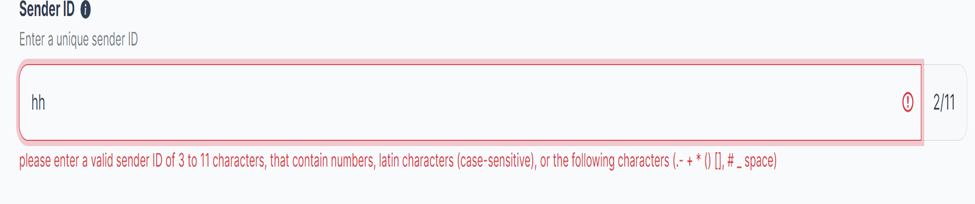
A message under the "Sender ID".
- The Sender ID is case-sensitive; ensure consistency in capitalization.
- For promotional traffic type messages, specific rules apply depending on the country. For example, in Jordan, promotional Sender IDs should "ADV" or “adv”, while in Saudi Arabia, they should end with "AD". An error message will be displayed under the Sender ID field, indicating what format the Sender ID should adhere to for acceptance.
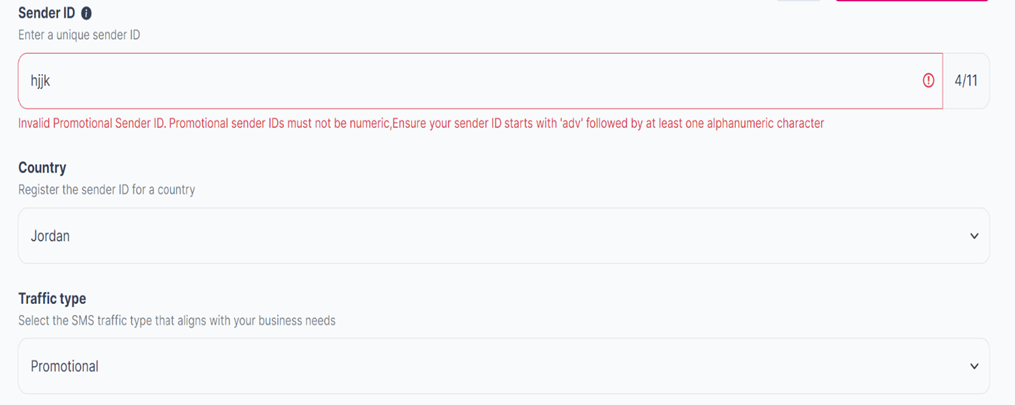
A message under the "Sender ID".
5- Select the country from the dropdown menu provided.
6- Select the traffic type (promotional or transactional) from the dropdown menu. To learn more about the traffic type refer to this section "The components of the "Sender ID Request" page.
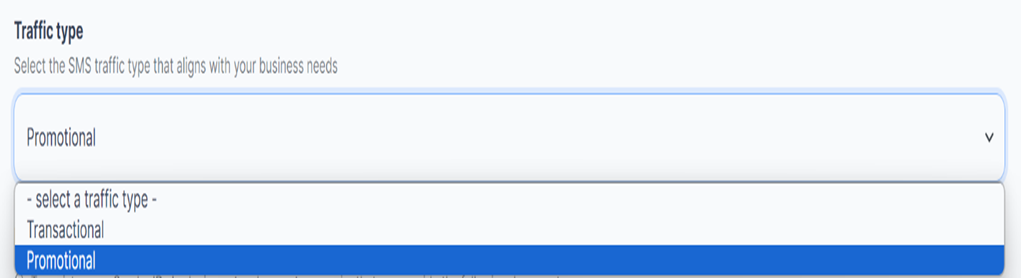
The Traffic type.
7- Attach the required documents:
Based on the selected country, specific documents are required for submission. These documents will be listed in a table format under the "Documents Required" section. The table will include the following columns:
- Document: Names of the required documents.
- Description: Brief description of each document.
- Template: Links to download templates for each document to assist in preparation
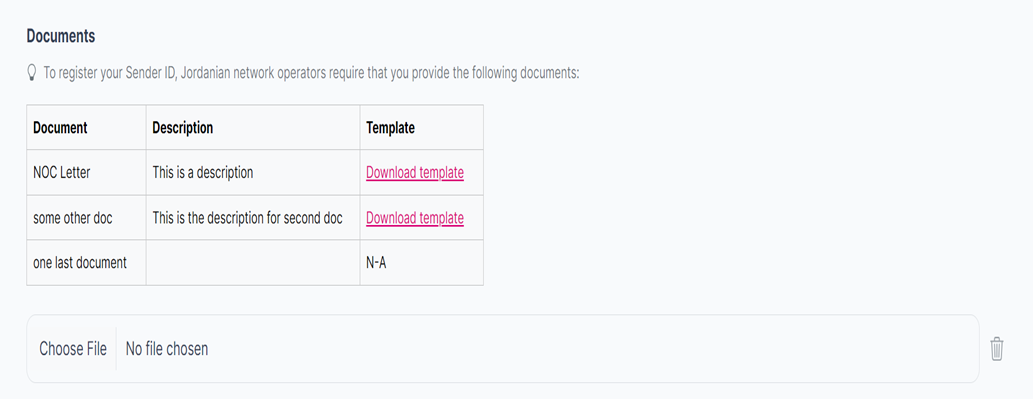
The documents required based on the selected country.
To add another document, click on the "Add Document" button.To delete an attached document, click on the delete button.
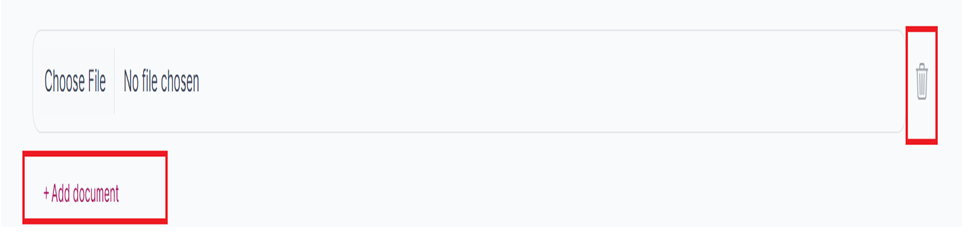
The "Add document" and the "Delete' button.
-
Click on the “Request new sender ID” button. If you want to discard changes, click on the "Back" button.
-
After clicking on the “Request new sender ID” button, the following will happen:
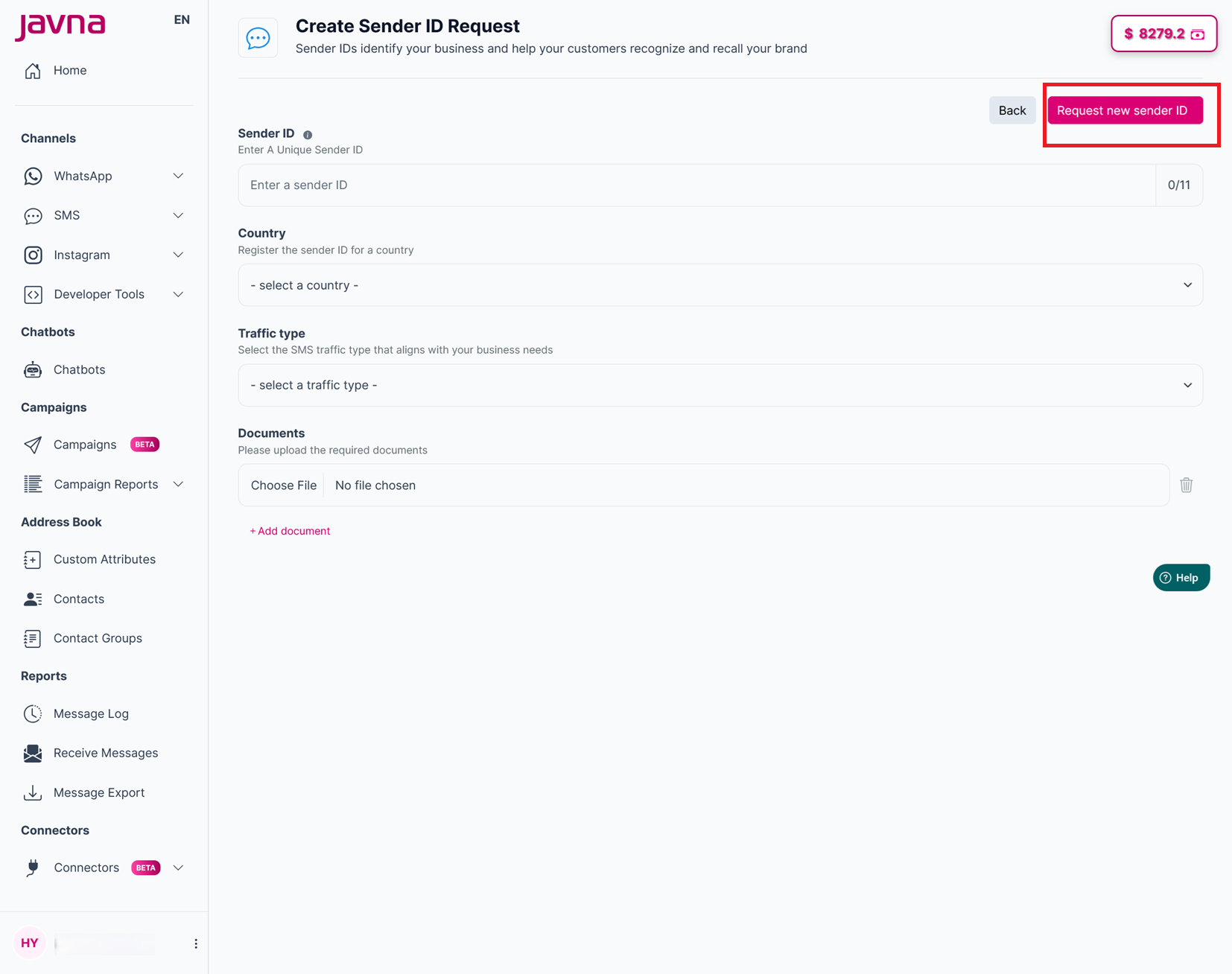
The “Request new sender ID” button
- A confirmation message will indicate that your sender ID request has been successfully submitted and is under review. The CPaaS admin will review the sender's request and take appropriate action to identify and approve it with the relevant operator. If the sender's request is rejected, feedback will be provided.

The confirmation message.
• Your sender ID request will be listed in the "SMS Sender ID Request" table.
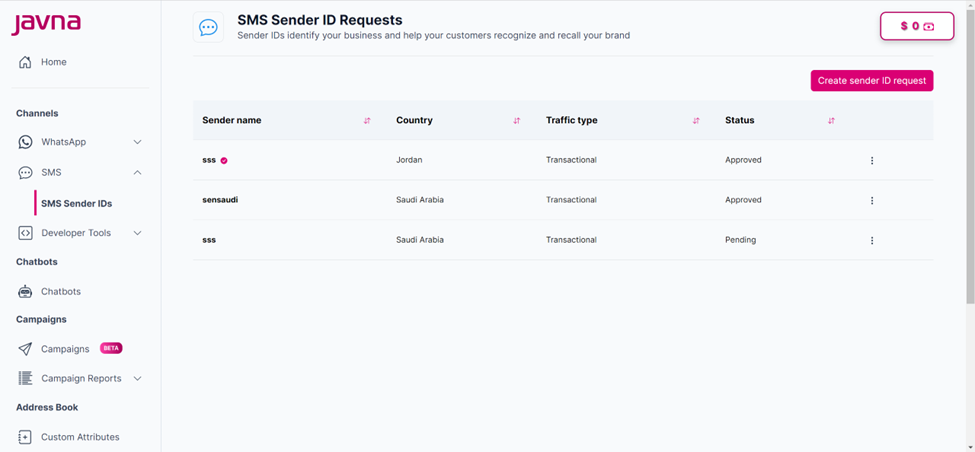
The sender ID request is listed in the table.
Notes:
Message prices depend on the sender and recipient countries.
Local charges: Messages sent within the same country are charged as Local.
Example: Sending from a Jordanian number to another Jordanian number.
International charges: Messages sent to a different country are charged as International.
Example: Sending from a Jordanian number to a Saudi number.
Sender ID rule: Multiple users can create the same Sender ID in the same country, but once one is approved by the admin, all other duplicates are automatically rejected.
Updated 7 months ago