
Sending an Invoice
The Send Invoice feature allows you to send invoice documents directly to customers through WhatsApp from the Orders page, without opening the order details.
Invoices are sent as document attachments, allowing customers to download and keep a copy for future reference.
If an invoice has already been sent, the Send Invoice button changes to Resend, and the latest send status is displayed in the Orders table (e.g., Sent · 2 hours ago). The Resend button can be clicked unlimited times.
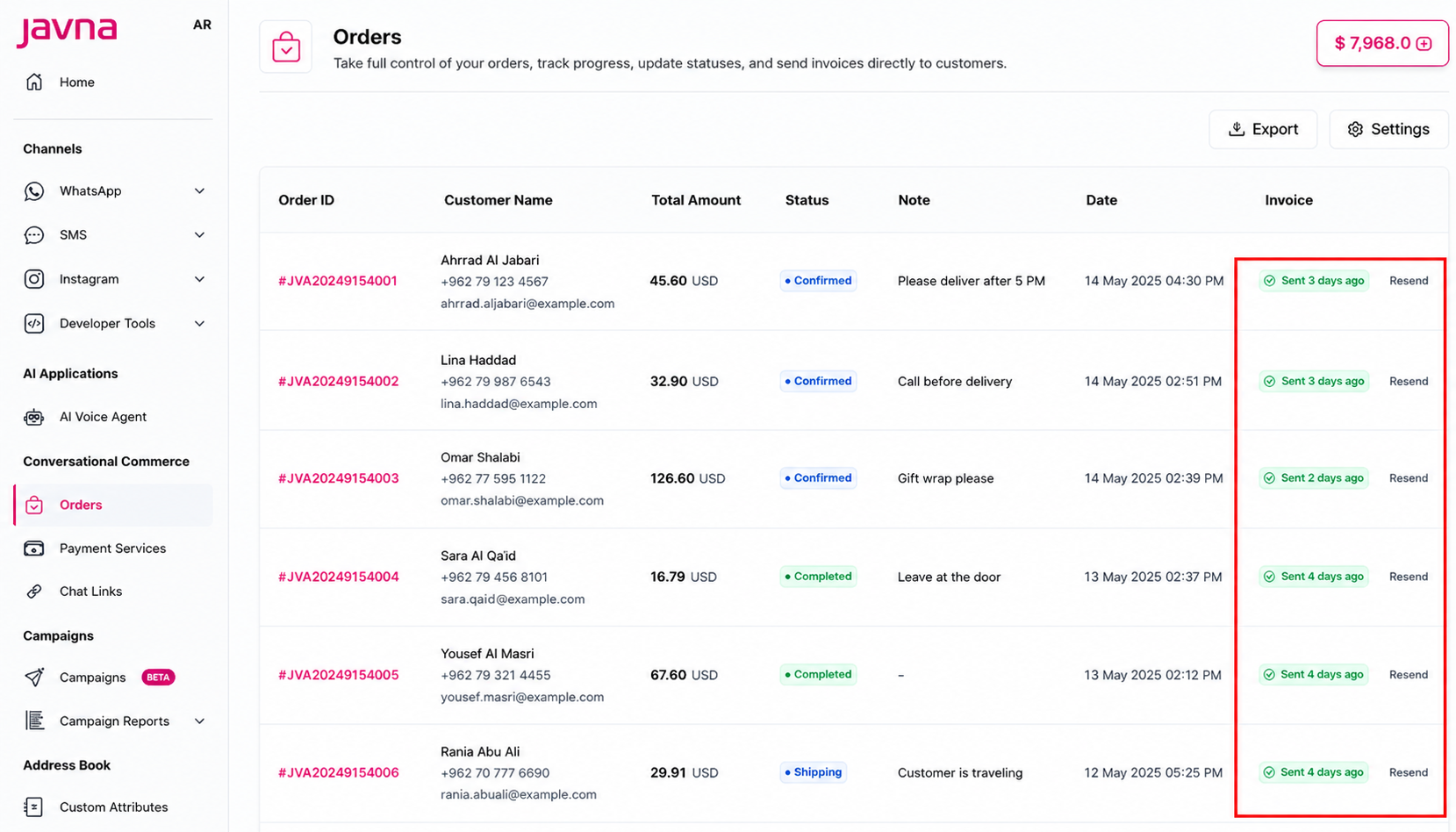
The send invoice button has changed to resend
Prerequisites
Before sending an invoice, ensure the following:
- A valid WhatsApp invoice template is configured in the Order Management Settings page.
- A valid WhatsApp Notification Sender is selected.
- The selected order contains a valid customer phone number.
Steps to Send an Invoice
- Navigate to the Orders page. Refer to section (Navigating to the orders page).
- Locate the order you want to send an invoice for.
- Click Send Invoice in the Invoice column. If an invoice has already been sent, click Resend instead.
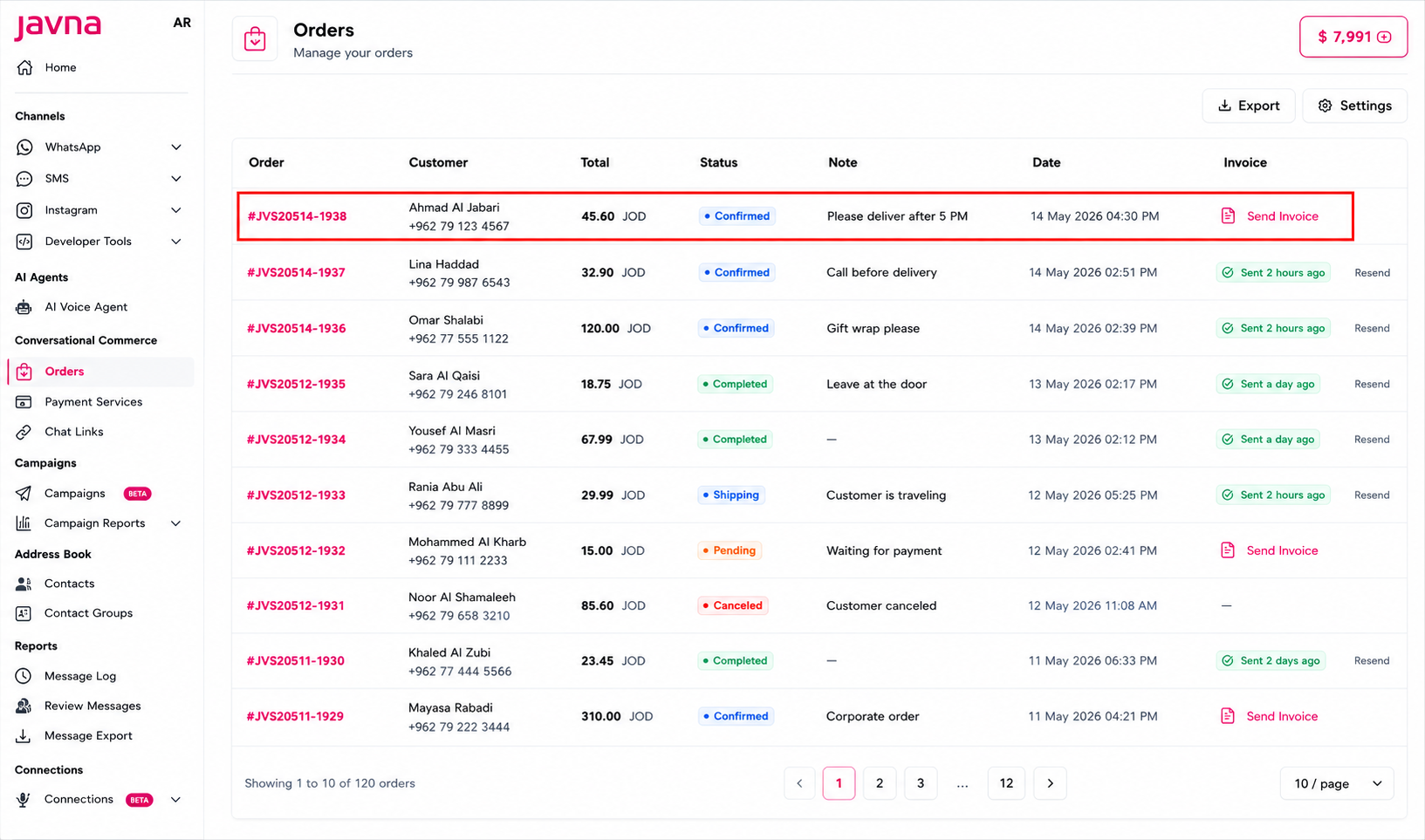
Clicking on the "Send Invoice" button
- The Send Invoice dialog will appear, displaying the selected order number for confirmation.
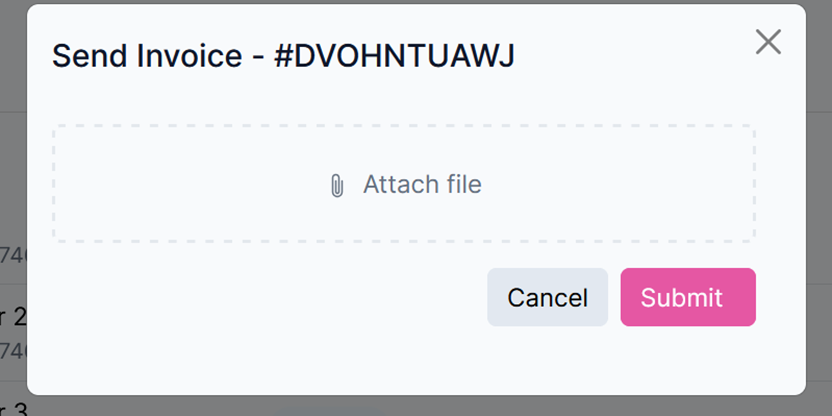
The send invoice dialog.
- Click Attach File and upload the invoice document.
- After selecting a file, the file name will be displayed for confirmation.
Validation Rules
| Scenario | Error Message |
|---|---|
| Unsupported file type | "Invalid file type. Please upload PDF files only." |
| File exceeds size limit | "File size must be less than 5MB." |
| No invoice template configured | "No invoice template found. Please set up an invoice template to send invoices." |
| No notification phone number | "No notification phone number found. Please set up a notification phone number to send invoices." |
- Click Submit to send the invoice.
After Sending
- A confirmation message is displayed: "Invoice sent successfully."
- The invoice status changes to Sent, including the latest send timestamp.
Updated 12 days ago