
How to Change Your Plan
To change your plan, follow these steps:
- Click on the “Change Plan” button at the top-right of the page.
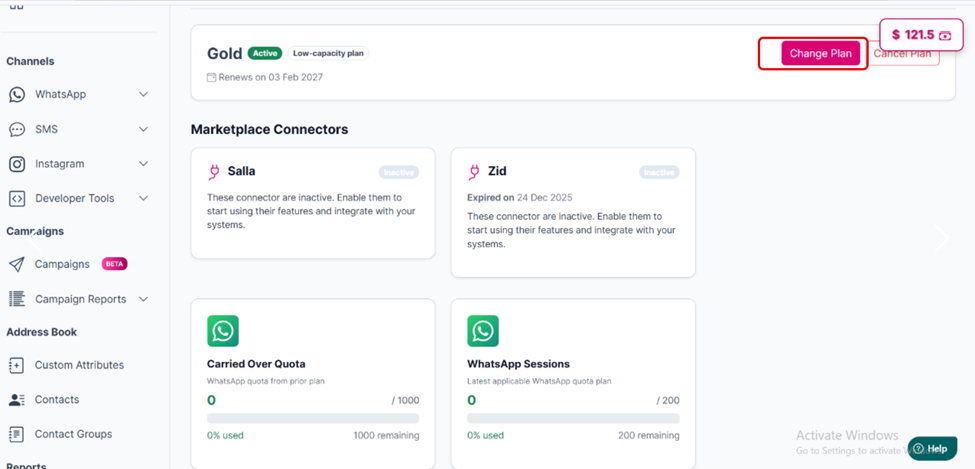
The "change plan" button
-
In the pop-up window:
- Upgrade: Move to a plan with higher quotas or more features. Upgraded plans are shown at the top for easy selection.
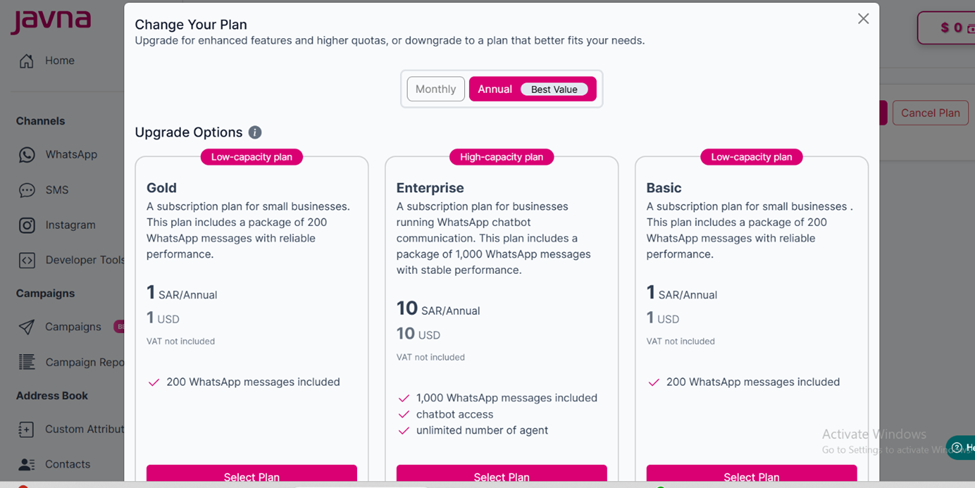
The "upgrade" options
-
If you upgrade your plan before your current subscription expires, and it includes a WhatsApp package:
Any remaining messages from your current subscription will be moved to the Carried Over Quota.
Messages from the new, upgraded plan will appear in WhatsApp Sessions.
Usage will be deducted from the old package first.
Once the old package is fully used or expired, deductions will start from the new package.
-
Downgrade: Move to a plan with lower quotas or fewer features.
Your current plan remains active until the end of the current billing cycle.
Example: If you purchased 100 messages and have already used 50, you can continue using the remaining 50 until the current cycle ends.
At the next billing cycle, the new (downgraded) plan price and quotas will apply instead of the old plan.
To downgrade your plan:
a. Click on the “Select Plan” button under the plan you want to downgrade to. A “Confirm Plan Downgrade” pop-up will appear.
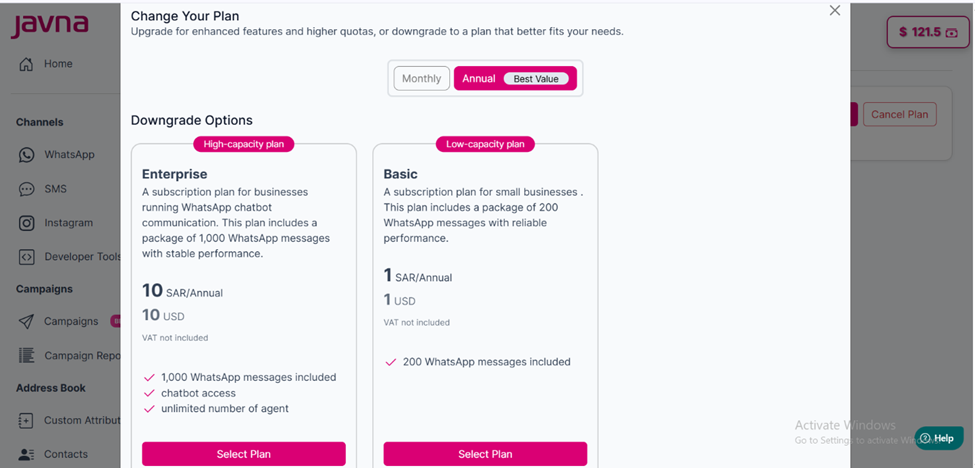
The "Downgrade" options
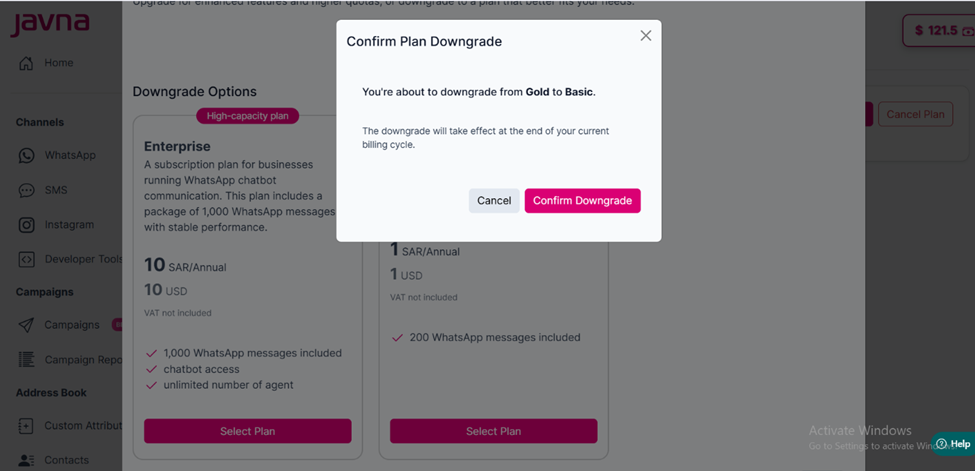
The "Confirm Plan Downgarde" pop up
b. Click on the “Confirm Downgrade” button, then a confirmation message will appear: “You have downgraded your plan successfully.”
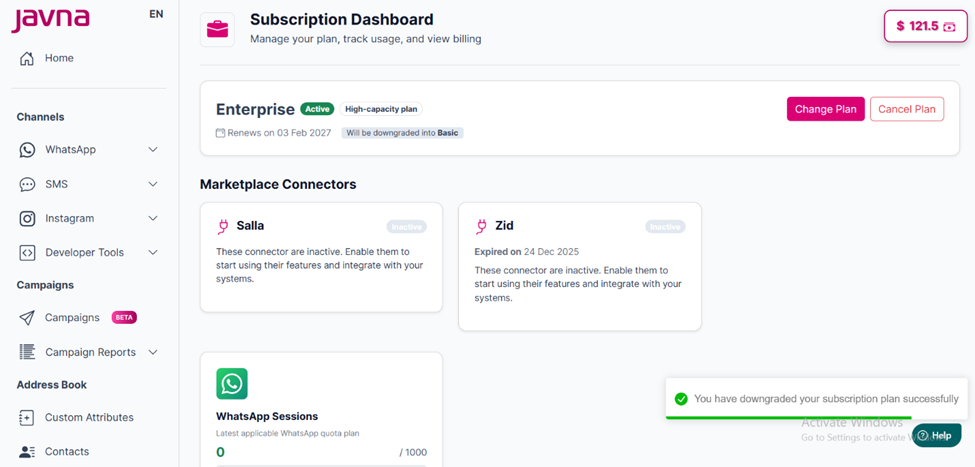
A confirmation message
- Custom Plan: Contact the sales team to create a plan tailored to your needs.
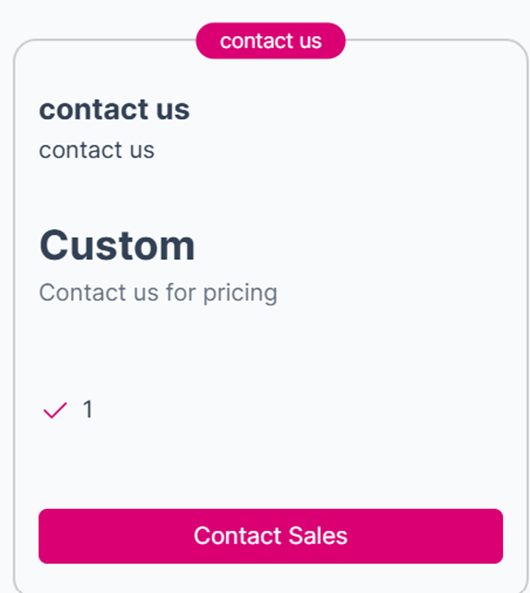
The "Contact us" card
Selecting the Contact Sales button opens a pop-up form that allows you to enter your details and submit a request to the sales team.
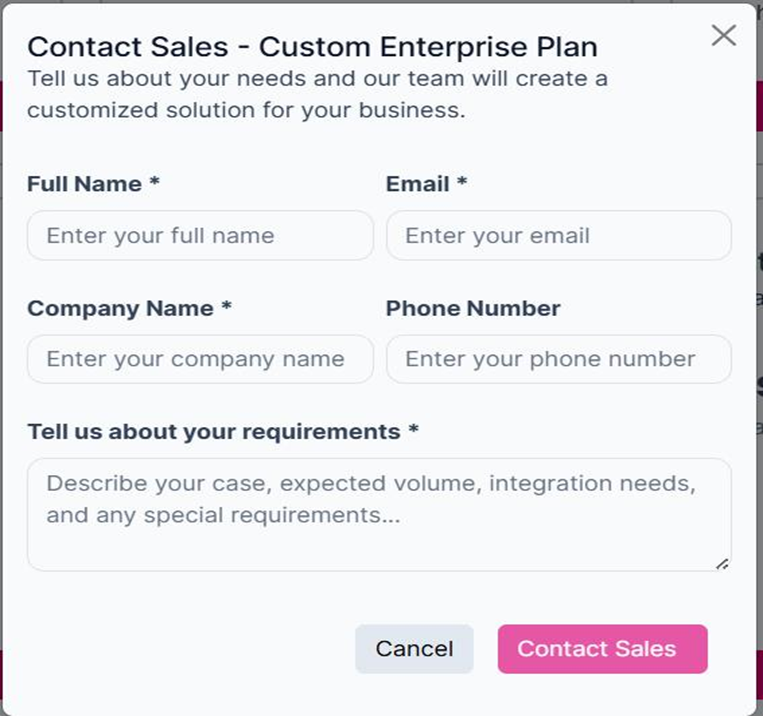
The contact sales pop-up
- Switch between monthly or yearly billing if needed.
- Click on the “Confirm” button to proceed. You will be redirected to the “Checkout” page.
- On the Checkout page:
o Review your Billing Overview (subtotal, VAT, total). o Enter your card information to complete the purchase.
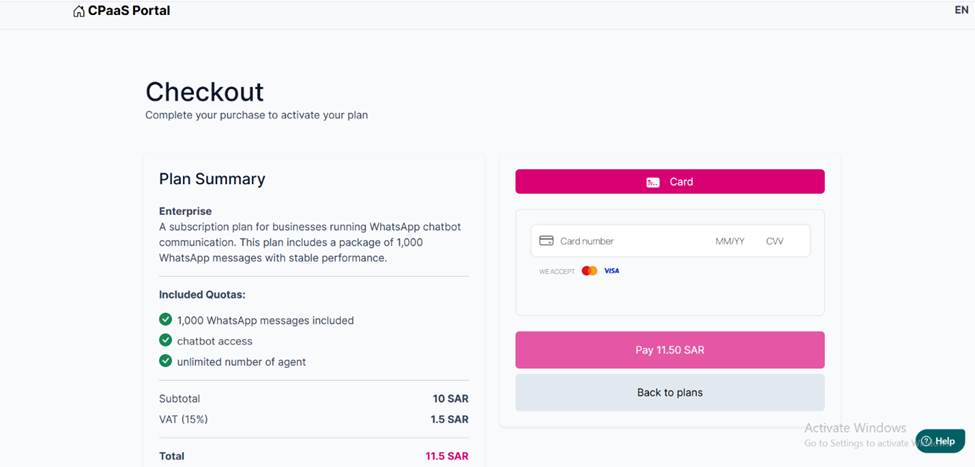
The Checkout page
- After payment: • Your plan is activated immediately. • A confirmation message appears on the screen indicating that the payment was completed successfully. • A confirmation email is sent to notify you of the change (upgrade, downgrade, renewal, or activation).
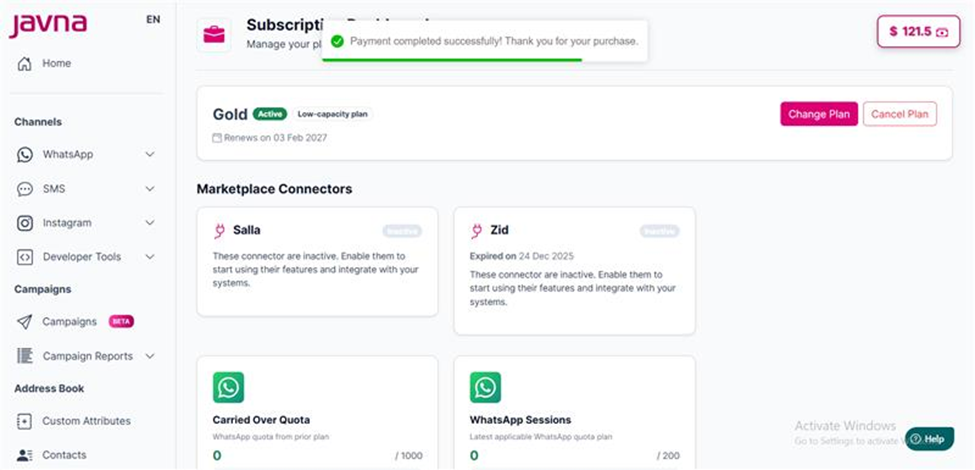
A confirmation message will appear indicating that your payment was completed successfully.
Notes • All users without a plan are assigned a Default Package and remain on it until they upgrade to a paid plan. • The plan is marked as Expired once the expiration date is reached. • Renewal: Two days before expiry • Deduction priority is as follows: package balance → credits → extra credits.
Updated 3 months ago