

Creating utility message template
Follow these steps to create utility message template:
- Navigate to the “new template message” page and choose the utility category. Refer to this section "Creating Message Template" .
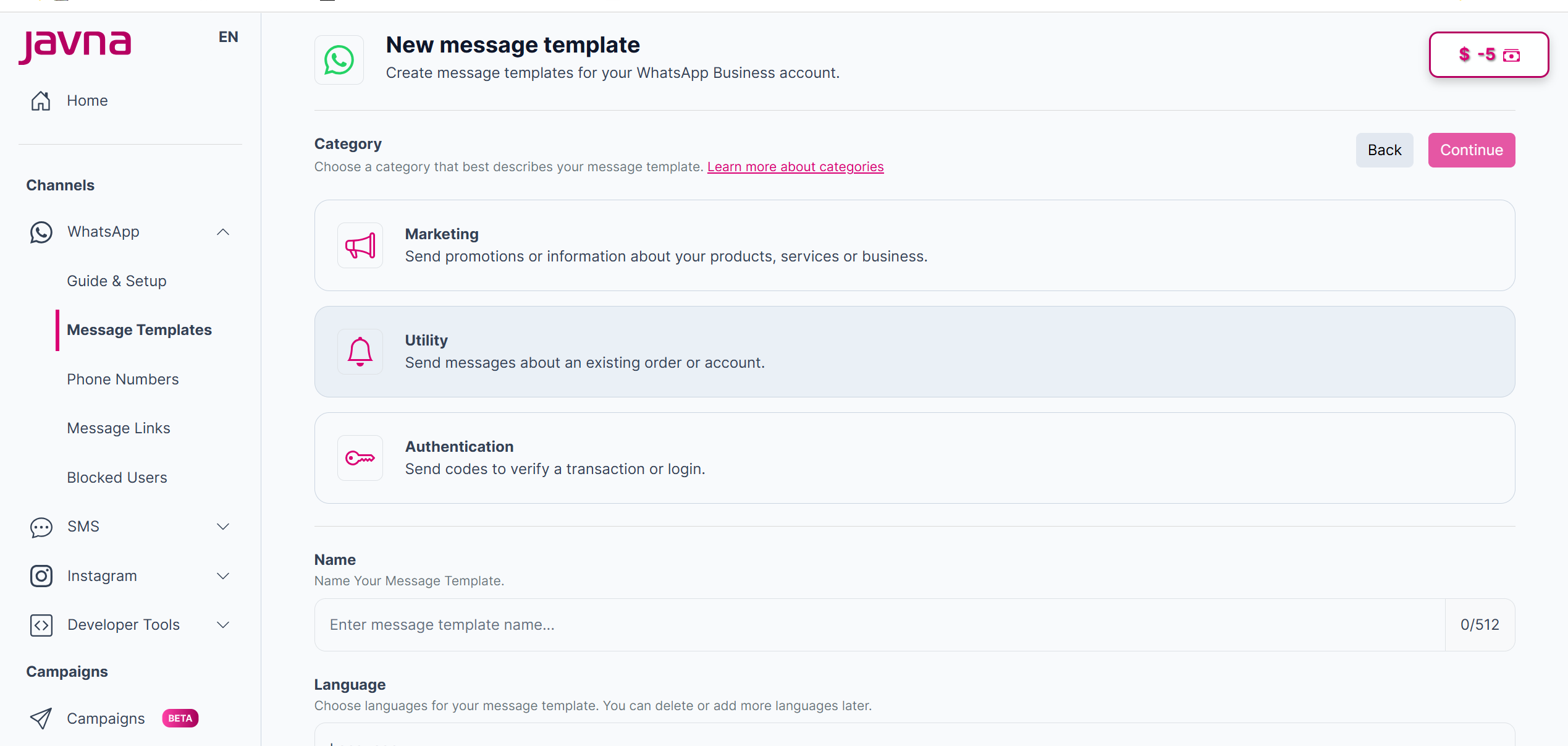
selecting the utility category
- You will be automatically redirected to the "Edit Template" page.
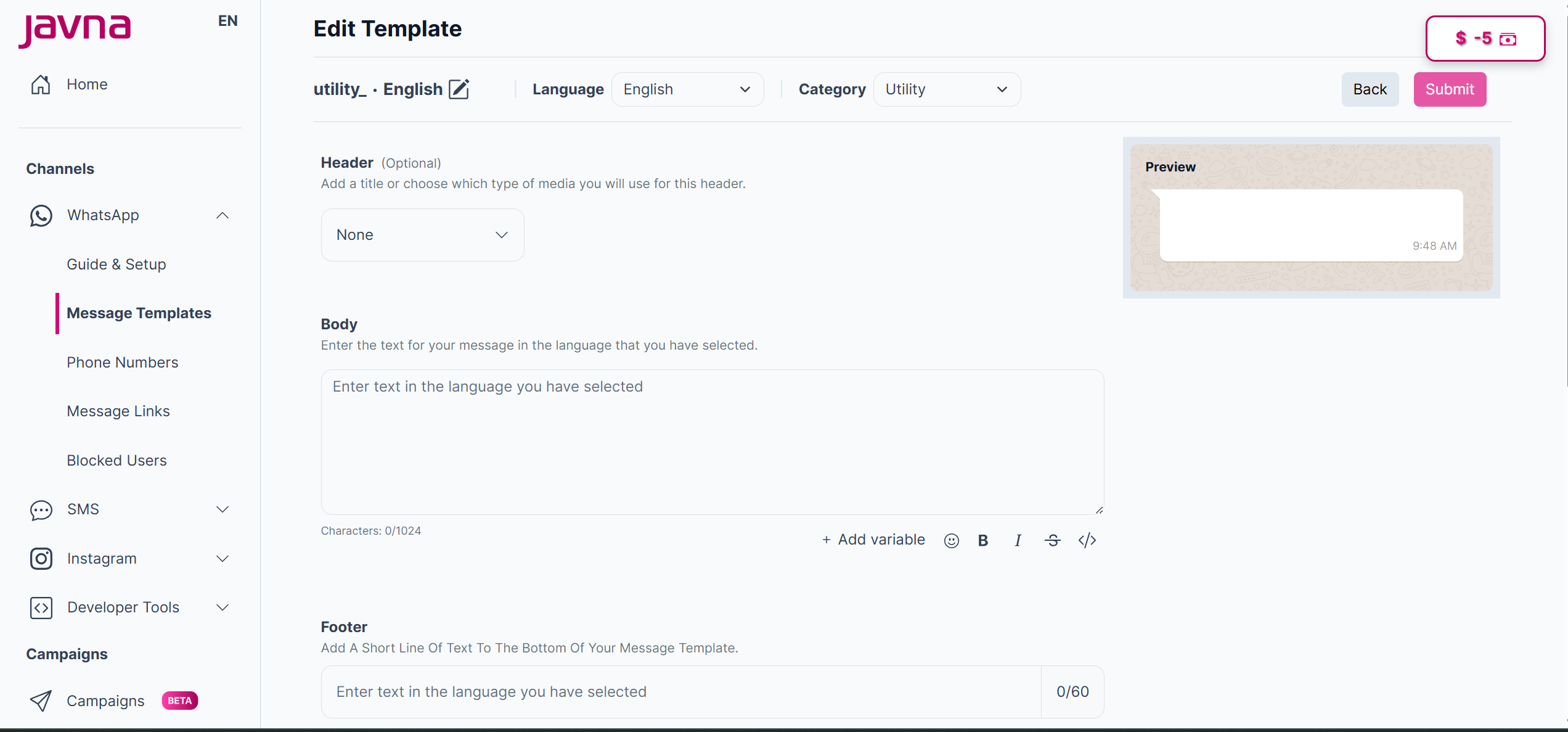
The "Edit Template" page
- Enter the body for your message template in the designated editor field. In the editor field, you will find some tools to help you format your message, as we previously mentioned in marketing template section.
- Add Optional Components:
A. The Header
Choose either text or media for the header.
I. Text: Enter up to 60 characters of text in the designated field. You can also add one variable only.
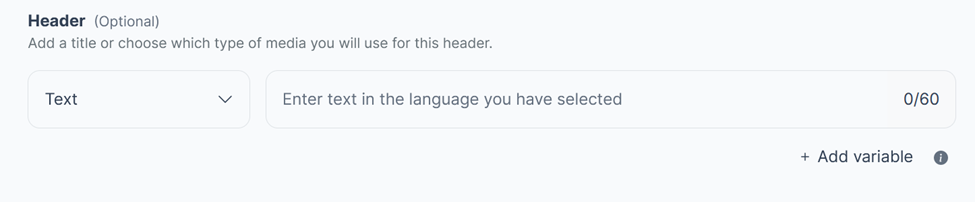
Choosing the text for the header.
II. Media: Choose from options such as:
- Image: Upload an image file.
- Video: Upload a video file in MP4 format.
- Location: Share a location.
- Document: Upload a PDF file.
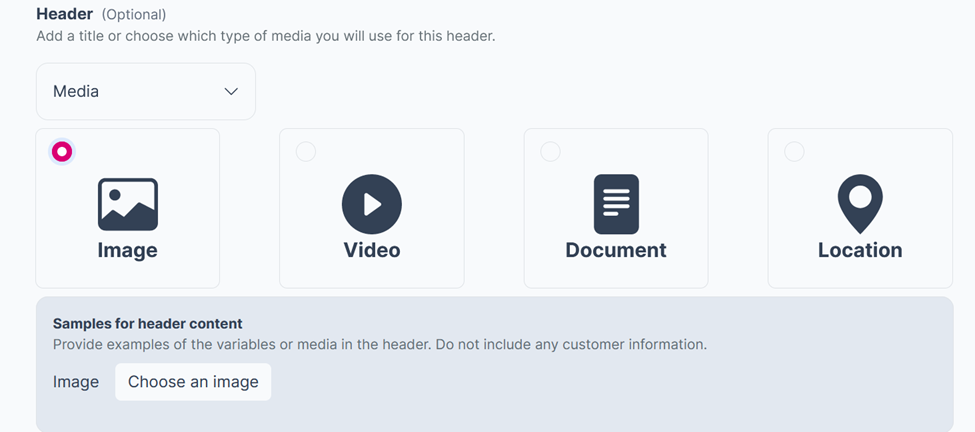
The media type in the header.
III. None: If you choose "None," no header will be included in the message.
B. The footer: You can include a brief line of text at the bottom of your message template. Please make sure that it’s no longer than 60 characters.
Please make sure that it’s no longer than 60 characters.

The footer.
C. Buttons: Design interactive buttons for customers to respond to your message or take action. There are two types of buttons:
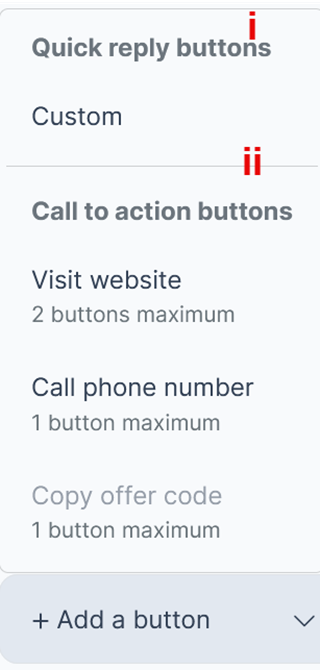
The buttons.
i. Quick Reply Buttons: are preset response options in messaging interfaces, allowing customers to respond without typing. It includes:
- "Custom" option. The "Custom" option allows up to 10 buttons, with customizable text (up to 25 characters).
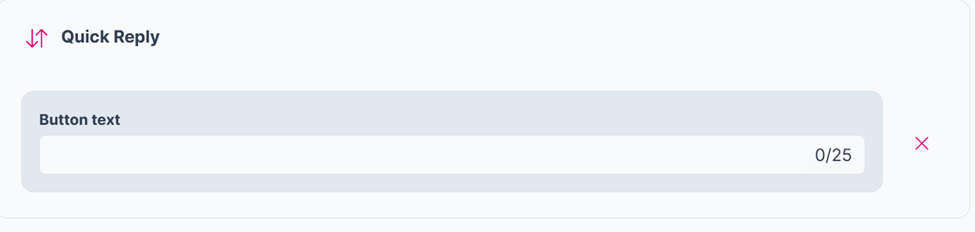
Quick Reply (Custom) button.
ii. Call to Action Buttons: Includes options such as
- Visit website: it allows a maximum of 2 buttons with customizable text (up to 25 characters), URL type (static or dynamic), and URL.
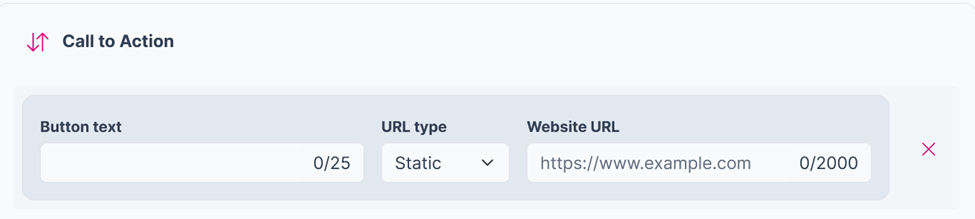
The call to action (visit website) button.
- Call Phone Number: permits a maximum of 1 button with customizable text (up to 25 characters) and phone number.
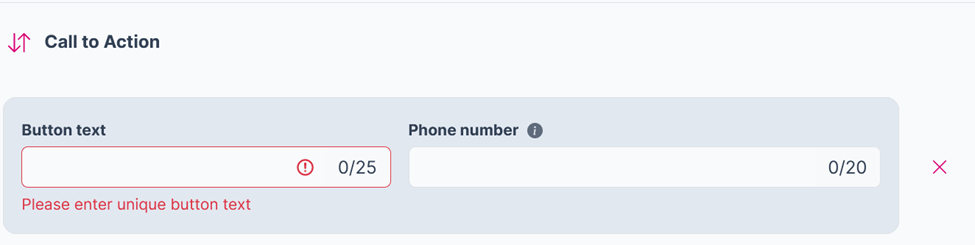
The call to action (Call phone number) button.
- Once all fields are filled correctly, click on the “submit” button. This action will:
a. Send the template to Meta for verification.
b. Add the template to the templates list with an "In review" status.
Updated 7 months ago