

Deleting message template
To delete a message template, follow these steps:
- Open the template by clicking on the record related to it on the message template list.
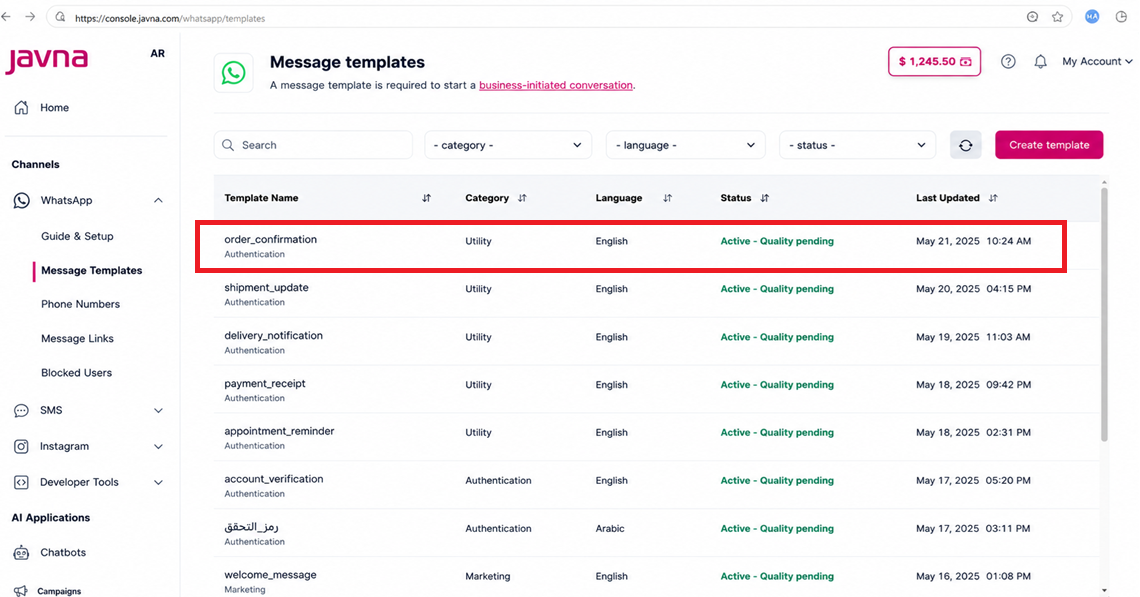
Clicking on the "Template" you want to delete
- Click on the "Delete" button within the edit mode.
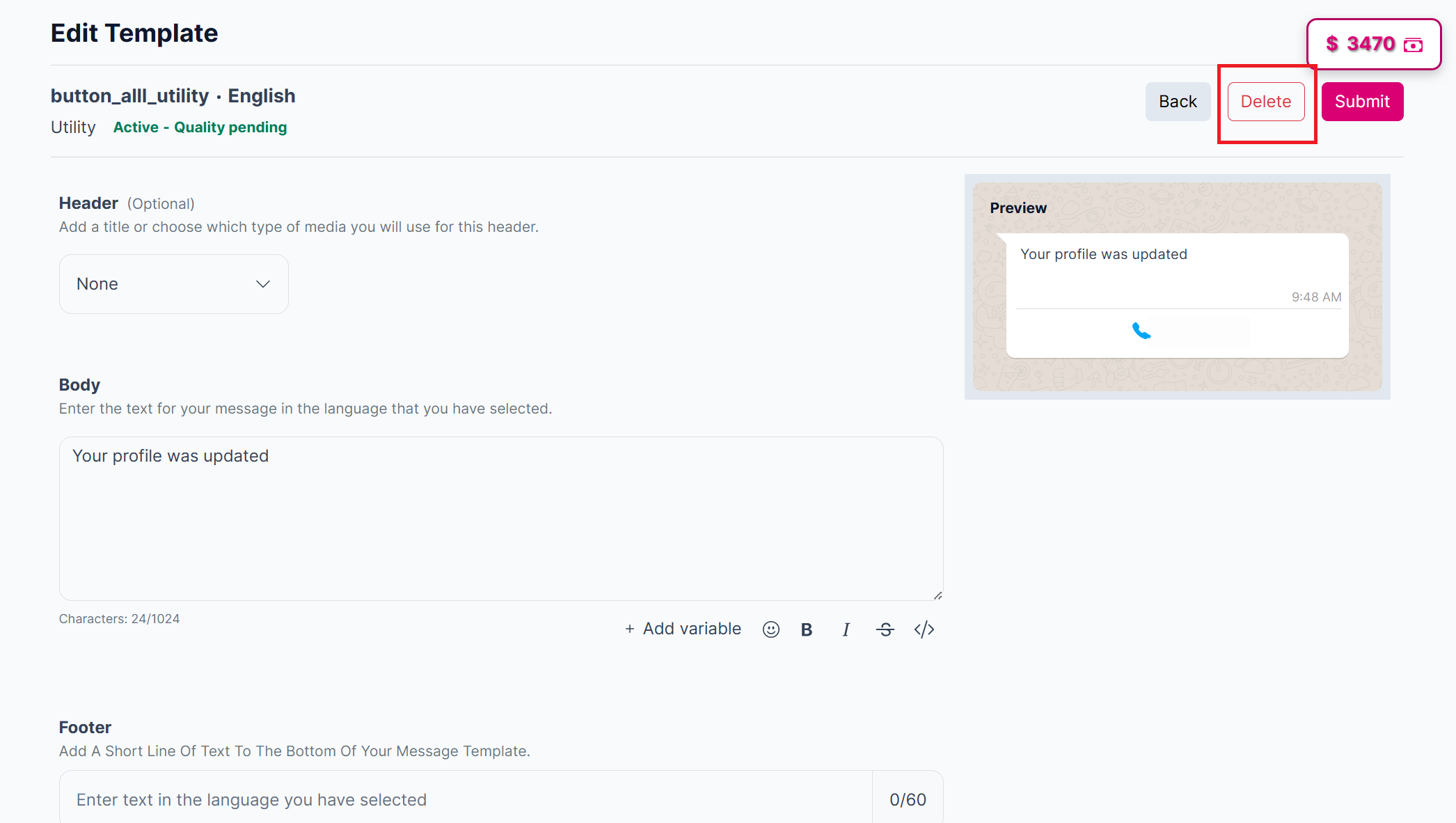
The Delete button
- Clicking the "Delete" button triggers a deletion confirmation popup with the following components:
- A question: "Are you sure that you want to delete this message template?"
- An informative message explaining the consequences of deletion.
- Buttons for "Delete" and "Cancel”.
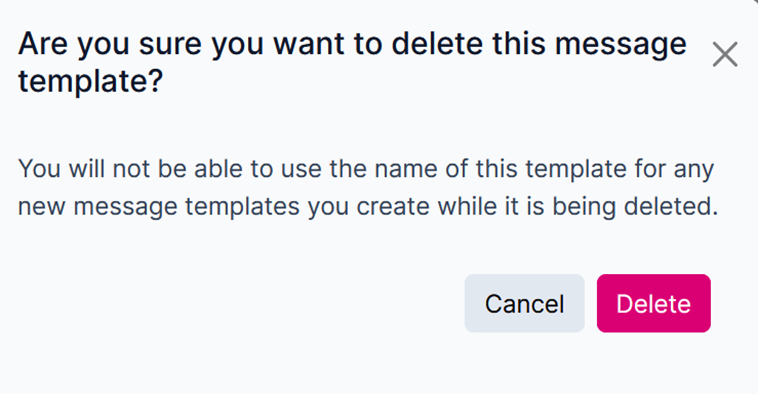
The Deletion confirmation pop up
- Click on the "Delete" button to permanently delete the template.
- Upon successful deletion, a popup will display the message "Your Template was Deleted" and you will be automatically redirected to the templates list page after deletion.
The name of the deleted template cannot be reused for 30 days.Messages sent using the deleted template will attempt delivery for 30 days. After this period, any undelivered messages will result in a "Structure Unavailable" error receipt.
Updated 3 months ago
Did this page help you?