

Editing Custom Attributes
To edit custom attributes, follow these steps:
- Navigate to the "Custom Attributes" page. Refer to this section Navigating to the "Custom Attribute" page.
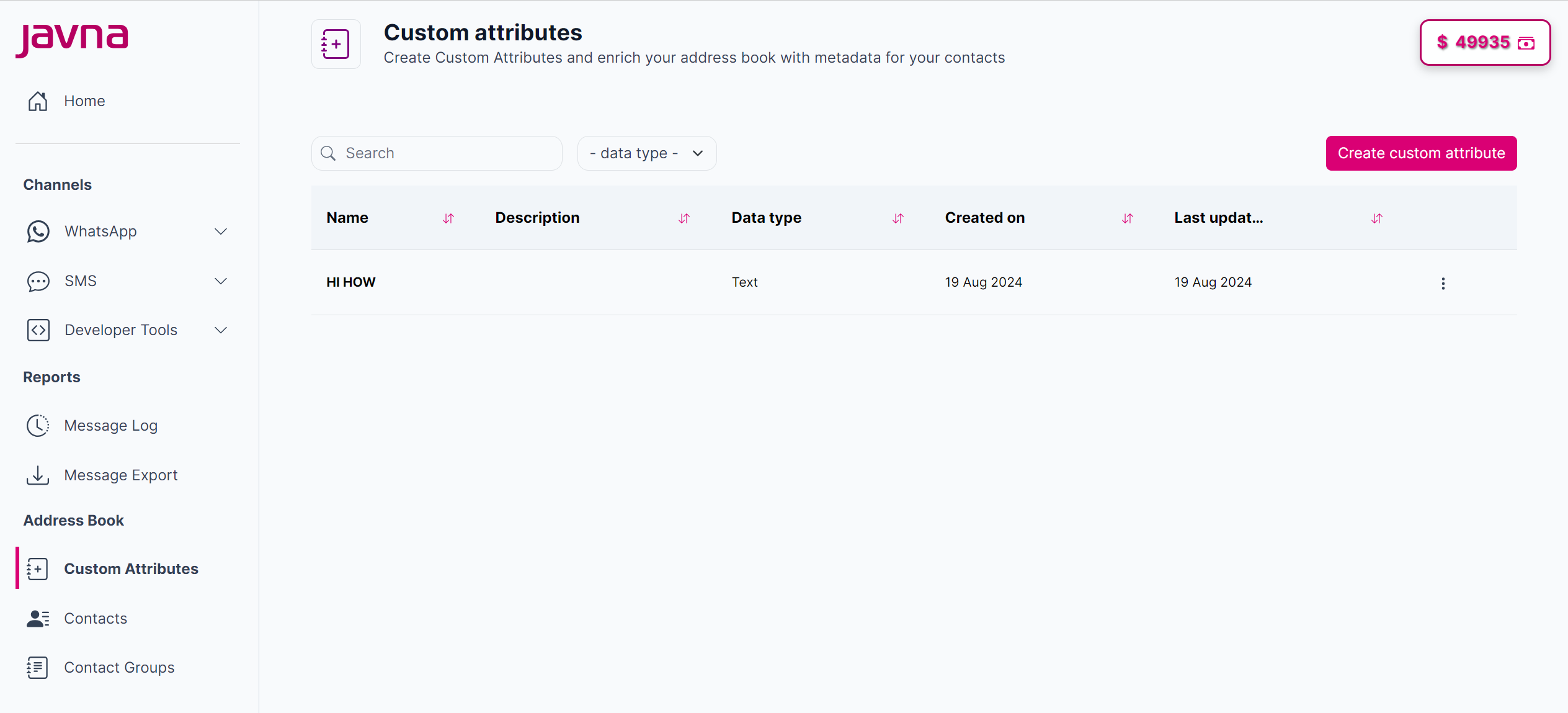
The "Custom attributes" page
- Click the options menu button next to the custom attribute you wish to edit, then select "Edit".
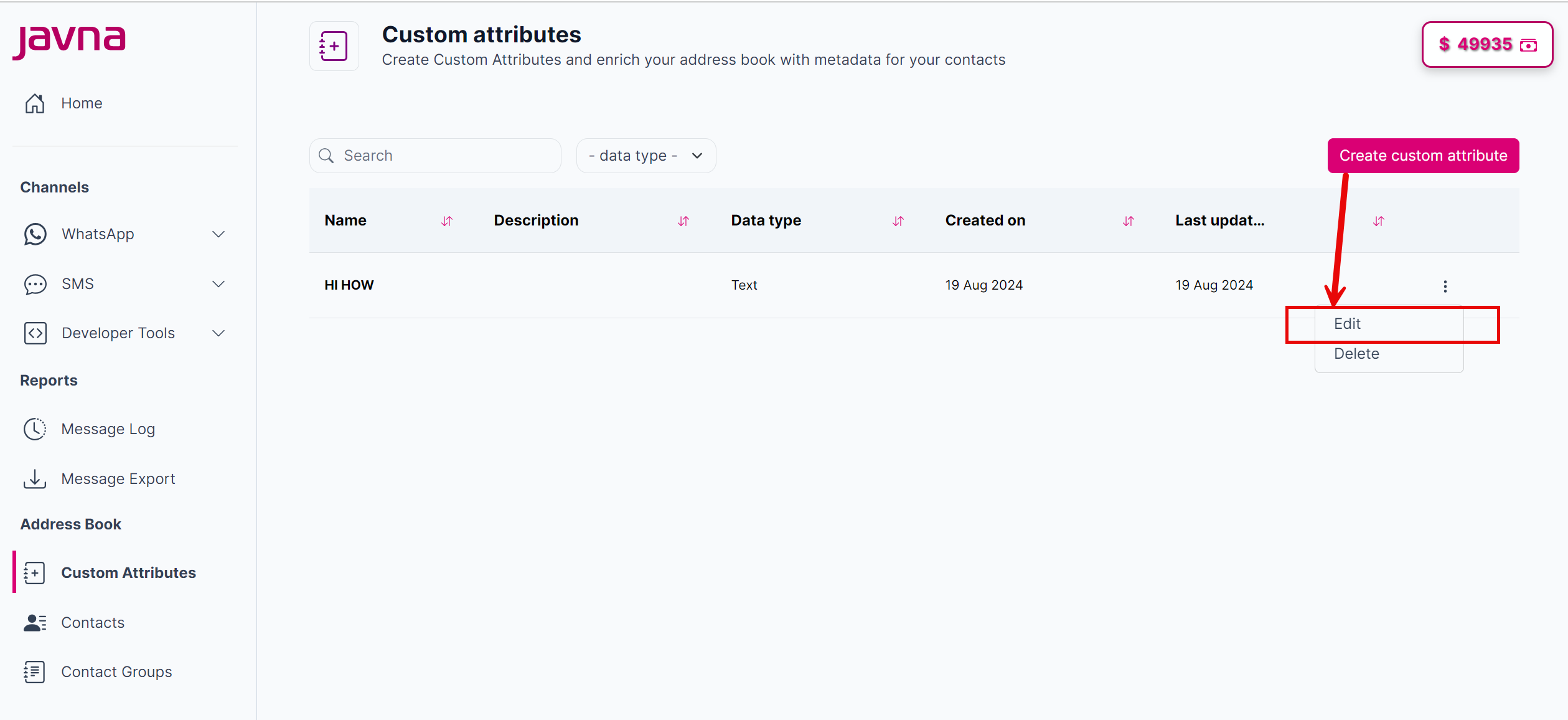
Selecting the edit button.
- After clicking "Edit," a pop-up window will appear, allowing you to modify the custom attribute's name, description, and data type.
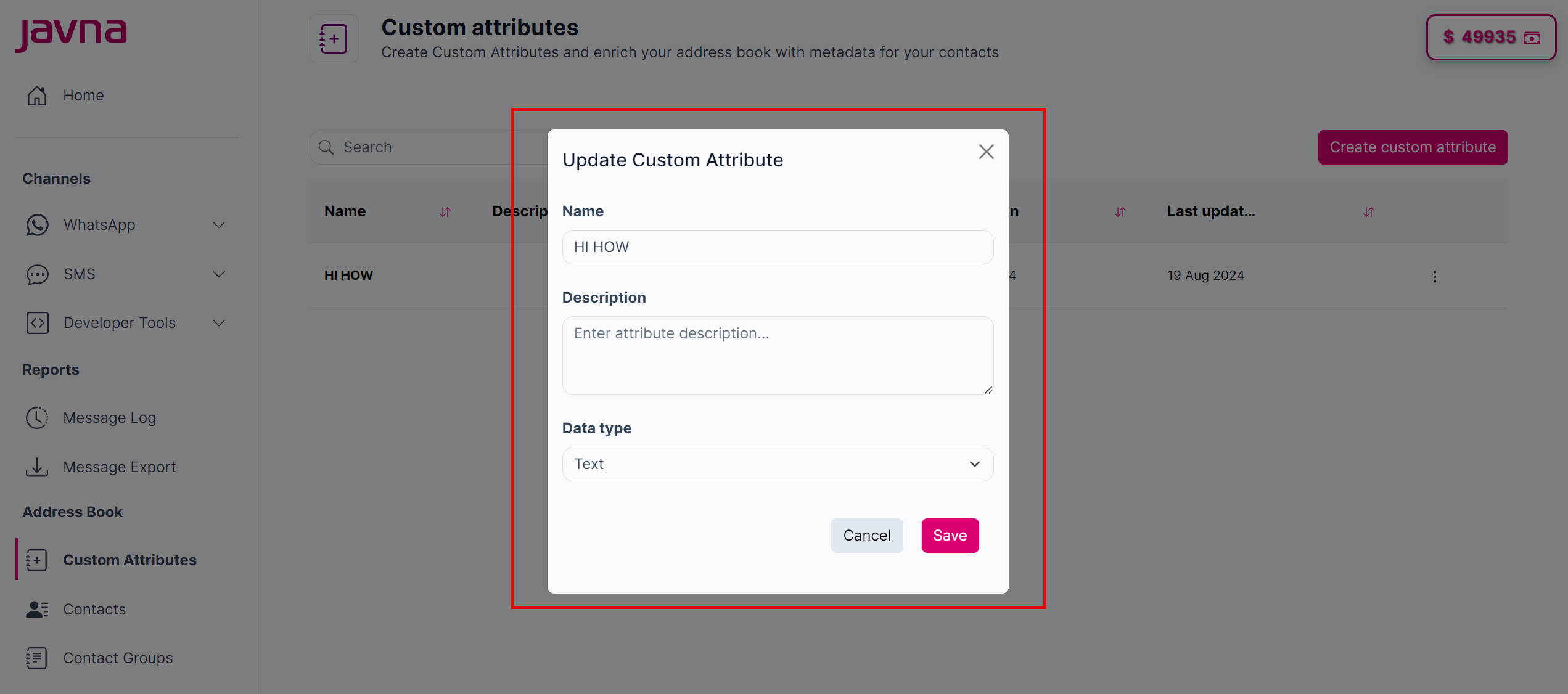
The "Update Custom Attribute" pop up.
- Once you've made your changes, click on the "Save" button to apply them, then the custom attribute will be updated, and a confirmation message will be appearing, or you can click on the "Cancel" button to discard any changes.

The custom attribute updated successfully
Updated 7 months ago
Did this page help you?