

Types of Interactive Messages
Interactive messages are a WhatsApp feature that offers enhanced functionality for messages. Interactive messages give your users a simpler way to find and select what they want from your business on WhatsApp. Types of interactive messages:
- List Messages: Messages including a menu of up to 10 options. This type of message offers a simpler and more consistent way for users to make a selection when interacting with a business.
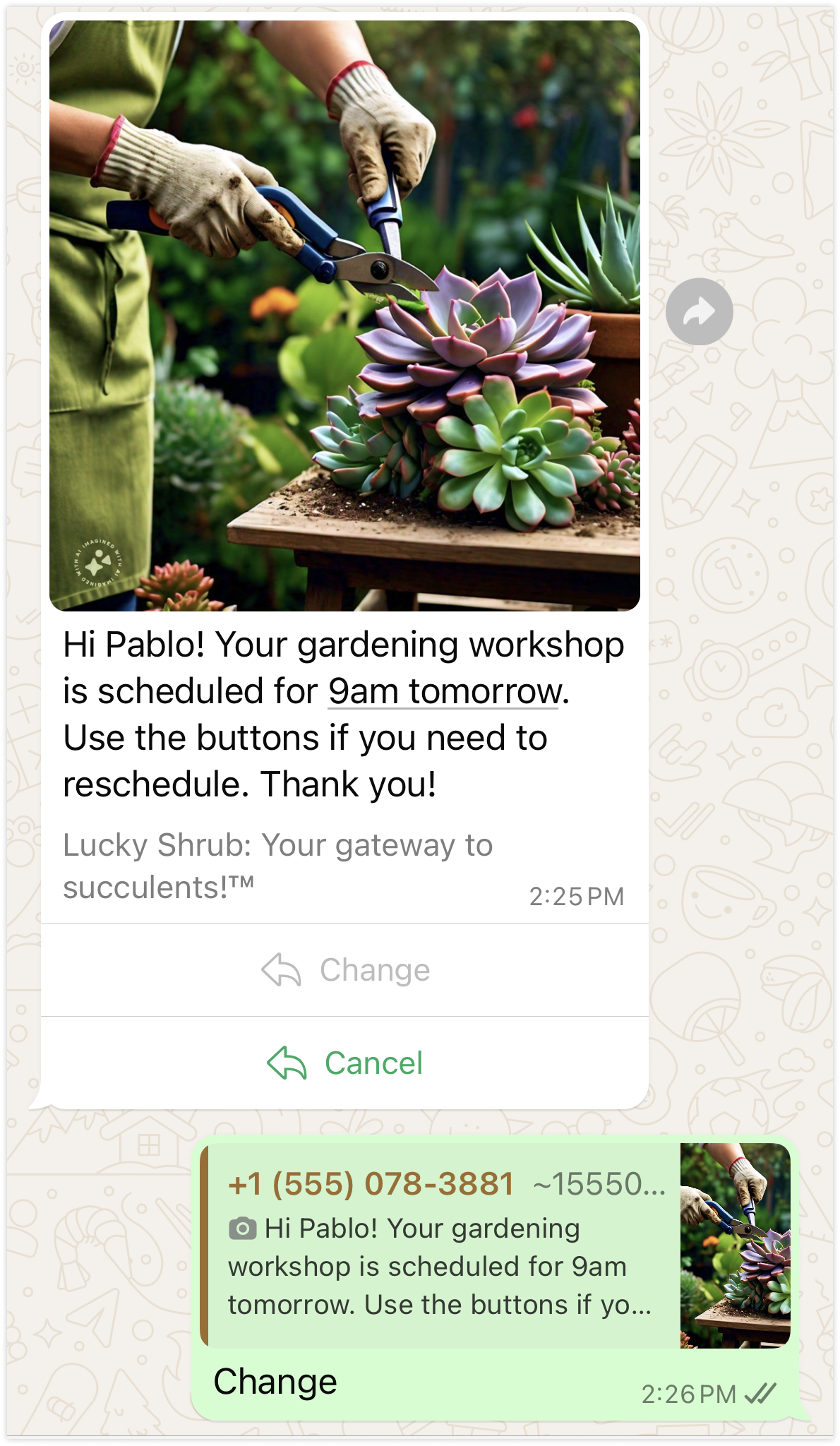
- Reply Button Messages: Messages including up to 3 options —each option is a button. This type of message offers a quicker way for users to make a selection from a menu when interacting with a business. Reply buttons have the same user experience as interactive templates with buttons.
- Location Request Messages: Location request messages display body text and a send location button. When a WhatsApp user taps the button, a location sharing screen appears which the user can then use to share their location.
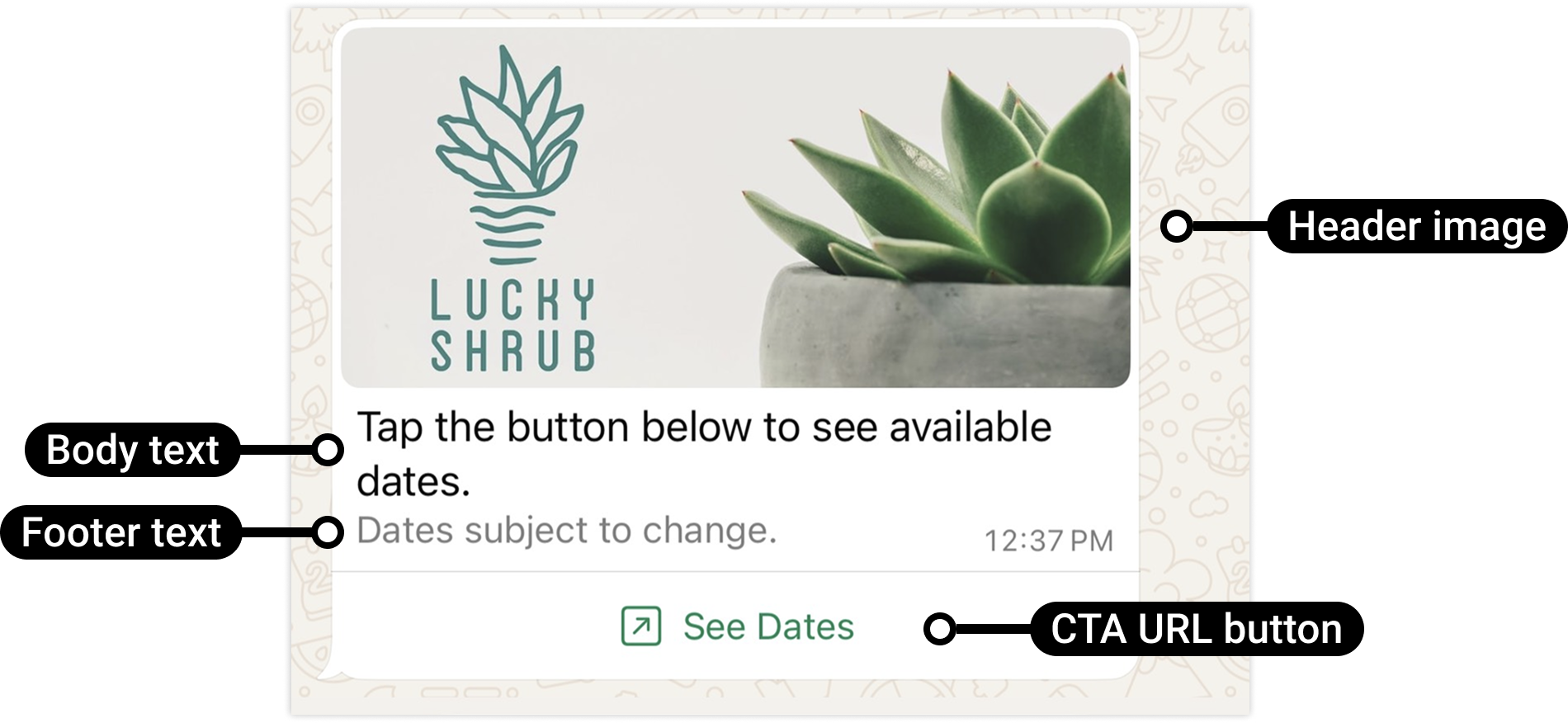
- Interactive Call-to-Action URL Button Messages: CTA URL button messages allow you to map any URL to a button so you don't have to include the raw URL in the message body.
- Product Share Messages: Messages used to display products from your business catalog inside WhatsApp.
These include:- Catalog Messages: Catalog messages are messages that allow you to showcase your product catalog entirely within WhatsApp.
- Single-Product Messages: Messages showcasing a single product from your business inventory.
- Multi-Product Messages: Messages featuring a selection of up to 30 items from your business inventory.
- Flows Messages: Messages for structured, guided interactions. These messages are ideal for multi-step processes like bookings, surveys, or browsing products.
You can also schedule sending these interactive messages to a later time.
Interactive list messages
Interactive list messages enable WhatsApp users to select from a predefined set of choices, which are provided as rows within the request payload.
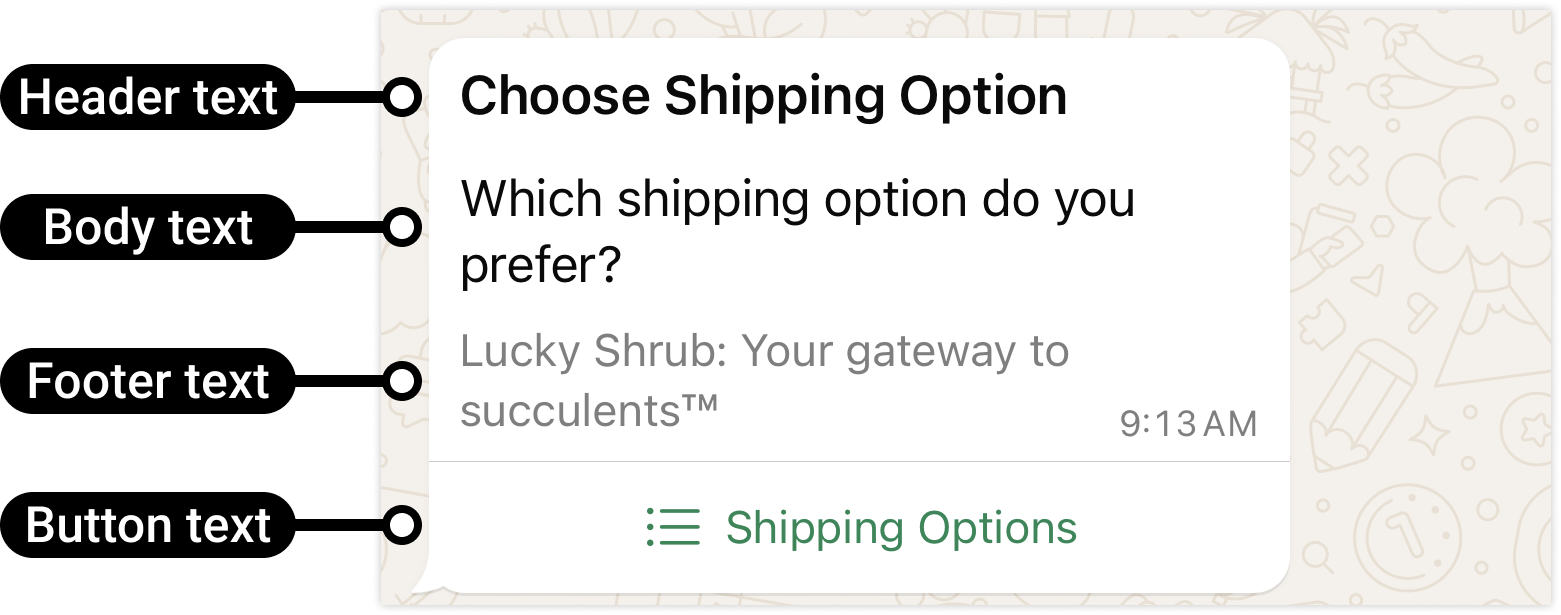
These messages can include up to 10 sections, with a maximum of 10 rows across all sections, and may optionally contain a header and a footer. The options themselves are defined as rows in the request payload.
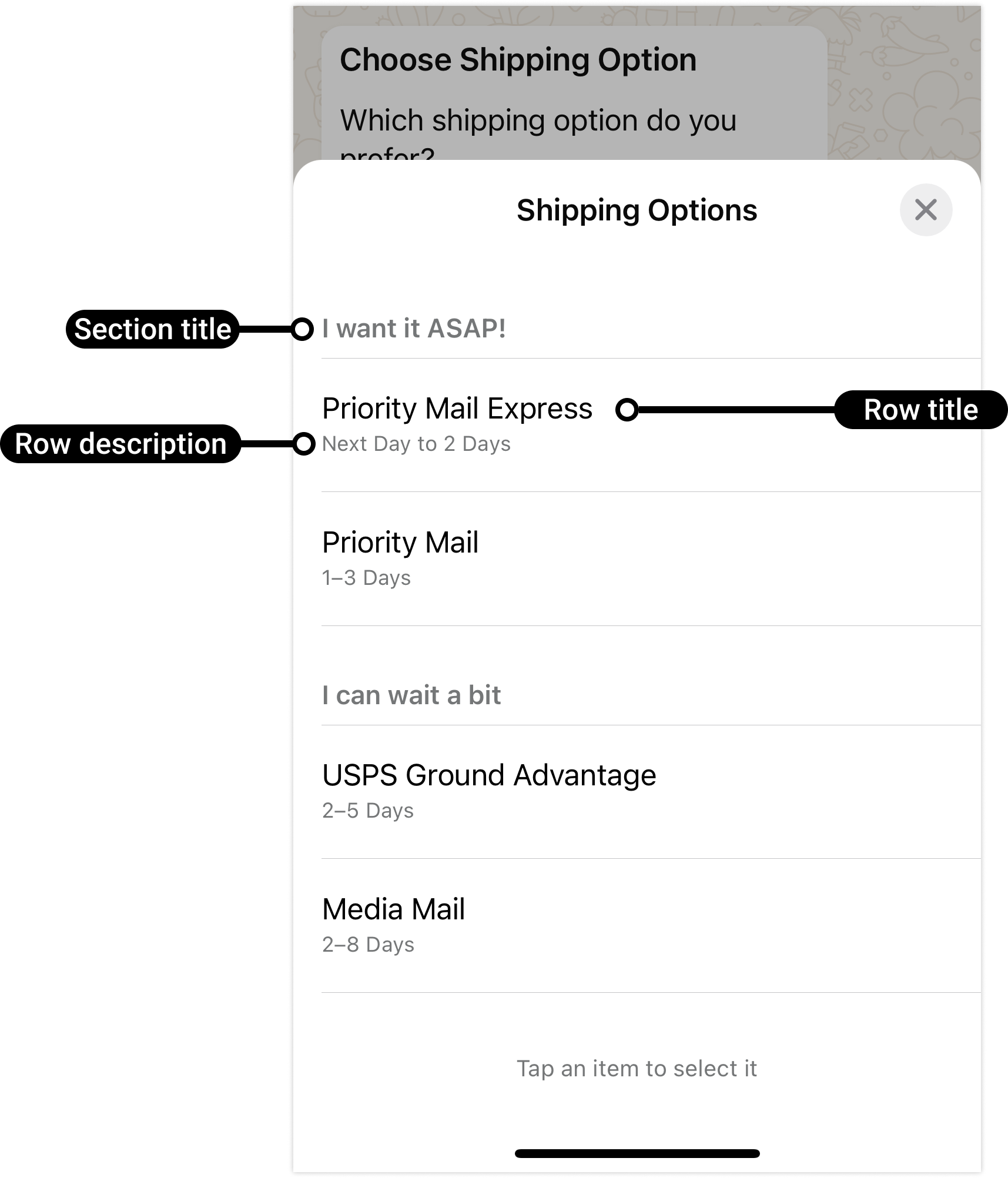
When the recipient taps the message button, a modal view opens displaying the available options:
The user can select a single option, and that choice is returned as a reply:
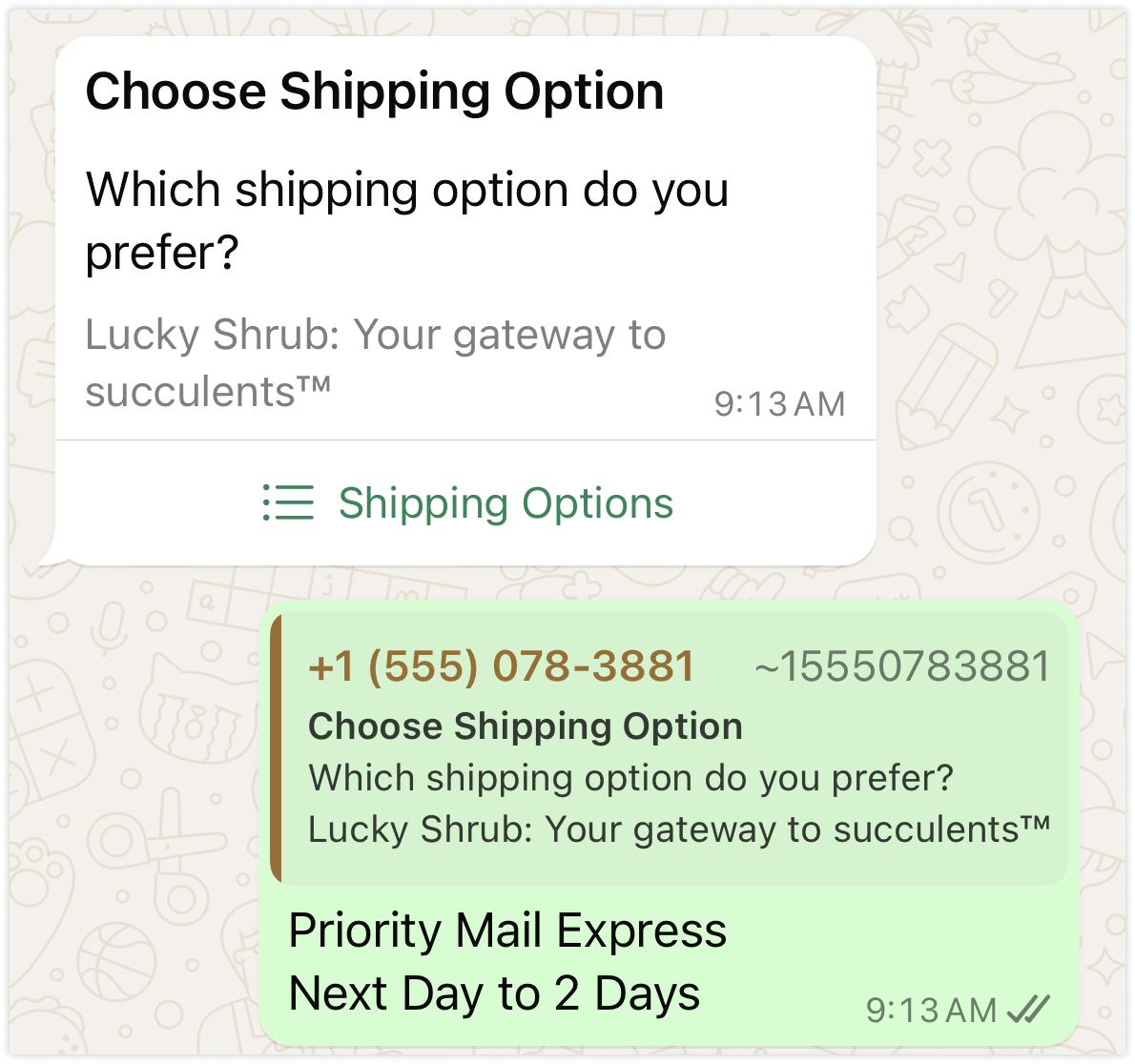
After the selection is submitted, a webhook event is triggered, enabling your system to identify which option was chosen.
Interactive reply buttons messages
Interactive reply buttons messages allow you to send up to three predefined replies for users to choose from.
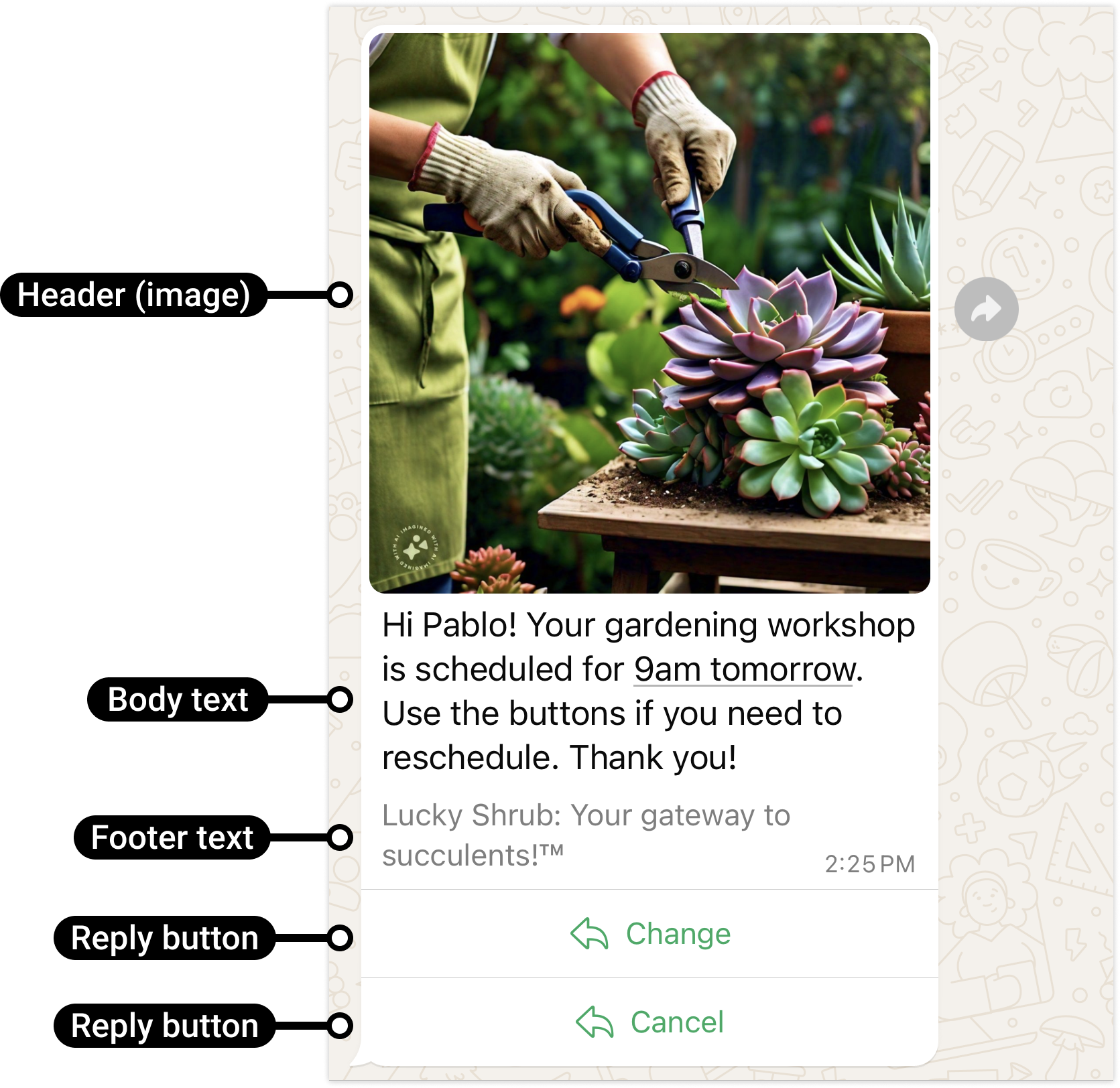
Users can respond to a message by selecting one of the predefined buttons, which triggers a messages webhook describing their selection.
Location request messages
Location request messages display body text and a send location button. When a WhatsApp user taps the button, a location sharing screen appears which the user can then use to share their location.
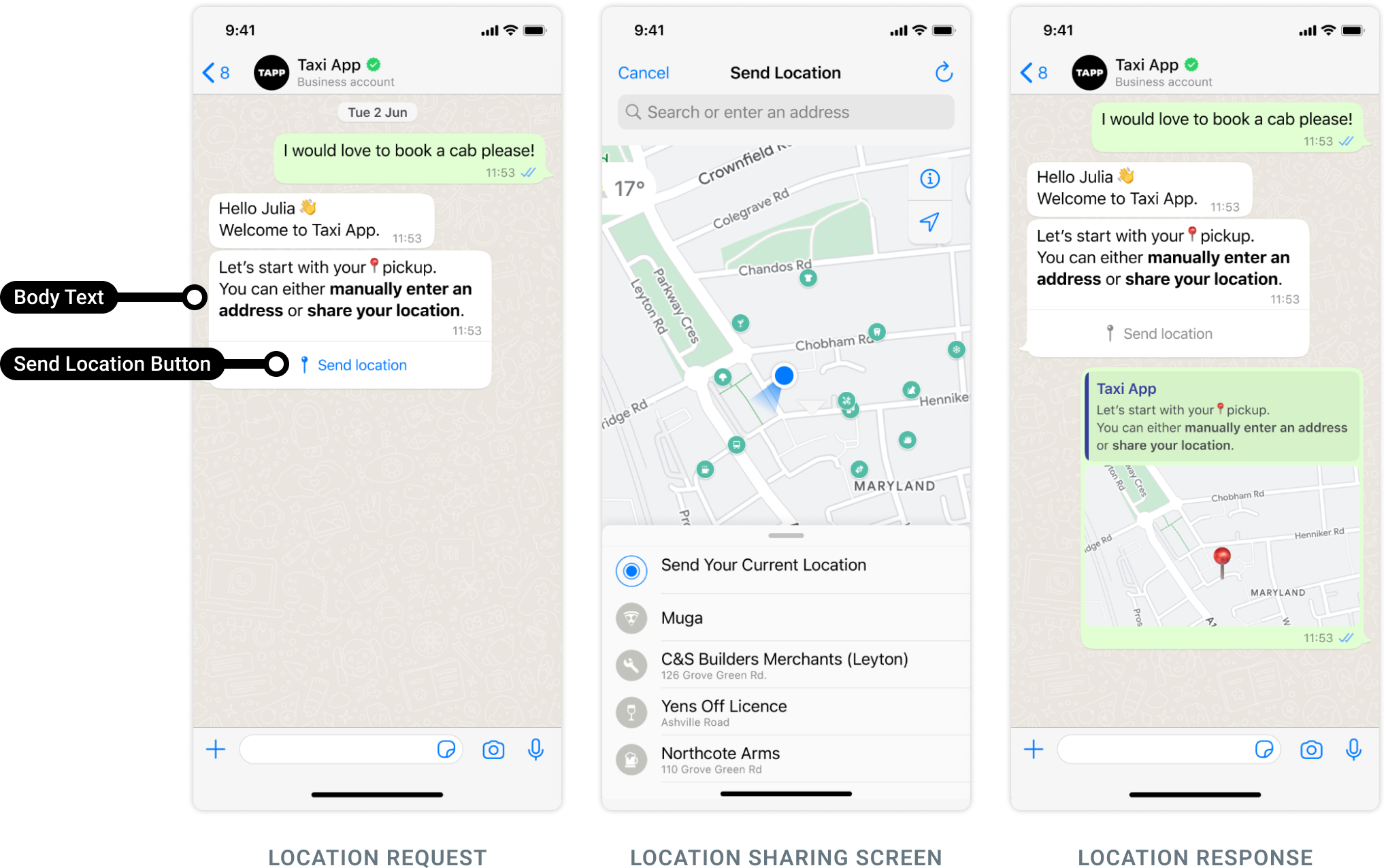
Once the user shares their location, a messages webhook is triggered, containing the user’s location details.
Interactive Call-to-Action URL Button Messages
WhatsApp users may be hesitant to tap raw URLs containing lengthy or obscure strings in text messages. In these situations, you may wish to send an interactive call-to-action (CTA) URL button message instead. CTA URL button messages allow you to map any URL to a button so you don’t have to include the raw URL in the message body.
Product Share Messages
Product Share Messages allow businesses to present products directly inside a WhatsApp conversation using data from a connected Meta Catalog. These message types enable customers to browse items, view details, ask questions, and add products to their cart — all without leaving the chat.
To use any Product Share Message type (Catalog, Single-Product, or Multi-Product), your WhatsApp Business Account must be connected to a Meta Catalog via Meta Commerce Manager.
Catalog Data Used in All Product Share Messages
Your connected catalog provides essential product details, including:
- Product name and ID
- Price and description
- Product images and inventory details
- Category and availability status
A connected catalog is required to:
- Send Catalog Messages (full catalog view)
- Send Single-Product Messages (single product card)
- Send Multi-Product Messages (sectioned product list)
Catalog Messages
Catalog Messages allow you to display your entire product catalog within WhatsApp. These messages include:
- A product thumbnail header image
- Body text
- A fixed text header and sub-header
- A View Catalog button that opens an in-chat browsing experience.
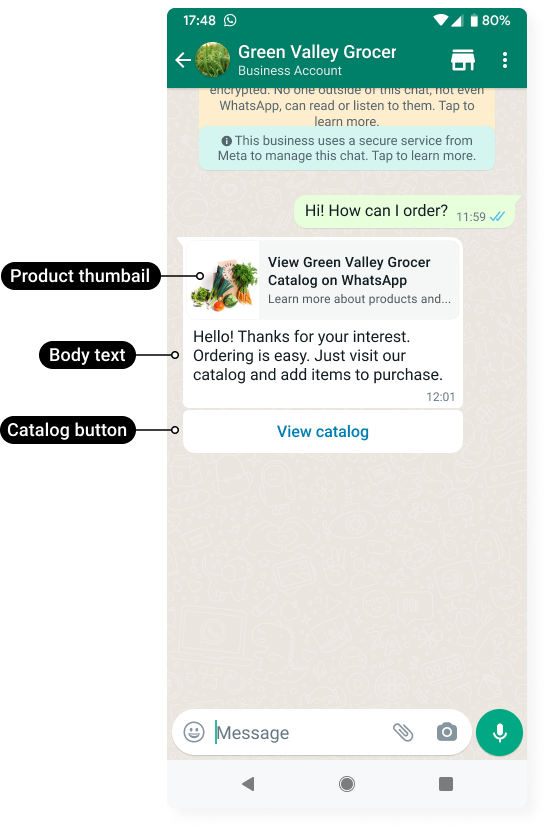
Customers can explore all available products directly in the conversation.
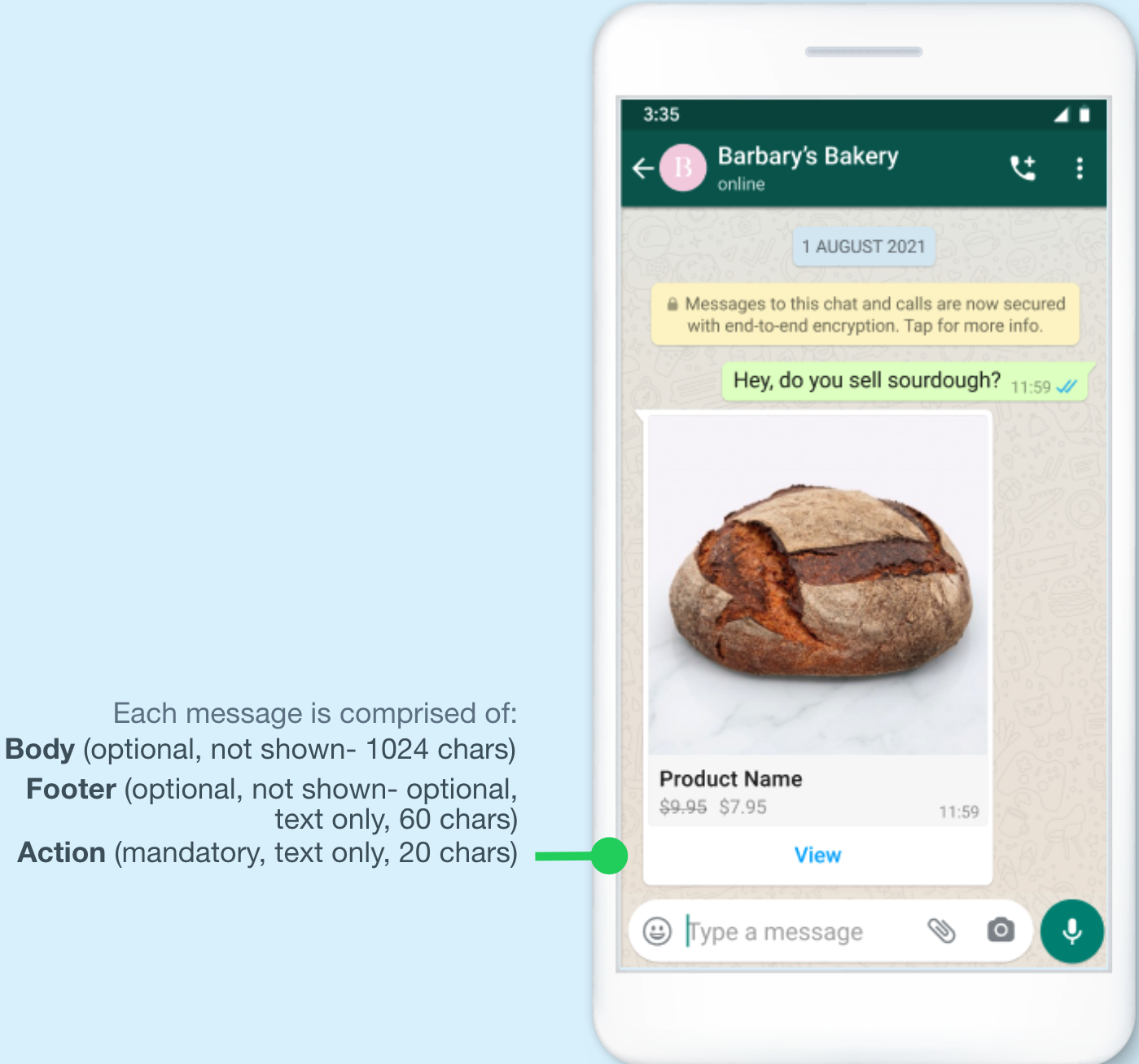
Single-Product Messages
Single-Product Messages highlight one specific item from your Meta Catalog and let customers view its details or take quick actions—such as making a purchase or reordering.
These messages are ideal for:
- Responding to a customer’s specific request
- Sending a personalized product recommendation
- Allowing customers to reorder a previously purchased item
Multi-Product Messages
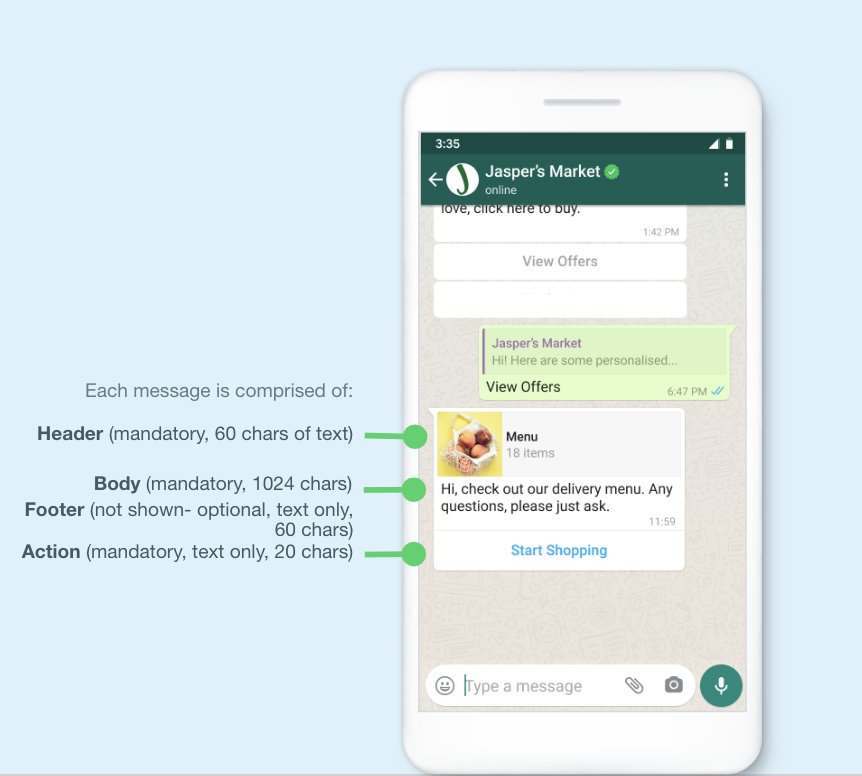
Multi-Product Messages enable businesses to showcase up to 30 products from their connected Meta Catalog within a single WhatsApp conversation.
Customers can:
- Browse a curated list of products
- Ask questions
- Add products to their cart
- Submit their cart — all from within the chat
These messages are ideal for featured collections, recommendations, and promotional sets.
Interactive Flow Messages
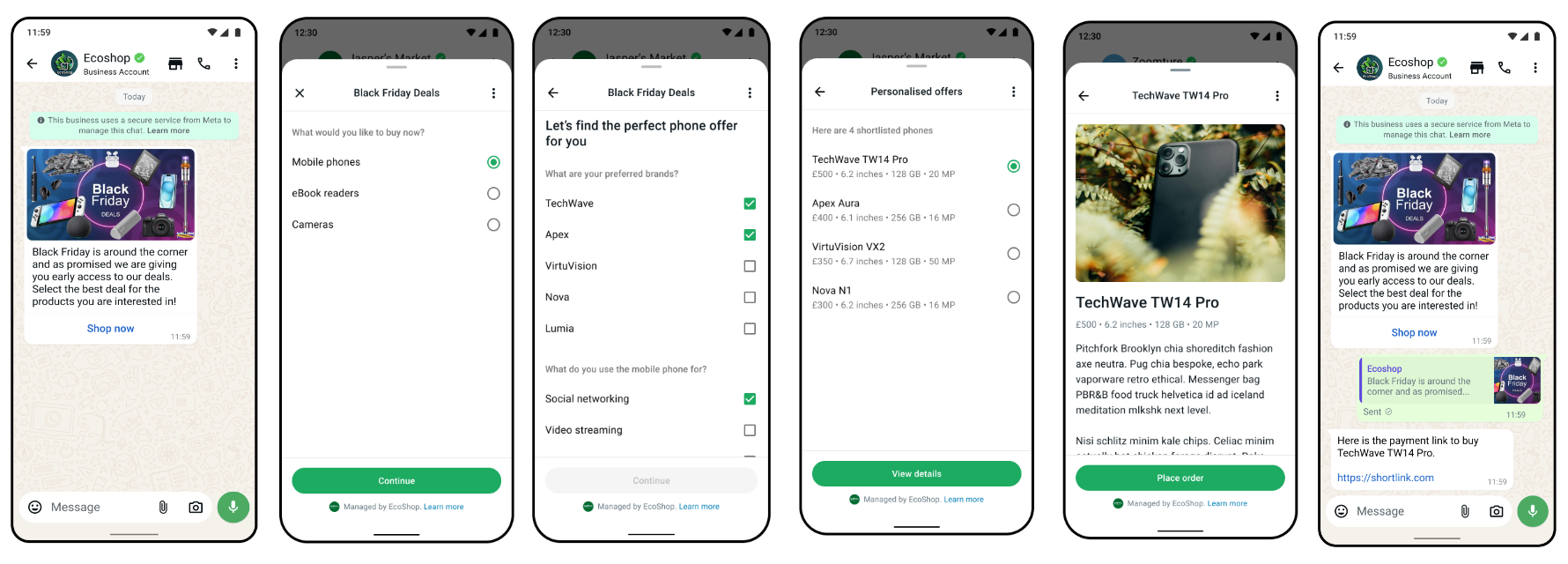
Interactive Flow Messages, also known as WhatsApp Flows, enable businesses to create rich, structured, and guided interactions directly within WhatsApp, allowing customers to complete tasks without leaving the chat. With Flows, businesses can define, configure, and customize interactive messages that provide a more natural and intuitive communication experience, especially for scenarios where structured interactions are preferred. These flows can span one or multiple screens and are ideal for use cases such as:
- Booking appointments
- Browsing products
- Collecting customer feedback
- Capturing new sales leads
Once a Flow is created, it can be sent within a user-initiated conversation through a message containing a Call To Action (CTA) button, which triggers the Flow when tapped.
Prerequisites:
- Your business must be verified
- You must maintain a high message quality rating
Interactive Messages Specifications
- Interactive messages can be combined together in the same flow.
- Users cannot select more than one option at the same time from a list or button message, but they can go back and re-open a previous message.
- List or reply button messages cannot be used as notifications. Currently, they can only be sent within 24 hours of the last message sent by the user. If you try to send a message outside the 24-hour window, you get an error message.
- Supported platforms: iOS, Android, and web (Flows messages are not supported on web).
- Interactive Messages do not require templates or pre-approvals.
Further Information
- Interactive list messages
- Interactive reply buttons messages
- Location request messages
- Interactive Call-to-Action URL Button Messages
- Share products with WhatsApp users
- Upload Inventory to Meta
- Connect a Catalog to Your WhatsApp Business Account
- WhatsApp Flows